Page 04 explains what a BW query is and lists its building blocks. This page goes one level deeper – how you actually design a query in the BEx Query Designer (BW 7.x) and in the BW Modeling Tools (Eclipse, BW 7.5 and BW/4HANA): filters and default values, global and local restricted and calculated key figures, constant selection, structures, formulas and the cell editor, variables and their processing types, conditions and exceptions, and the query properties that control performance. It then covers the rest of the Business Explorer (BEx) suite you still meet in BW 7.5 landscapes – BEx Analyzer, the BEx Web Application Designer, Information Broadcasting and the Report-Report Interface (RRI) – with their current maintenance status, transport rules and successors. Basics (query areas, variable types, hierarchies, authorizations) stay on page 04; the ABAP of variable exits on page 05 Part 6.
Part 1 – The BEx suite today: tools, runtimes and status
Business Explorer (BEx) is the name of BW's own front-end suite from BW 3.x to BW 7.5. All its tools work on the same BW query definition, which the analytic manager (OLAP processor) executes (page 04 Part 1). What changed over time is the tooling around the query – and that matters for the status of each tool.
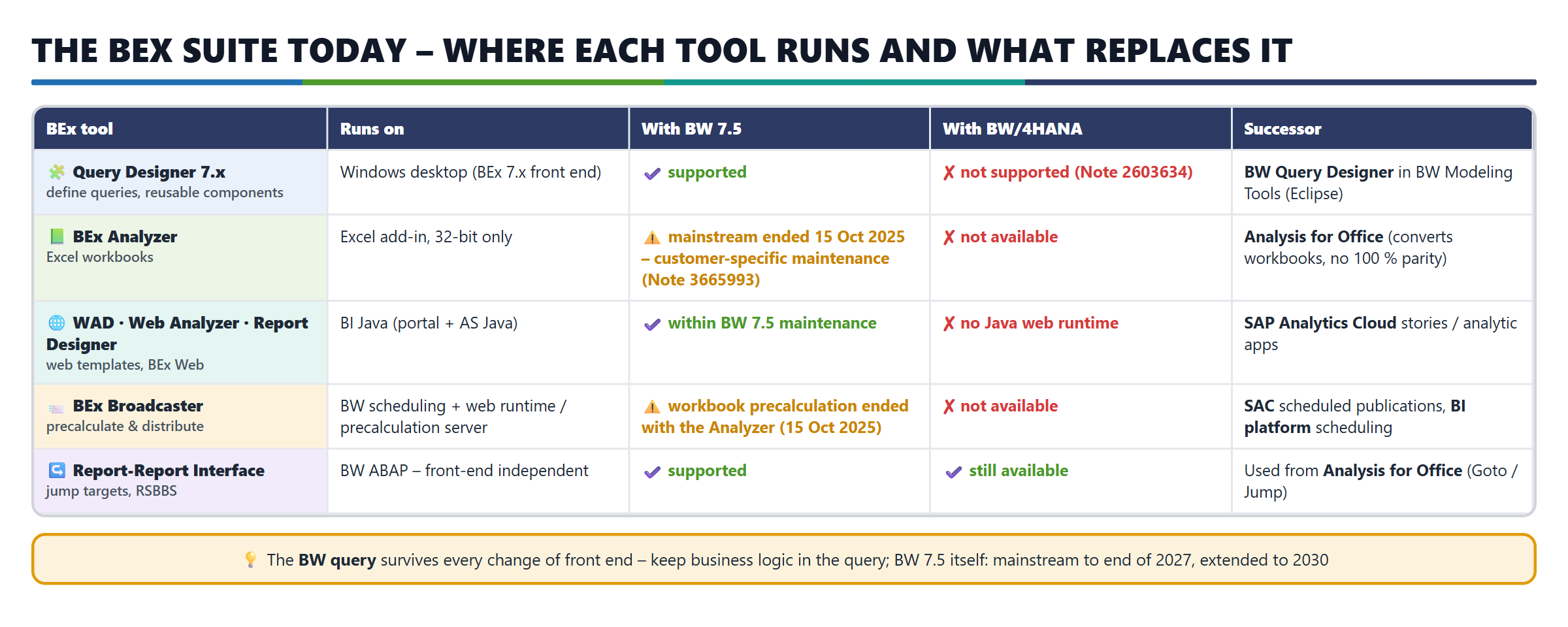
BEx tool | What it does | Runs on | Status (as of November 2026) |
|---|---|---|---|
BEx Query Designer 7.x | Desktop tool to define queries and reusable components | Windows PC, installed with the BEx 7.x front end for SAP GUI | Supported with BW 7.5; not supported with BW/4HANA (SAP Note 2603634) – successor: query designer in the BW Modeling Tools |
BEx Analyzer 7.x | Excel add-in: analyse queries in workbooks, design workbook layouts | Microsoft Excel (32-bit add-in) | End of mainstream maintenance on 15 Oct 2025, now customer-specific maintenance (SAP Note 3665993); not in BW/4HANA – successor Analysis for Office |
BEx Web Application Designer (WAD), BEx Web Analyzer, BEx Report Designer | Web templates, ad-hoc web analysis, formatted reports | BW 7.x web runtime on BI Java (SAP NetWeaver AS Java + portal) | Part of BW 7.5 only; not available in BW/4HANA – successor SAP Analytics Cloud |
BEx Broadcaster (Information Broadcasting) | Precalculate and distribute queries, web templates and workbooks | BW ABAP scheduling; documents rendered by the web runtime or the precalculation server | BW 7.5 only; workbook precalculation shares the 15 Oct 2025 date of the BEx Analyzer (SAP Note 3665993); not in BW/4HANA |
Report-Report Interface (RRI, RSBBS) | Jump from one query to another target | BW ABAP (front-end independent) | Still available in BW/4HANA – used from Analysis for Office |
- Why the Analyzer went first: BEx Analyzer is a 32-bit (x86) Excel add-in and does not work with 64-bit Microsoft Office (KBA 2456450); SAP tied its end of mainstream maintenance to the end of Microsoft's support for Office 2016 / 2019 in October 2025.
- BEx in the EarlyWatch Alert: systems that still execute BEx Analyzer or workbook queries get a red EWA alert (KBA 3646640). Usage can be found in the BW statistics table
RSDDSTAT_OLAP(KBA 3694910) – the first step of every BEx retirement project. - SAP GUI: the BEx 7.x tools are a separate front-end component; recent SAP GUI for Windows releases no longer contain them in the default installation package – check the SAP GUI release notes before a front-end upgrade in a BW 7.5 landscape.
- BW 7.5 itself leaves mainstream maintenance at the end of 2027 (extended maintenance to 2030, as BW PCE in SAP Business Data Cloud to 2030 / optionally 2033 without BI Java) – page 06 and SAP Business Data Cloud › 05. Every BEx tool therefore has a fixed horizon; new reports are built in Analysis for Office or SAC.
Part 2 – Two query designers: BEx Query Designer and BW Modeling Tools
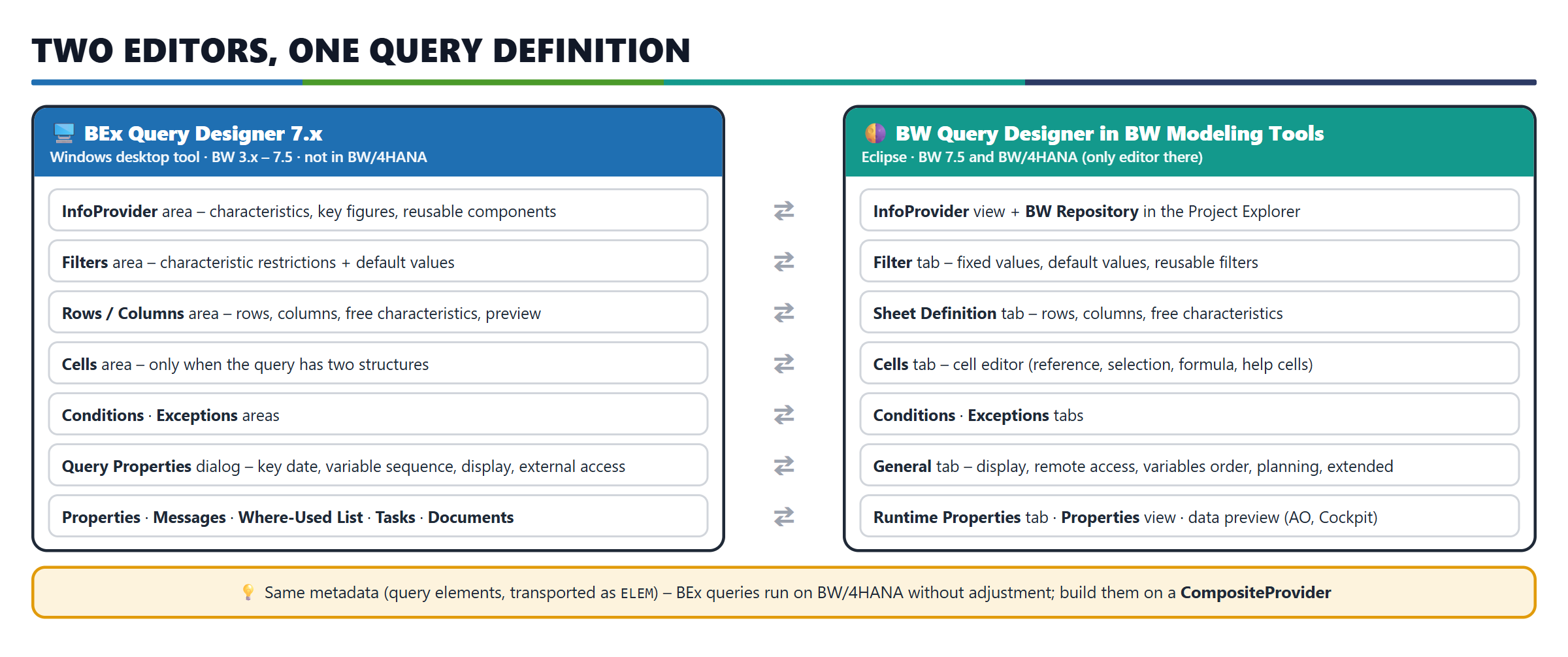
The query definition is the same metadata in both tools – queries created with the BEx Query Designer are compatible with BW/4HANA and need no adjustment. Only the editor changed: BW 7.5 offers both, BW/4HANA only the Eclipse-based BW Query Designer inside the BW Modeling Tools (BWMT), which sits next to the ABAP Development Tools and the HANA modelling tools in one Eclipse installation.
Aspect | BEx Query Designer 7.x | BW Query Designer in BWMT (Eclipse) |
|---|---|---|
Releases | BW 3.x – 7.5 | BW 7.5 and BW/4HANA (only tool in BW/4HANA) |
Start | Desktop application; logon to the BW system, open the InfoProvider | BW project in Eclipse; context menu of the InfoProvider in the BW Repository › New › Query |
Layout | Screen areas: InfoProvider, Filters, Rows/Columns, Cells (when two structures exist), Conditions, Exceptions, Properties, Messages, Where-Used List, Tasks, Documents (View menu shows / hides them) | Editor tabs: General, Filter, Sheet Definition, Cells, Conditions, Exceptions, Runtime Properties; Properties view on the right; InfoProvider view with reusable components |
Query properties | Query Properties dialog (description, key date, variable sequence, display, release for external access, planning) | General tab sections: general settings, Display, Remote Access, Variables Order, Planning, Extended |
Test | Execute in the web (BEx Web Analyzer) or BEx Analyzer | Data preview: Reporting Preview, Analysis for Office, BW/4HANA Cockpit – configured in Customizing ("Set Query Execution for Query Design Tools") |
Object management | Where-used list, save as, delete | Search, where-used, copy, delete, linked components, share BWMT link, publish to role, external SAP HANA view |
- Build on a CompositeProvider: a query's InfoProvider cannot be replaced later, but the part providers of a CompositeProvider can – so SAP recommends queries on CompositeProviders, not directly on ADSOs (page 02).
- Reusable components (restricted / calculated key figures, structures, filters, variables) appear in the InfoProvider view of the designer under Reusable Components and in the BW Repository tree of the Project Explorer; RKFs and CKFs can be grouped in folders there.
- Mixed landscapes: in BW 7.5 projects decide on one editor per team. BWMT adds newer features (e.g. extra selections on local formulas from BW/4HANA 2.0 SP04), and SAP fixes problems between the two editors through SAP Notes – keep BWMT and the back-end notes current.
Part 3 – Query structure in practice: sheet, filter, characteristic properties
3.1 Sheet definition and filter
Area | Behaviour at runtime | Design rule |
|---|---|---|
Columns / Rows | Initial layout; the user can rearrange everything | Keep the initial drilldown small – it drives the first read |
Free characteristics | Not shown at start; available for drilldown and filtering | Put most characteristics here instead of in rows |
Filter – fixed values | Apply to the whole query; the user can only narrow the selection, never enlarge it | To allow navigation on such a characteristic, add it to rows, columns or free characteristics as well |
Filter – default values | Starting selection that the user may enlarge, narrow or delete; the characteristic is automatically available for navigation | Use for "current year" style defaults |
Reusable filter | Saved on the InfoProvider, used by many queries; changes affect all of them | Dereference it in one query to turn it into a local filter |
Key figure in the filter | Allowed – the query then shows only characteristics in rows and columns | Rare; for value-help style lists |
- Fixed values and default values can be combined in one query (e.g. fixed version = actual, default fiscal year = variable).
- Key date (General tab) controls time-dependent master data and hierarchies: default is the execution date, or a fixed date or a key date variable.
- Display settings on query level: adjust formatting after refresh, suppress repeated key values, show scaling factors, sign and zero format, result position (default: row results below, column results to the right), zero suppression for rows / columns, universal display hierarchy (show the drilldown of the rows as a hierarchy to a chosen level).
3.2 Characteristic properties
Property | Options | Typical use |
|---|---|---|
Display as | Do not display, [Key] Text, Text, [Key], Text [Key]; text length short / medium / long | Text for managers, key for controllers |
Sorting | By the characteristic or an attribute, by key or text, ascending / descending | Sort customers by region attribute |
Result rows | Always, only if more than one child, never | Avoid single-line subtotals |
Cumulate values | Running total over the characteristic values (drilldown only, not over structure elements) | Year-to-date curve by month |
Access type for result values | Posted values (a row only when data exists) or master data (a row for every master data value) | Show all plants, even those without sales |
Filter value selection during execution | Values in master data table; only values in the InfoProvider; only posted values for navigation (dependent on earlier selections) | Shorter value helps on large master data |
Hierarchy tab | Display hierarchy, node selection, expand level (hierarchies: page 04 Part 4) | Cost center groups |
Part 4 – Restricted and calculated key figures, constant selection, key figure properties
4.1 Global (reusable) vs local
Local – query level | Global – InfoProvider level (reusable) | |
|---|---|---|
Where defined | Inside the key figure structure of one query (drag a key figure into the structure, New Selection / New Formula) | InfoProvider view › Reusable Components › New Restricted / Calculated Key Figure, or New in the BW Repository |
Scope | This query only | Every query on the same InfoProvider |
Changes | Affect only this query | Affect all queries that use it – check the where-used list first |
Dereference | – | Not possible for reusable RKFs / CKFs (structures and filters can be dereferenced) |
Typical use | One-off variance column, experiments | Agreed company KPI definitions (net revenue, margin) – one source of truth |
- An RKF restricts one key figure (basic, calculated or already restricted) by characteristic values, intervals, hierarchy nodes or variables – unlike a filter, the restriction is valid only for this key figure. Typical: same key figure per year or plan vs actual side by side.
- A CKF / formula combines basic, restricted and calculated key figures, constants and formula variables. Since BW/4HANA 2.0 SP04 a local formula can carry an additional selection; that restricted formula cannot be saved as a reusable RKF.
4.2 Constant selection
Normally every cell is filtered by the global filter, the dynamic filter of the navigation and the drilldown. A selection marked as constant selection is not affected by navigation and filters – it keeps its values while the user drills down. It is offered for selections in structure elements, cells and restricted key figures.
- Two levels: on a single characteristic of a selection (only that characteristic ignores the filters) or on the whole selection element (independent of all filters); the element level wins inside the same structure element. A restricted key figure cannot be constant as a whole – only its characteristics.
- Classic example: plan values exist only for the year (posted to period 12), actuals per period. Column PLAN is restricted to period 12 with constant selection, so the plan stays visible when the user drills down by period. Other uses: market share against a constant total, reference values.
- Constant selection together with exception aggregation or result rows can give surprising totals – SAP has several KBAs on it; test the result rows explicitly.
4.3 Key figure properties
Tab | Settings |
|---|---|
General | Description (may contain text variables), display (always show, always hide, hide – can be shown), highlight, decimal places (0–9), scaling factor (1 – 1,000,000,000), reverse sign (display only – formulas still use the real sign), node status of structure nodes |
Conversion | Currency translation (translation type + target currency or variable) and unit conversion per structure element |
Calculations (local calculations) | Calculate result as (e.g. average, count, minimum, maximum, summation), calculate single values as, also apply to results, cumulated, calculation direction |
Aggregation (formulas, CKFs) | Exception aggregation with one or more reference characteristics (page 04 Part 2) |
- Local calculations work on the displayed result only: they change what the front end shows, not how the analytic manager aggregates; they do not work on hierarchies and can be slow on large results. For correct numbers on every drilldown use exception aggregation in a formula or CKF.
- Exception aggregation in practice: define it on the InfoObject when it must apply to every query (mandatory for non-cumulative key figures, e.g. last value over time) or on the formula in the query. One exception aggregation can use up to five reference characteristics in one step, and aggregations can be nested – e.g. count products per customer (reference product), then average those counts (reference customer).
Part 5 – Structures, formulas and cells
5.1 Structures
- Key figure structure: created automatically when the first key figure goes to rows or columns; every element contains a key figure (basic, restricted, calculated or a formula).
- Characteristic structure: elements are selections on characteristics (single values, intervals, hierarchy nodes, variables) or formulas, never key figure selections – e.g. rows Actual, Plan, Variance, or the fixed rows of a P&L.
- Limits: at most two structures per query, at most one of them a key figure structure. Both may be on the same axis or on different axes; other characteristics can be combined freely.
- Reusable structures are saved on the InfoProvider; dereference turns a reusable structure into a local copy that no longer follows changes.
5.2 Formula functions
Group | Function | Meaning |
|---|---|---|
Percentage | % | Percentage variance of operand 1 from operand 2 |
Percentage | %A | Share of operand 1 in operand 2 |
Percentage |
| Share of the next result / of the overall result (dynamic filters included) / of the report result (dynamic filters excluded) |
Percentage |
| Share of the next result along the columns / rows |
Data |
| 0 instead of a division-by-zero error / value without unit or currency |
Data | COUNT | 1 if the expression is not 0, otherwise 0 |
Data |
| Result of the rows or columns / overall result / report result |
Boolean |
| Comparison returns 1 (true) or 0 (false) – used for if / then logic |
Mathematical | Maximum, minimum, absolute value, integer division, trigonometric functions | – |
Boolean results replace an IF statement: multiply each branch by its condition. Bonus = 5 % of the net order amount above 100,000 and 1 % otherwise, written in the formula editor:
|
- Margin % is the share of the margin in the revenue (
%A), Var. % the percentage variance of actual from plan (%); the average price removes the quantity unit withNODIMand returns 0 instead of an error when the quantity is 0 (NDIV0). Names in quotes stand for the structure elements as the formula editor shows them. - Key figures keep their units: combining a currency with a weight is semantically wrong; use
NODIMto compute with pure numbers.
5.3 Formula collision and the cell editor
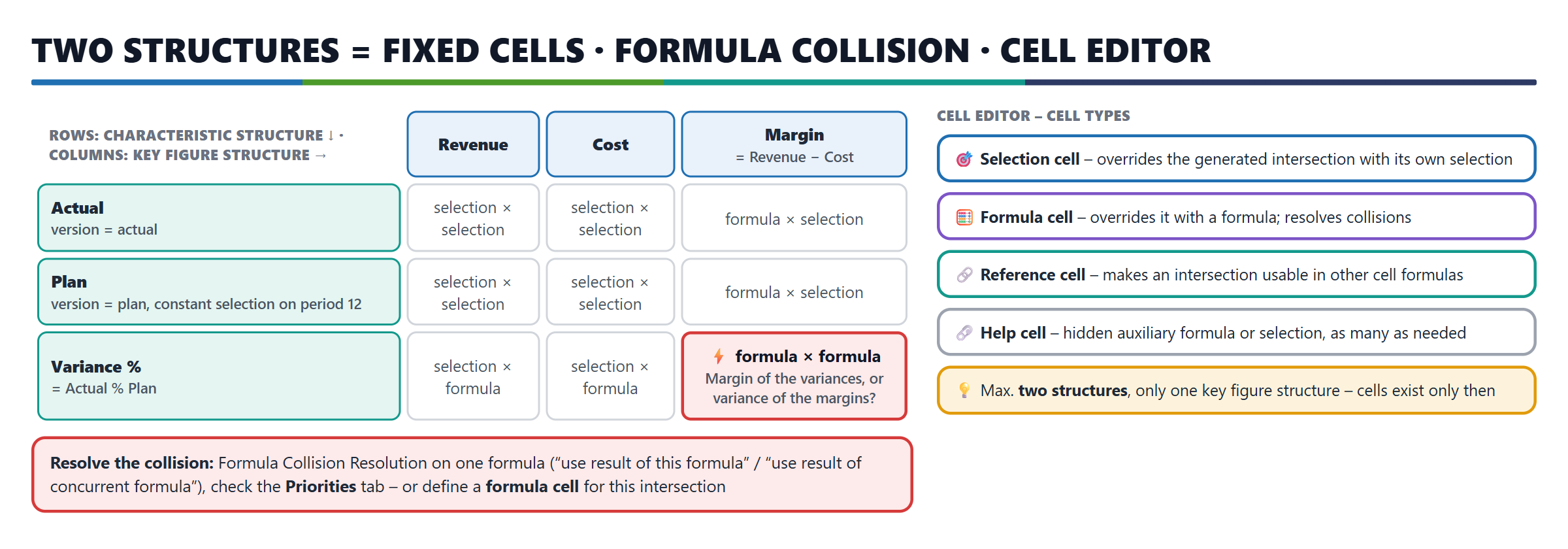
With two structures the query becomes a fixed-cell table: every cell is the intersection of a row element and a column element. Where a formula in the rows meets a formula in the columns, the system must decide which one computes the cell – a formula collision.
- Resolve by property: on the General tab of the formula, field Formula Collision Resolution – "Use result of this formula" or "Use result of concurrent formula"; if both formulas say the same, the last definition wins. The Priorities tab (power-user function) shows which property wins at each intersection (default "Keep explicit cell value").
- Resolve by cell: define the intersection explicitly in the cell editor (Cells tab).
Cell type | What it does |
|---|---|
Selection cell | Overwrites the generated cell with its own selection (e.g. a different account range for one P&L line) |
Formula cell | Overwrites the generated cell with a formula – also resolves a formula collision |
Reference cell | Makes a generated intersection addressable so other cell formulas can use it |
Help cell | Formula or selection without link to the structures, not displayed; used inside formula cells – as many as needed |
- Cells are not Excel cells: they belong to the query definition and work in every front end. Use them for fixed-layout reports (financial statements, KPI sheets); they make queries harder to maintain and slower, so keep them few (page 04 Part 8).
Part 6 – Variables in depth
The five variable types and the five processing types are introduced on page 04 Part 3. In design work the details decide whether a variable screen is usable and whether the query performs.
6.1 Ownership and reuse
- Variables are reusable objects: changing one changes every query that uses it.
- Characteristic value, hierarchy and hierarchy node variables always belong to an InfoObject and are available in every InfoProvider that contains it. Formula and text variables can be unassigned (manual input / default value) or refer to a characteristic (replacement path).
- SAP exit variables are delivered with BW Business Content (in BW/4HANA the BW/4HANA Content Add-on) and filled by SAP's ABAP code – check them before writing a customer exit. Customer exits and the BW/4HANA BAdI
RSROA_VARIABLES_EXIT_BADI: page 05 Part 6.
6.2 Details of a characteristic value variable
Setting | Options |
|---|---|
Variable represents | Single value · multiple single values · interval · selection option (values, ranges, operators, patterns, exclusions) · precalculated value set |
Input type | Optional · mandatory (initial value # allowed – selects records without a value) · mandatory, initial value not allowed |
Ready for input | On: the variable screen asks the user. Off: value from default, exit, replacement path or authorization |
Default values | Shown on the variable screen; also the value of non-input-ready variables |
Personalization | Users save their own values per variable ("Copy personalization data") |
Variables order | Query property: sequence of the variables on the variable screen |
6.3 Replacement path – the most useful processing type
Variable type | Replaced from | Example |
|---|---|---|
Text | A characteristic value (key or text) or another variable | Column header "Revenue &YEARTXT&" shows the year the user selected |
Formula | A characteristic value or an attribute of it, or another variable | Gross weight from attribute 0GROSS_WT of the product; working days of a month |
Characteristic value | Another variable, the current member, or the result of a query (pre-query) | Revenue trend of the top five products: the result of query "Top 5 products" filters the trend query |
- Pre-query cost: the pre-query runs every time the main query runs. If it is slow, fill a precalculated value set ("bucket") in the background with the Broadcaster (Part 9) and use a variable of type precalculated value set instead.
- Text variables are written in descriptions between ampersands (
&VARNAME&) and are replaced at runtime. - Authorization processing fills characteristic value and hierarchy node variables with the user's analysis authorizations (page 04 Part 7).
Part 7 – Conditions and exceptions in practice
7.1 Conditions
Operator group | Operators | Behaviour |
|---|---|---|
Ranked lists | Top N / Bottom N, Top % / Bottom %, Top sum / Bottom sum | Sorting switches on automatically; Top sum adds entries until the threshold is passed, the entry that crosses it is included |
Thresholds | =, <>, <, >, <=, >=, between, not between (values or formula variables) | Keeps the rows that meet the threshold |
Characteristic assignment | Meaning |
|---|---|
All characteristics in drilldown independent | Applied to whatever is drilled down – the result changes with navigation; best for ranked lists |
Most detailed characteristic along the rows / columns | Applied to the innermost row or column characteristic – best for thresholds |
Individual characteristics and combinations | Applied only to the chosen characteristic or combination (e.g. top 10 customer–material pairs), also from free characteristics |
- Several active conditions are combined with AND; each is evaluated independently, so the order does not matter.
- Conditions only hide rows – result rows still show the total of all data (the same as without the condition).
- A condition is not applicable (switched off automatically) when its characteristic is not in the drilldown, is shown with an active display hierarchy, or collides with another condition.
7.2 Exceptions
- Alert levels: nine levels – Good 1–3 (green), Critical 1–3 (yellow), Bad 1–3 (red); a value on a boundary gets the highest-ranked level.
- Definition tab: evaluate one or all elements of the key figure structure (and optionally of characteristic structures), before or after local calculations; colour the evaluated data cell, all data cells or another element, and / or the characteristic cells of the row or column.
- Cell restrictions: everything · totals only · everything except totals · fixed value of a characteristic (can be a variable) · one hierarchy level.
- Thresholds can be formula variables, so one exception serves several business units.
7.3 In the front ends
- Analysis for Office calls them BEx conditions and BEx exceptions: the user can activate / deactivate them but not change their definition; AO's own Filter by Measure works in addition (both must be met). Exception colours map to the cell styles SAPExceptionLevel1–9; AO conditional formatting overrides an exception on the same cell.
- On HANA: conditions (ranking and threshold operators) can be calculated in SAP HANA with query execution mode 9 (Part 11).
- Exception reporting: in BW 7.x the Broadcaster can check exceptions in the background and send documents or alerts (Part 9).
Part 8 – BEx Analyzer and BEx Web (Web Application Designer)
8.1 BEx Analyzer
BEx Analyzer is BW's Excel add-in. A workbook is an Excel file that holds one or more queries (data providers) and is saved in the BW system, so it can be assigned to roles, transported and precalculated. Started from the Windows menu or from SAP GUI with transaction RRMX.
Mode | What you do |
|---|---|
Analysis mode | Run queries, navigate (drill down, filter, swap axes), use the context menu (properties, conditions, exceptions, jump targets), save workbooks and views |
Design mode | Build the workbook layout from design items – analysis grid, navigation pane, dropdown boxes, radio button and checkbox groups, buttons, filter, text, messages; worksheets are protected in design mode so items are not deleted by accident |
- The analysis grid is the main design item (the result set with OLAP navigation); the navigation pane shows the characteristics and the current filter state and works with it. All design items except Messages are bound to a data provider.
- Status: end of mainstream maintenance 15 Oct 2025 (customer-specific maintenance, SAP Note 3665993), 32-bit only, not available with BW/4HANA. Analysis for Office opens the same queries and can convert BEx workbooks, but SAP states it is not a legal successor with 100 % feature parity (KBA 2456450) – complex VBA-based workbooks need redesign.
8.2 BEx Web Application Designer and web templates
The Web Application Designer (WAD) is a desktop tool for building web templates: XHTML documents with BI tags as placeholders for web items, data providers and commands. At runtime the BI tags are replaced by HTML, and the web application runs in the browser or in the SAP NetWeaver Portal.
Element | Meaning | Examples |
|---|---|---|
Data provider | Query or query view that supplies data | Query view with the initial navigation state |
Web item | Visual or functional building block, mostly bound to a data provider | Analysis (table), chart, map, navigation pane, filter pane, dropdown box, button group, container, info field |
Command | Action on data providers, items or the template – created with the command wizard | Set filter, export to PDF / Excel, open variable screen, jump (RRI) |
Template tabs | Layout (visual), XHTML (source), Overview (all items, providers, commands) | – |
Runtime | Built with | Technology |
|---|---|---|
BEx Web 3.x | WAD of SAP NetWeaver 2004 / BW 3.x | ABAP-based web runtime |
BEx Web 7.x | WAD 7.x (BI 7.0 to BW 7.5) | Java-based runtime delivered with the BI Java usage type (SAP NetWeaver Portal + AS Java) |
- BEx Web Analyzer is the standard ad-hoc web template for any query; the BEx Report Designer builds formatted, print-oriented reports (enterprise reports) that also run in the web runtime.
- Status: BI Java and therefore BEx Web, WAD templates and portal integration exist only up to BW 7.5; BW/4HANA has no Java web runtime. In BDC the SAP BI Java Server is not offered beyond 2030 (SAP Business Data Cloud › 05). Successor: SAP Analytics Cloud stories and analytic applications (SAC › 06) – SAP Lumira Designer, the former intermediate successor, receives no new features.
Part 9 – Information Broadcasting and the BEx Broadcaster
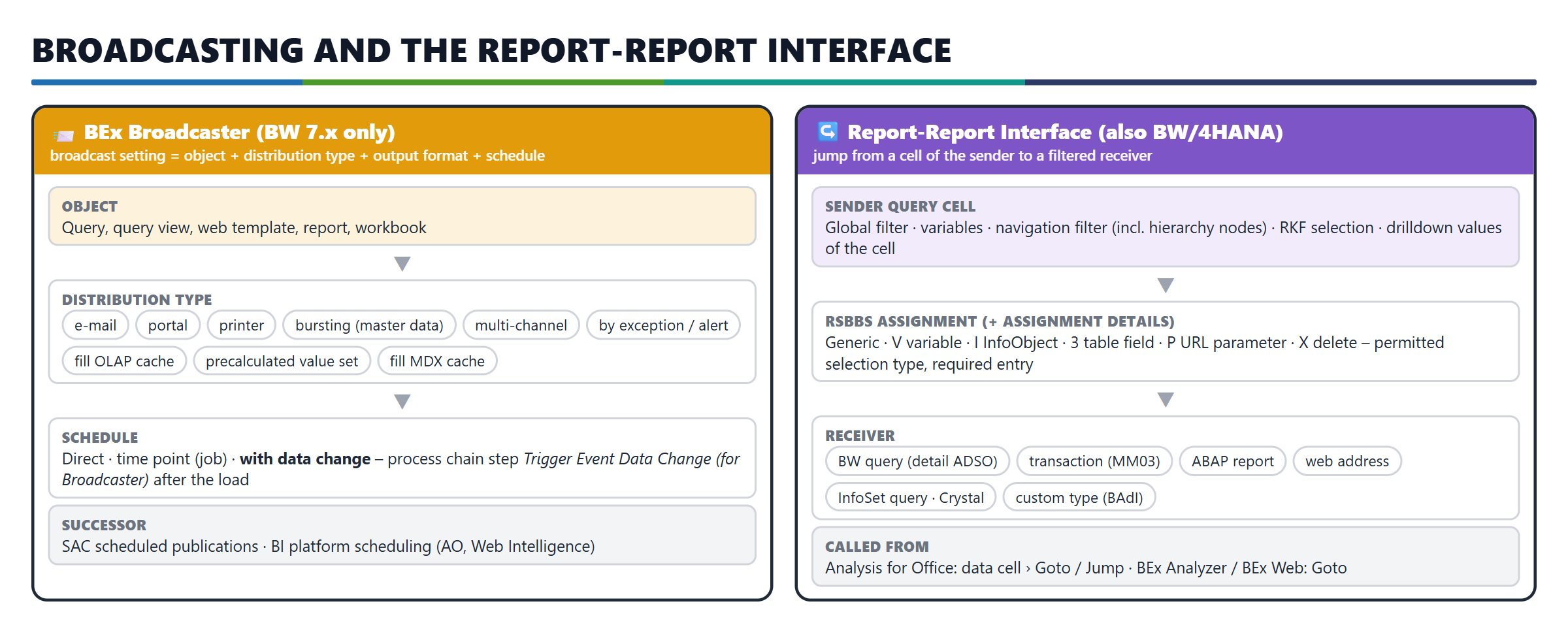
Information Broadcasting distributes BEx objects – queries, query views, web templates, reports and workbooks – as precalculated documents (historical snapshot) or online links (current data), and precalculates data for performance. Broadcast settings are created in the BEx Broadcaster (web-based, started from the BEx tools or the portal).
Distribution type | What it does | For |
|---|---|---|
Broadcast by e-mail / to the portal / to the printer | Document or link to fixed recipients, into the portal (KM) or to a printer | All users |
E-mail bursting (based on master data) | One document per recipient, filtered by the recipient's characteristic values (e.g. each cost center manager gets his cost center) | Administrators |
Multiple channels | Same object via e-mail, portal and printer in one setting | Administrators |
Broadcast by exception | Checks query exceptions in the background; if thresholds are hit, sends a document by e-mail, to the portal or as an alert (Alert Management, ALRTCATDEF) | Administrators |
Fill OLAP cache | Precalculates queries into the OLAP cache (output format OLAP cache content); a completely filled cache is not guaranteed | Performance |
Precalculate value set | Fills a variable of type precalculated value set in the background | Pre-query replacement (Part 6) |
Fill MDX cache | Precalculates queries used as data sources by Crystal Reports | Crystal Reports performance |
- Output formats include HTML, MHTML, ZIP, PDF and online links; workbooks are precalculated by the BEx precalculation server (affected by the October 2025 end of mainstream maintenance).
- Scheduling: execute directly, at a predefined time point (job), or with data change in an InfoProvider – the load process chain contains process type Trigger Event Data Change (for Broadcaster) for that InfoProvider, and the broadcast setting runs after each load. Background parallelism is set in RSBATCH (process type BROADCAST).
- Authorization: e-mail, portal and printer distribution are for all users; the administrative types need
S_RS_ADMWBwith object BR_SETTING. - Status and successors: not available in BW/4HANA. Replacements are SAP Analytics Cloud scheduled publications, publications and scheduling in the SAP BusinessObjects BI platform for Analysis for Office and Web Intelligence, and – for OLAP cache warming – simply HANA performance plus a well-designed query.
Part 10 – Report-Report Interface (RRI)
The RRI lets a user jump from a cell of one query (the sender) to a receiver that opens already filtered to the context of the cell. Main use: start on an aggregated query (e.g. on a data mart ADSO) and jump to a line-item query or to the source document in S/4HANA, instead of running line-item queries on huge providers. The RRI is defined in BW, not in the front end, and still exists in BW/4HANA.
- Passed to the receiver: global filter, variable values, dynamic filter of the navigation (including hierarchy nodes), the selection of the clicked restricted key figure and the drilldown values of the cell.
- Definition: transaction RSBBS – sender / receiver assignment per query (or for all queries of an InfoProvider), one or more receivers each.
Receiver type | Example |
|---|---|
BW query | Line-item query on the detailed ADSO (opens in Analysis for Office) |
Transaction | MM03 for the material of the cell, FB03 for a document – in the source system |
ABAP report | Custom report with selection screen |
Web address (URL) | Fiori app or external page with URL parameters |
InfoSet query, SAP Crystal Reports, Xcelsius dashboard | Older targets still listed in RSBBS |
Custom receiver type | Own report type through a BAdI – then offered in RSBBS |
Assignment details (expert function)
Normally the generic assignment works. Maintain details when a selection must be dropped (e.g. differing date fields) or the mapping is not obvious (vendor → purchaser):
Processing | Effect |
|---|---|
Generic (default) | Selections passed automatically – try this first |
V – Variable | Selection goes to a named variable of the receiver query |
I – InfoObject | Selection goes to a named characteristic (same non-compounded key) |
3 – Table field | Selection goes to a field of a transaction or program (field name, data element and domain must be right) – non-BW receivers only |
P – URL parameter | For web address receivers; field name mandatory |
X – Delete | Selection of this characteristic is not passed |
- Permitted selection type per characteristic: any (default), parameter (one value), individual values, interval, selection option (hierarchy nodes expanded to single values) or hierarchy nodes; a required entry flag stops the jump when the value is missing – this protects long-running receivers.
- The system does not check assignment details for sense – test every jump. For jumps into another system the sender and receiver InfoObjects must exist in the sender BW.
- In the front ends: Analysis for Office – context menu of a data cell › Goto (Jump); BEx Analyzer and BEx Web – context menu Goto; RRI jumps are also supported from other BI tools such as Crystal Reports and Lumira.
Part 11 – Query properties and performance settings
Query-level settings live in the designer (BWMT: Runtime Properties tab) and in the Query Monitor (RSRT / RSRT1), where administrators can also override them. InfoProvider defaults are set in the runtime profile of the provider. The performance checklist itself is on page 04 Part 8.
Property | Options | Advice |
|---|---|---|
Read mode | H – read on navigation and when expanding hierarchy nodes; X – read on navigation, hierarchies read completely; A – read everything once into the OLAP cache | H gives the best initial runtime and is the usual default; A only for small, heavily navigated results |
Cache mode / cache usage | Whether and how the OLAP cache stores results (inactive, main-memory or persistent modes); delta caching | Keep the cache on for frequently used queries; monitor with RSRCACHE |
Query execution mode ("Operations in SAP HANA") | Relative modes J defensive, M standard (default), P offensive; absolute expert modes 0 (no HANA operations) to 9 | Leave on standard; change only after measuring |
Remote access | Release for OLE DB for OLAP (MDX tools), OData (REST / mobile), external SAP HANA view | Only for queries that external tools must read |
Planning | Start the query in change mode (input-ready queries on aggregation levels) | BW-IP and BPC embedded |
Extended | Data integrity (request status, e.g. include not yet activated requests), access to near-line / cold store data, document support | Cold-store access only when old data is needed |
Absolute mode | Pushed down to SAP HANA |
|---|---|
0 | Nothing – generated SQL per InfoProvider (up to six in parallel) |
2 | InfoProvider access via the HANA API on its column view; cell filters of RKFs and hierarchy handling optimised |
3 | Joint optimised access to all part providers of a CompositeProvider (calculation scenario at runtime, unions pushed down) |
6 / 7 / 8 | Exception aggregation; formulas with exception aggregation; plus formulas with complex currency / unit handling |
9 | Conditions (Top N / Bottom N / Top sum, threshold operators) |
- The relative modes map to absolute ones: J = 3, M = the optimizer chooses 8 or 3, P = 9 or 3. Absolute modes are visible only when switch
RSROA_TREXOPS_EXPERTis set in RSADMIN (SAP Note 2094114). Push-down is not always faster (SAP Note 2365030). - RSRT tools: Execute + Debug with "Display statistics data" and "Do not use cache" shows each step and its runtime; technical information shows the generated settings; Generate Report regenerates the query after changes.
Part 12 – Transport, naming and housekeeping of query objects
12.1 Transport
Query elements (queries, RKFs, CKFs, structures, filters, variables) are transported as TLOGO object ELEM; query views, web templates, workbooks, broadcast and planning settings have their own types. Collect them in the transport connection (RSA1 › Transport Connection) with the necessary objects, or from the BW Modeling Tools.
Option | How it works |
|---|---|
BEx transport request | After the first transport of a BEx object, every later change is recorded automatically in the request declared as BEx request (RSA1 › Transport Connection › BEx) – users are not asked for a request |
Standard vs package-specific | One standard BEx request for all packages, or one per package (e.g. one development system delivering to several production systems); packages without own request use the standard one |
After release | No new BEx request is created automatically – assign or create a new one immediately after each release (SAP's recommendation) |
Standard transport system switched on | BEx requests are not used and BEx objects are recorded like other objects – except planning objects, which still use BEx requests |
- Typical issue: a query imports with missing elements because a new reusable component sat in another request – collect the query with all necessary objects in the transport connection before release.
12.2 Naming
- The technical name must be unique in the system and cannot be changed later – the description can (and may contain text variables). Copies get a numbered suffix (
name_2). - SAP content uses the
0prefix; customer objects use the customer namespace. A common house rule (not an SAP standard) isZ<area>_<provider>_Q<nnn>for queries and the same prefix for global RKFs / CKFs and variables, so the where-used list and transports stay readable.
12.3 Housekeeping tools
Tool | Purpose |
|---|---|
RSZC | Copy queries and components between InfoProviders with InfoObject mapping |
Linked components (BWMT) | Copy a query to a similar InfoProvider and keep it synchronised with the source through stored mappings – or decouple it |
RSZDELETE | Mass deletion of queries, filters, structures, RKFs, CKFs and variables, selected by InfoProvider, name, last change or last use |
Where-used list | Before changing a reusable component (designer or BWMT) |
Translation (Data Warehousing Workbench) | Texts of queries and their elements, workbooks |
Document store | Comments on query cells (query property Document Support) for ADSOs and CompositeProviders; AO comments are stored in the workbook instead |
RSDWC_QUERY | Release analytic queries for SAP Datasphere model import (variables are replaced by values) – SAP Datasphere › 06 |
- Query metadata sits in the
RSZ*tables – e.g.RSZCOMPDIR(query and component directory),RSZELTDIR(element directory),RSZELTTXT(texts),RSZELTXREF(element hierarchy),RSZGLOBV(variables) – andRSRREPDIR(generated queries). Read them for inventories; never change them directly.
Part 13 – Successors: Analysis for Office and SAP Analytics Cloud
The query stays; the tools around it change. Front-end comparison and SAC live connection are on page 04 Part 6; SAC itself on SAP Analytics Cloud › 06.
BEx object or tool | Successor | What to watch |
|---|---|---|
BEx Query Designer | BW Query Designer in the BW Modeling Tools | Same query metadata – no conversion |
BEx Analyzer workbooks | SAP Analysis for Microsoft Office (AO) workbooks; for the cloud the SAP Analytics Cloud add-in for Microsoft Office | AO converts BEx workbooks but has no 100 % feature parity; VBA and design-item logic must be rebuilt; AO itself is maintained without new features |
BEx Web templates / WAD, Web Analyzer | SAP Analytics Cloud stories and analytic applications on a live connection | No automatic conversion – redesign the layout; the BW query and its authorizations are reused |
BEx Broadcaster | SAC scheduled publications; BI platform scheduling for AO and Web Intelligence | Bursting by master data must be re-modelled |
RRI | RRI from Analysis for Office (same RSBBS definitions); in SAC navigation is usually modelled with hyperlinks to other stories or apps | Check which jump types the target front end supports |
BEx conditions and exceptions | Still part of the query; AO shows them; SAC adds its own ranking and thresholds | Keep business rules in the query, formats in the front end |
- Migration order that works: inventory usage (RSDDSTAT_OLAP, EWA) → retire unused objects → move Excel users to AO → rebuild dashboards in SAC → replace broadcasting → only then decide on BW/4HANA, BW PCE or Datasphere (page 06, SAP Business Data Cloud › 05).
Part 14 – Interview questions
Q1. What is the difference between the BEx Query Designer and the query designer in the BW Modeling Tools?
Both edit the same query metadata. The BEx Query Designer is the Windows desktop tool of BW 3.x – 7.5; the BW Query Designer is part of the Eclipse-based BW Modeling Tools, available with BW 7.5 and the only editor in BW/4HANA. BEx queries are compatible with BW/4HANA without changes.
Q2. Global or local restricted key figure – when do you use which?
Global (InfoProvider level) for agreed company KPIs used by many queries – one change updates all, so check the where-used list first; reusable RKFs cannot be dereferenced. Local for one-off columns in a single query.
Q3. What is constant selection? Give an example.
A selection that ignores navigation and filters at runtime. Plan is posted only to period 12: the PLAN column is restricted to period 12 with constant selection, so it stays visible when the user drills down by period. It works on characteristics of a selection or on a whole structure element, not on an RKF as a whole.
Q4. What is a formula collision and how do you resolve it?
With two structures, a row formula and a column formula meet in one cell. Set Formula Collision Resolution on one formula (use this or the concurrent formula), check the Priorities tab, or define a formula cell in the cell editor for that intersection.
Q5. Which cell types does the cell editor offer?
Selection cells and formula cells overwrite the generated intersection; reference cells make an intersection usable in other formulas; help cells are hidden auxiliary formulas or selections. Cells exist only in queries with two structures.
Q6. Local calculation or exception aggregation for an average per customer?
Exception aggregation (average with reference characteristic customer) in a formula or CKF: it is calculated by the analytic manager (or HANA) on every drilldown. Local calculations only recalculate the displayed result, ignore hierarchies and can be wrong after navigation.
Q7. How do you use the result of one query as a filter in another?
A characteristic value variable with replacement path from a query (pre-query). Because the pre-query runs every time, slow cases use a precalculated value set filled in the background by the Broadcaster.
Q8. Do conditions change the result rows?
No. Conditions only hide rows; the result row still shows the total of all data. Several conditions are combined with AND, and a condition is switched off when its characteristic is not in the drilldown or collides with another condition.
Q9. What is the status of BEx Analyzer and the other BEx tools?
BEx Analyzer and BEx precalculation left mainstream maintenance on 15 Oct 2025 (customer-specific maintenance, SAP Note 3665993); the Analyzer is 32-bit only. Query Designer, WAD and BEx Web remain with BW 7.5 within its maintenance. None of the BEx front ends exists in BW/4HANA; successors are the BWMT query designer, Analysis for Office and SAP Analytics Cloud.
Q10. How does the Report-Report Interface work?
In RSBBS you assign receivers to a sender query: another query, a transaction, an ABAP report, a URL and others. When the user jumps from a cell, the filters, variables, navigation state and the cell's drilldown values are passed; assignment details map or drop characteristics (variable, InfoObject, table field, URL parameter, delete). It still works in BW/4HANA from Analysis for Office.
Q11. Which Broadcaster distribution types do you know, and what replaces them?
E-mail, portal and printer; bursting by master data; multiple channels; broadcast by exception (also as alerts); fill OLAP cache; precalculate value set; fill MDX cache. Scheduled directly, by time or after a data change via the process chain type Trigger Event Data Change (for Broadcaster). Replacements: SAC scheduled publications and BI platform scheduling.
Q12. How are queries transported, and what goes wrong most often?
As ELEM objects through the transport connection; after the first transport changes are recorded in the BEx transport request (standard or per package). Typical problems: no new BEx request assigned after release, and reusable components missing because they were in another request – collect all necessary objects before release.
🏠 Start Here · ◀ 06 · BW/4HANA & Architect · 08 · Interview Questions ▶ · Sections: CORE ABAP | OOPS ABAP | ABAP on HANA | Clean Core | RAP | ABAP Points | SAP Fiori | SAPUI5 | Mobile Development (MDK) | BTP Foundations | BTP Development | CAP | SAP Build | ABAP on BTP | Integration Suite | SAP Business AI | SAP BASIS | Security | SAP SDLC
Functional: FICO ABAP | TRM ABAP | VIM | SAP BIS | SD ABAP | MM ABAP | PP ABAP | QM ABAP | PM ABAP | PS ABAP | EWM | TM ABAP | GTM ABAP | EHS ABAP | HR ABAP | BW | SAP Datasphere | SAP Business Data Cloud | SAP MDG | SAP Analytics Cloud | SAP Ariba | SAP CX | SAP IBP