Dialog programming builds SAP GUI transactions with your own screens (dynpros): entry screens, detail screens, table controls, tabstrips and popups. It is classic UI technology – still in every brownfield system and often asked in interviews. New S/4HANA UIs are Fiori apps (Part 12). One running example is used: transaction ZORDER (module pool SAPMZORDER) to maintain simple sales orders.
Part 1 – Executable program vs module pool
Executable program (report) | Module pool (dialog program) | |
|---|---|---|
Program type | 1 | M – starts with |
Driven by | Events of the runtime (page 03) | User actions on screens (PBO / PAI) |
Start | F8, SUBMIT, report transaction | Only a dialog transaction code (SE93) – F8 doesn't work |
Screens | Selection screen generated; own dynpros possible | Every screen designed by you in the Screen Painter |
Background | Yes, as a job step | Not as a job directly; can be run in background via batch input (BDC, page 06) |
Created in | SE38 / SE80 / ADT | SE80 (or SE38 with type M); screens in SE51, status in SE41 |
- The name "module pool": the program is a pool of dialog modules (PBO/PAI modules) that the screens call.
- Module pools can run without a user: BDC sessions and CALL TRANSACTION … USING run them in the background; a report can also show its own dynpros with
CALL SCREEN.
Part 2 – Components of a module pool
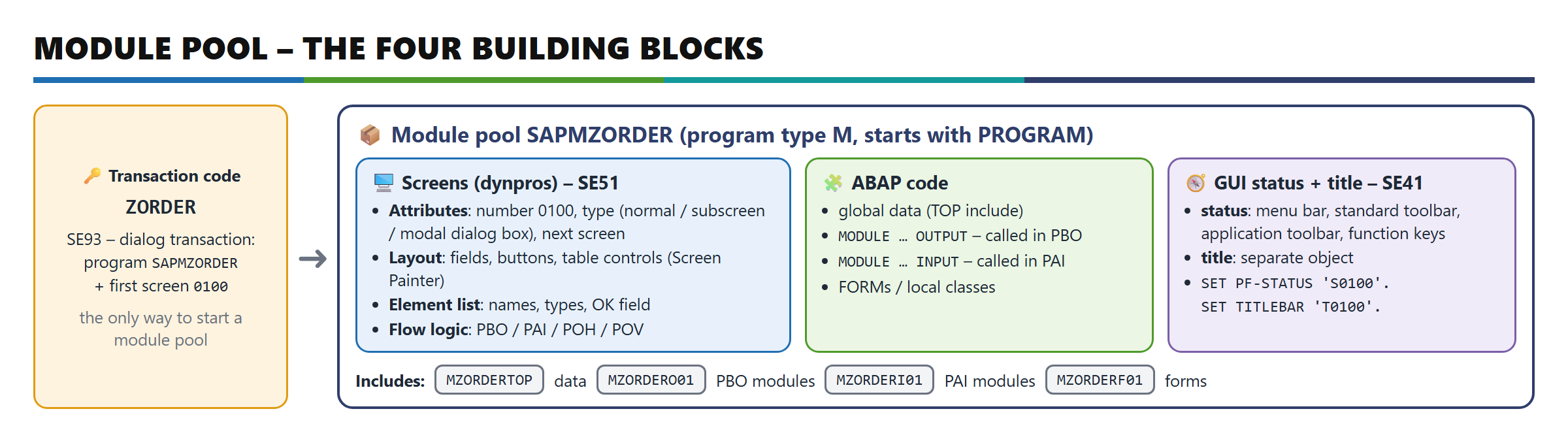
2.1 ABAP program
- Starts with
PROGRAM sapmzorder., holds global data and the dialog modulesMODULE … OUTPUT(called in PBO) andMODULE … INPUT(called in PAI), plus FORMs or local classes. - Include naming proposed by the Workbench: main program SAPMZ<name> with includes MZ<name>TOP (data), MZ<name>O01 (PBO modules), MZ<name>I01 (PAI modules), MZ<name>F01 (forms). Names like
MZORDER_TOPwith an underscore are a project convention, not the standard.
2.2 Screens (dynpros)
A screen (dynpro = dynamic program) is the user interface: identified by a 4-digit number, designed in the Screen Painter (SE51) or from SE80. It has four parts:
Part | Contents |
|---|---|
Attributes | Short text, screen type (normal / subscreen / modal dialog box), next screen, cursor position, screen group, hold data |
Layout | Position and look of the elements: text fields, input/output fields, checkboxes, radio buttons, pushbuttons, boxes, dropdown lists, subscreen areas, tabstrips, table controls, custom controls, status icons |
Element list | Name, type and properties of each element – including the OK field (type OK), usually named OK_CODE |
Flow logic | The screen's own small language: |
- Screen fields are linked to ABAP fields by name. Take them from the program ("Get from program", e.g.
GS_ORDER-KUNNR) or from the DDIC (needsTABLES dbtab.in the program – the only remaining use of TABLES). DDIC fields bring labels, F1 and F4 help automatically.
2.3 GUI status and GUI title
- GUI status (Menu Painter SE41): menu bar, standard toolbar, application toolbar and function-key assignments. Set in PBO:
SET PF-STATUS 'S0100' [EXCLUDING lt_fcodes].– EXCLUDING hides functions. - GUI title is a separate object:
SET TITLEBAR 'T0100' [WITH v1 v2]. - The title bar is not part of the GUI status, and PF stands for Program Function (keys).
2.4 Transaction code (SE93)
A dialog transaction links a code to the module pool and its first screen. SE93 knows five types:
Transaction type | Starts | Example |
|---|---|---|
Dialog transaction | Module pool + screen number | ZORDER → SAPMZORDER, screen 0100 |
Report transaction | Executable program + selection screen (+ variant) | ZFLIGHTS → ZR_FLIGHT_LIST |
OO transaction | A method of a global class (or an ABAP Objects services class) | Transaction for a class-based tool |
Variant transaction | Another transaction with a transaction variant (SHD0) that hides or prefills fields | Simplified VA01 |
Parameter transaction | Another transaction with prefilled screen fields, first screen skipped | SM30 for one maintenance view |
Part 3 – Flow logic, dialog step and OK_CODE
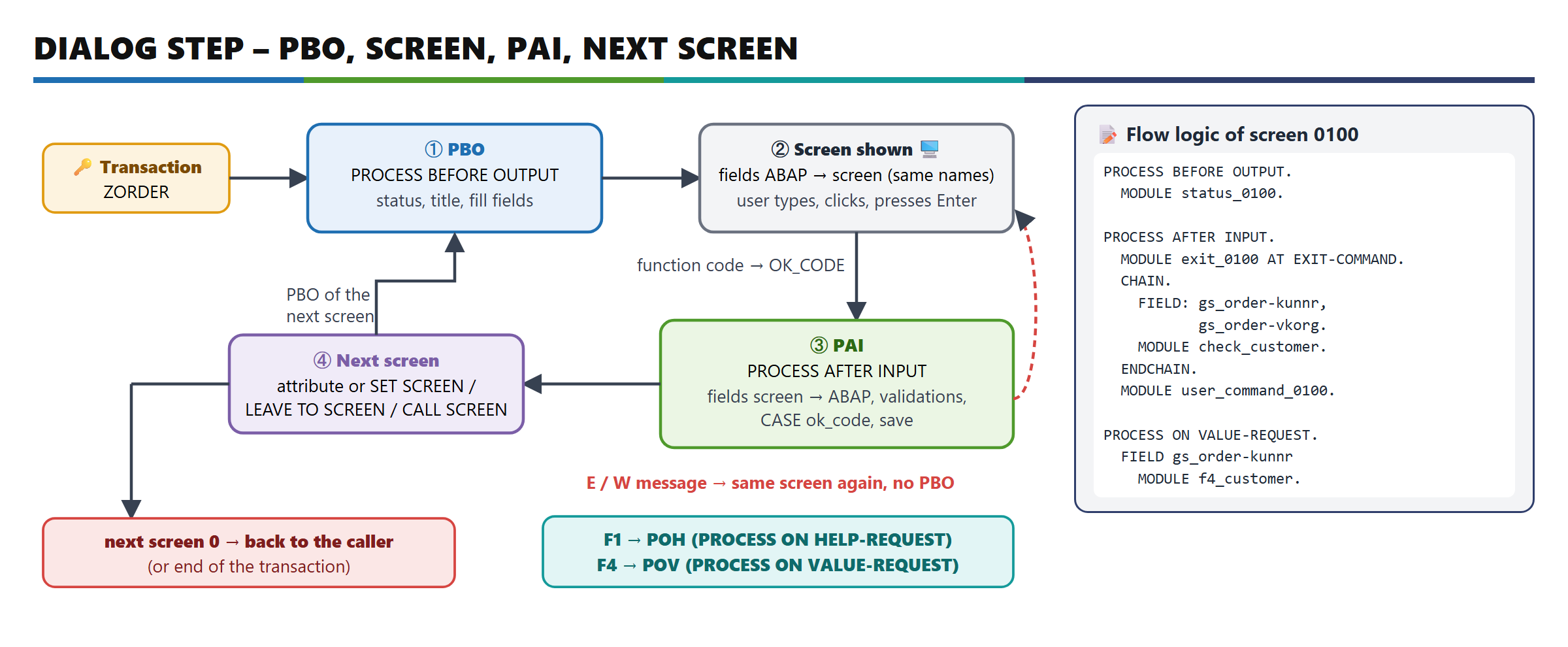
Event | When | Use |
|---|---|---|
PBO – PROCESS BEFORE OUTPUT | Before the screen is shown (present in every new screen) | Set GUI status and title, fill fields, LOOP AT SCREEN, fill table controls |
PAI – PROCESS AFTER INPUT | After a user action: Enter, button, menu, function key (present in every new screen) | Validate input, react to the function code, save, choose the next screen |
POH – PROCESS ON HELP-REQUEST | User presses F1 on a field | Own field documentation |
POV – PROCESS ON VALUE-REQUEST | User presses F4 on a field | Own value help (Part 10) |
- Dialog step: transaction → PBO → screen shown → user action → PAI → PBO of the next screen → …
- F1 shows the field documentation (data element documentation); "Technical information" is only a button inside the F1 popup. F4 shows possible values.
- Data transport: after PBO the ABAP field values go to the screen fields of the same name; at the start of PAI the screen values come back. A
FIELD fstatement delays the transport of f until that point.
3.1 Handling the function code (OK_CODE)
Every button, menu entry and function key has a function code. On a user action the runtime puts it into SY-UCOMM and into the screen's OK field. Declare the OK field in the TOP include and evaluate a copy of it.
Function type | Meaning |
|---|---|
' ' (normal) | Normal PAI processing with all checks |
E (exit command) | Calls |
P (local GUI function) | Tabstrip paging at the SAP GUI – no PAI at all |
T (transaction) | Leaves the program and calls the transaction with that code |
S (system function) | Reserved for system functions |
|
Part 4 – Screen types and screen sequence
Screen type | Use | Notes |
|---|---|---|
Normal screen | Full window | Own GUI status and OK field |
Subscreen | Shown inside a subscreen area of another screen (Part 7) | No OK field, no GUI status, no AT EXIT-COMMAND |
Modal dialog box | Popup window | Called with |
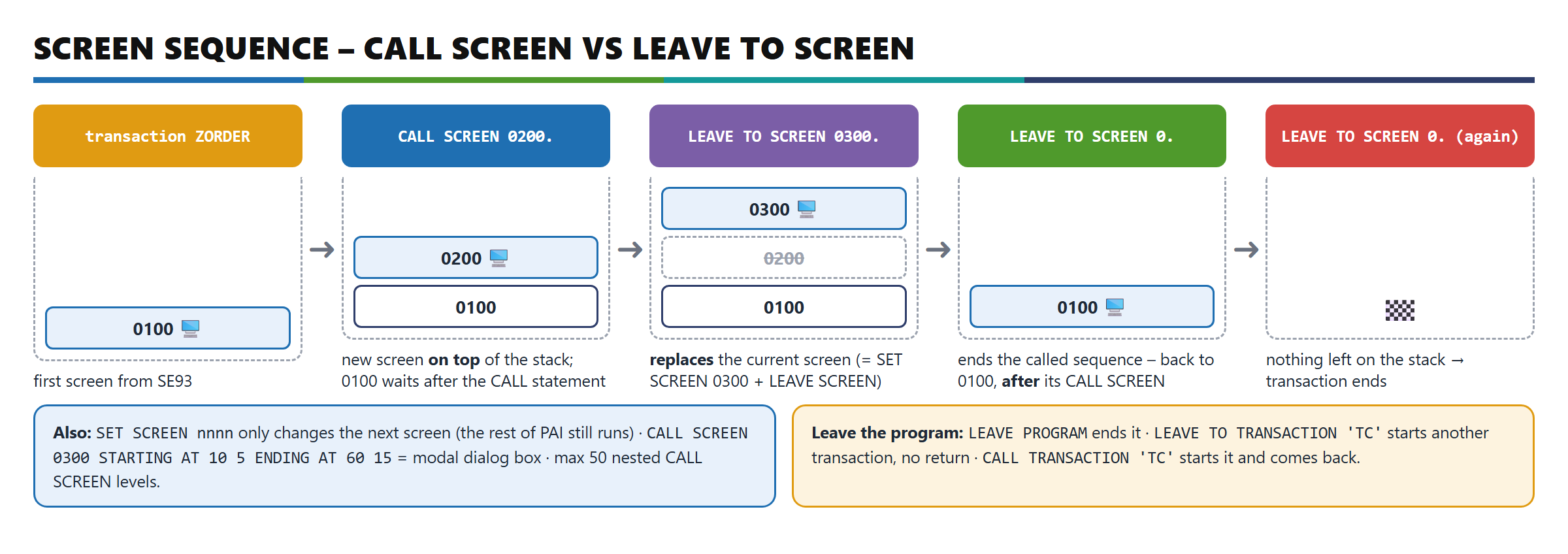
Statement | Effect |
|---|---|
CALL SCREEN nnnn. | Starts a new screen sequence on top of the current one; after it ends, processing continues after the CALL (max 50 nested levels) |
SET SCREEN nnnn. | Only changes the next screen; the rest of the current PAI still runs |
LEAVE SCREEN. | Ends the current screen now and goes to the next screen |
LEAVE TO SCREEN nnnn. | = SET SCREEN nnnn + LEAVE SCREEN – replaces the current screen |
LEAVE TO SCREEN 0. | Ends the current screen sequence – back to the point after its CALL SCREEN, or end of the transaction |
LEAVE PROGRAM. | Ends the program |
LEAVE TO TRANSACTION 'TC'. | Ends the program and starts another transaction (no return) |
CALL TRANSACTION 'TC'. | Starts another transaction and returns afterwards |
CALL SELECTION-SCREEN nnnn. | Shows a selection screen defined in the module pool ( |
|
Part 5 – Changing screen attributes at runtime
In PBO, LOOP AT SCREEN visits every element; change the attributes of the system structure SCREEN and write them back with MODIFY SCREEN. Elements are grouped with up to four screen groups (GROUP1–GROUP4, set in the Screen Painter) – the same idea as MODIF ID on selection screens (page 03).
|
SCREEN field | Meaning (1 = on, 0 = off) |
|---|---|
| Element name, screen groups |
| Ready for input / shows a value |
REQUIRED | Mandatory field |
INVISIBLE | Value hidden (shown as asterisks, e.g. password), element still there |
ACTIVE | 0 = element completely gone (not shown, no input) |
INTENSIFIED | Highlighted |
| Visible length, F4 button shown |
SET CURSOR FIELD 'GS_ORDER-KUNNR'.places the cursor (PBO);GET CURSOR FIELD lv_f.tells where it is (PAI).
Part 6 – Input validation (FIELD, CHAIN, AT EXIT-COMMAND)
Kind | What runs | Notes |
|---|---|---|
1. Automatic checks | Before any PAI module: required fields filled, format/type, DDIC foreign key (check table) and domain fixed values | Free – use DDIC fields; skipped for function type E |
2. Flow-logic checks |
| Obsolete – don't use |
3. Module checks |
| Normal way for business checks |
6.1 AT EXIT-COMMAND
Back, Exit and Cancel must work even when the input is invalid. Give these function codes the function type E in the GUI status and handle them in a module with AT EXIT-COMMAND – it runs before the automatic checks and before all other PAI modules.
|
6.2 FIELD and CHAIN
If a PAI module sends an error (E) or warning (W) message, the screen is shown again without PBO. Fields that are not linked to the check via FIELD or CHAIN are then not ready for input – the user could not correct anything. FIELD f MODULE m links one field to its check; CHAIN … ENDCHAIN links a group of fields to one or more checks, so exactly those fields become ready for input again.
|
- Additions:
ON INPUT– field is not initial;ON REQUEST– the user entered or changed a value;ON CHAIN-INPUT/ON CHAIN-REQUEST– the same for any field of the chain. FIELD: (Field1, Field2) Module (name)is not valid syntax – group several fields with CHAIN as in the code above.- Message types and their behaviour in PAI (E, W, I, S…): page 04 Modularization & Debugging, Part 8.
Part 7 – Subscreens
A subscreen is a screen of type "Subscreen" that is displayed inside a subscreen area of another screen. Use it to reuse screen parts, to swap content dynamically and inside tabstrips.
- Draw a subscreen area (e.g.
SUB_AREA) on the normal screen; create screen 0110 with type Subscreen. - Call the subscreen in both PBO and PAI of the main screen – without the PAI call the subscreen's PAI modules never run and its input is lost.
|
sy-repid= name of the current program; the subscreen may also come from another program.- A screen can have several subscreen areas; each area shows one subscreen at a time.
- Subscreens have no OK field and no GUI status;
SET SCREEN,LEAVE SCREENandAT EXIT-COMMANDare not allowed in them.
Part 8 – Table control
A table control shows an internal table as rows and columns on a screen, with scrolling, column resizing, an optional selection column and editable cells. Create it with the Table Control Wizard (generates the code below) or by hand. The flow logic loops twice: in PBO from the internal table to the screen rows, in PAI from the screen rows back to the internal table.
|
Element | Meaning |
|---|---|
CONTROLS tc TYPE TABLEVIEW USING SCREEN nnnn | Declares the control (a structure of type CXTAB_CONTROL) |
tc-current_line | Row of the internal table that belongs to the current screen row in the loop |
tc-lines | Number of rows – set it in PBO so scrolling works |
tc-top_line | First row shown (scrolling) |
Selection column | Attribute "w/ SelColumn" with a field such as |
REFRESH CONTROL 'TC_ITEMS' FROM SCREEN '0200'. | Resets the control to its initial attributes |
Column attributes |
|
- Step loops (the predecessor of table controls) are obsolete. For new screens an ALV grid in a custom control (page 03, Part 9.4) is often simpler than a table control.
Part 9 – Tabstrip
A tabstrip control shows several tab pages in one screen area. Each tab title is a pushbutton with a function code; each tab page contains a subscreen area, into which a subscreen is loaded – and the subscreen may contain a table control. The Tabstrip Wizard generates tabs, subscreens and code.
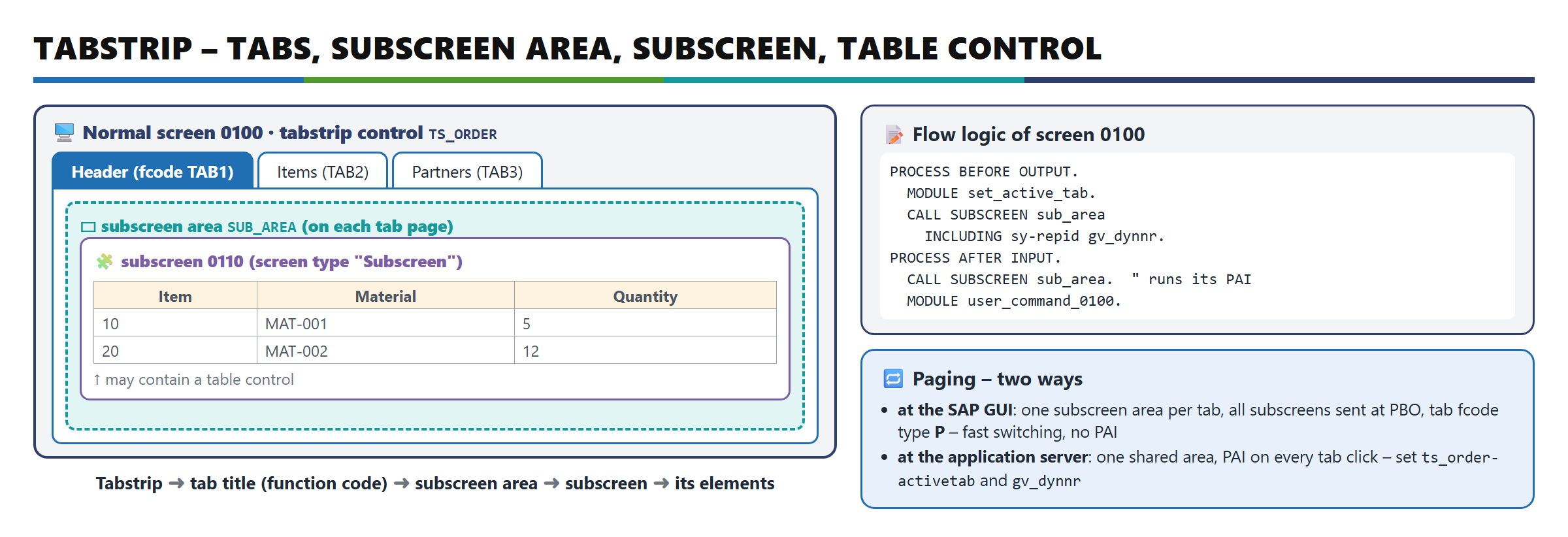
- Nesting order: tabstrip control → tab title (function code) → subscreen area → subscreen → its elements (fields, table control).
|
Paging | How | Pros / cons |
|---|---|---|
At the SAP GUI | One subscreen area per tab; all subscreens called in PBO; tab function codes of type P | Fast switching, no PAI – but all subscreens are filled up front and input of all tabs is checked at once |
At the application server | One shared subscreen area; tab codes normal type; PAI on every click sets | Only the visible tab is processed; each click is a round trip |
Part 10 – F1 and F4 help (POH and POV)
DDIC fields get F1 (data element documentation) and F4 (search help, check table, fixed values) automatically – search helps are explained on page 02 DDIC. Program your own only when that is not enough.
|
- POV runs without PAI data transport: to read another screen field (e.g. the sales org already typed) call
DYNP_VALUES_READ; to set other fields useDYNP_VALUES_UPDATE. F4IF_FIELD_VALUE_REQUESTshows the F4 help of any DDIC field; the same FMs work inAT SELECTION-SCREEN ON VALUE-REQUEST FOR pon selection screens (page 03).- POH: show your own documentation, e.g. with
HELP_OBJECT_SHOW(document maintained in SE61).
Part 11 – Controls and the SAP LUW in dialogs
11.1 Custom controls
- Draw a custom control area (e.g.
CC_ALV) in the Screen Painter and create aCL_GUI_CUSTOM_CONTAINERfor it in PBO; put an ALV grid, text editor, HTML viewer or tree inside. ACL_GUI_DOCKING_CONTAINERattaches to a screen edge without drawing an area. - Full ALV grid example with an editable column: page 03 Part 9.4. Create controls only once (
IF go_grid IS NOT BOUND);CL_GUI_CFW=>FLUSH( )forces pending control calls to be sent to the GUI.
11.2 Saving data correctly
- Every screen change triggers an implicit database commit – so never update the database step by step across screens.
- Correct pattern: lock with the lock object's ENQUEUE FM when the user starts editing (page 02 DDIC), collect the changes, register them with
CALL FUNCTION … IN UPDATE TASKorPERFORM … ON COMMIT, thenCOMMIT WORKonce on Save – details on page 04, Part 7.
|
Part 12 – In S/4HANA
- Dynpros still run in S/4HANA on-premise and Private Cloud through SAP GUI, and existing module pools must be maintained – so you need this page.
- In S/4HANA / clean core: new transactional UIs are SAP Fiori apps – Fiori elements on a RAP business object with OData V4, or freestyle SAPUI5. Dynpros, Web Dynpro and SAP GUI are not available in ABAP Cloud. See the RAP section; OData basics on page 08.
Dynpro concept | Fiori / RAP equivalent |
|---|---|
Screen + PBO | Fiori elements page from CDS annotations (UI.lineItem, UI.facet) |
PAI validation (CHAIN / FIELD MODULE) | RAP validation in the behavior definition |
Field defaults / derived fields | RAP determination |
OK_CODE button | RAP action |
LOOP AT SCREEN (input / invisible) | RAP feature control (static / dynamic, |
Table control | Table of a child entity (composition) |
ENQUEUE + update task + COMMIT WORK | RAP locking, transactional buffer and save sequence |
Part 13 – Interview questions
What is the difference between an executable program and a module pool?
A report (type 1) is driven by runtime events, starts with F8/SUBMIT and can run as a background job. A module pool (type M) is driven by user actions on its own screens, can only be started with a dialog transaction code and runs in background only via batch input.
What are the components of a module pool?
The ABAP program (global data, PBO/PAI modules), screens (attributes, layout, element list, flow logic), GUI status and GUI title (SE41), and the transaction code (SE93) that names the first screen.
Which flow logic events exist?
PBO before the screen is shown, PAI after a user action, POH on F1 and POV on F4. PBO and PAI are created with every screen.
How do you handle the OK_CODE and why do you clear it?
Declare an OK field (type OK) in the element list and a global ok_code TYPE sy-ucomm, copy it to save_ok, CLEAR ok_code, then CASE on save_ok. Without CLEAR, pressing Enter on the next screen would repeat the old function code.
CALL SCREEN vs SET SCREEN vs LEAVE TO SCREEN?
CALL SCREEN starts a new screen sequence on top of the current one and returns after it. SET SCREEN only sets the next screen; the current PAI continues. LEAVE TO SCREEN = SET SCREEN + LEAVE SCREEN, it replaces the current screen immediately. LEAVE TO SCREEN 0 returns to the caller.
What is AT EXIT-COMMAND used for?
To leave a screen (Back, Exit, Cancel) without the automatic input checks. The function codes get function type E, and the module MODULE … AT EXIT-COMMAND runs before all checks and other PAI modules.
Why do you need CHAIN … ENDCHAIN?
After an E or W message in PAI the screen comes back without PBO and only fields linked to the check are ready for input. CHAIN groups several fields with their check module so exactly these fields reopen for correction (single field: FIELD f MODULE m). ON CHAIN-REQUEST runs the check only if a field changed.
What types of validations are there in dialog programs?
Automatic checks (required, format, DDIC foreign keys and fixed values), flow-logic checks with FIELD … VALUES / SELECT (obsolete), and module checks with FIELD … MODULE and CHAIN.
How do you use a subscreen, and what happens if you forget CALL SUBSCREEN in PAI?
Draw a subscreen area, create a screen of type Subscreen and call it with CALL SUBSCREEN area INCLUDING sy-repid nnnn in PBO and CALL SUBSCREEN area in PAI. Without the PAI call the subscreen's PAI modules and data transport never run, so its input is lost.
How does a table control work?
Declared with CONTROLS … TYPE TABLEVIEW. In PBO, LOOP AT itab … WITH CONTROL fills the visible rows; in PAI, LOOP AT itab returns each row and a module writes it back with MODIFY … INDEX tc-current_line. Set tc-lines for scrolling.
How is a tabstrip built and what are the two paging methods?
CONTROLS … TYPE TABSTRIP; each tab title has a function code and a subscreen area that shows a subscreen. Paging at the SAP GUI: one area per tab, all subscreens loaded in PBO, function type P, no PAI. Paging at the application server: one shared area, PAI on each click sets activetab and the subscreen number.
How do you program your own F4 help?
PROCESS ON VALUE-REQUEST with FIELD f MODULE m; in the module read the values and call F4IF_INT_TABLE_VALUE_REQUEST (retfield, dynpprog, dynpnr, dynprofield, value_org = 'S'). Read other screen fields with DYNP_VALUES_READ because POV has no data transport. Prefer DDIC search helps when possible.
🏠 Start Here · ◀ 04 · Modularization & Debugging · 06 · Data Migration ▶ · Sections: CORE ABAP | OOPS ABAP | ABAP on HANA | Clean Core | RAP | ABAP Points | SAP Fiori | SAPUI5 | Mobile Development (MDK) | BTP Foundations | BTP Development | CAP | SAP Build | ABAP on BTP | Integration Suite | SAP Business AI | SAP BASIS | Security | SAP SDLC
Functional: FICO ABAP | TRM ABAP | VIM | SAP BIS | SD ABAP | MM ABAP | PP ABAP | QM ABAP | PM ABAP | PS ABAP | EWM | TM ABAP | EHS ABAP | HR ABAP | BW | SAP MDG | SAP Analytics Cloud | SAP Ariba | SAP CX | SAP IBP