How SAP prints and sends business documents – invoices, order confirmations, purchase orders, pay slips. Three form tools (SAPscript, Smart Forms, Adobe Forms), how output is triggered (NACE), and how a form becomes a PDF in an e-mail. All three tools are still asked in interviews; Adobe Forms is the standard in S/4HANA.
Part 1 – The three form tools
A form defines the layout of a document; a print (driver) program reads the data and passes it to the form. Forms are used for mass printing: the same layout filled with different data for every document.
SAPscript | Smart Forms | Adobe Forms (Interactive Forms by Adobe) | |
|---|---|---|---|
Tcode | SE71 | SMARTFORMS | SFP |
Since | Original R/3 form tool (early 1990s) | Release 4.6C | SAP NetWeaver 2004 (Web AS 6.40) |
Client | Client-dependent (copy/transport per client) | Client-independent | Client-independent |
Design | Text editor + Form Painter, control commands | Graphical node tree | Adobe LiveCycle Designer (WYSIWYG) |
Logic | Mostly in the print program | In the form (nodes, program lines) | In the interface + scripts in the layout |
Generated FM | No – interpreted at runtime | Yes | Yes |
Output | Print, fax, OTF → PDF | Print, fax, e-mail, OTF → PDF, XSF/HTML | PDF (print, archive, e-mail), interactive PDF |
Layout | Limited colour, graphics via SE78 | Colours, tables, templates, Smart Styles | Full PDF: graphics, barcodes, imported PDF/Word designs |
Interactive | No | No | Yes (online/offline, licence needed) |
Runtime | ABAP only | ABAP only | Needs ADS (Adobe Document Services) |
Status | Legacy – maintain only | Legacy – still common in ECC | Strategic (S/4HANA output management) |
Part 2 – Output determination (NACE)
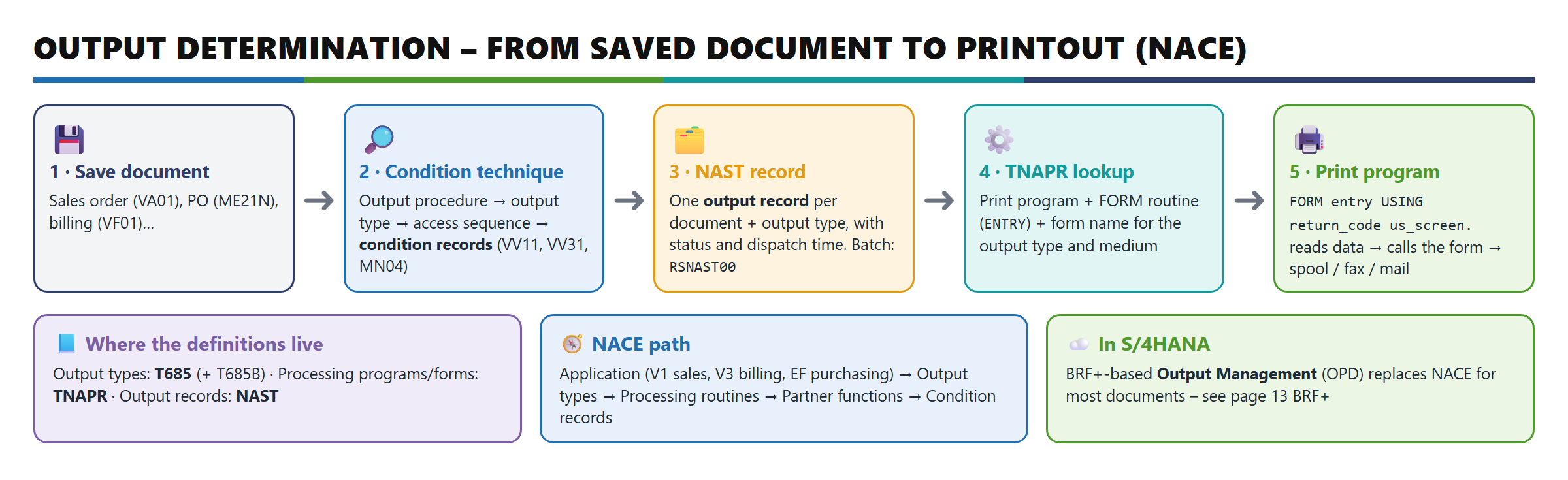
In ECC, printing a document is not hard-coded: when a document is saved, output determination (condition technique) proposes output types, creates NAST records and later calls the print program and form configured for that output type.
Object | What it holds |
|---|---|
Output type | Kind of output (e.g. BA00 order confirmation, NEU purchase order, RD00 invoice). Definitions in T685 (+ T685B) |
TNAPR | Per output type and medium (print, fax, e-mail, EDI…): print program, FORM routine, form name (SAPscript or Smart Form / PDF form) |
NAST | Output records – one per document and output type, with medium, partner, dispatch time and status (0 not processed, 1 processed, 2 incorrect). NAST does not store the output type definitions |
Condition records | When to propose the output (VV11 sales, VV21 shipping, VV31 billing, MN04 purchase order), based on access sequence and condition tables |
Processing routines of a purchase-order output type in NACE (application EF): print, fax, external send and simple mail use program SAPFM06P with FORM routine ENTRY_NEU and form MEDRUCK; EDI and ALE use RSNASTED (IDoc output – see page 07 Interfaces):
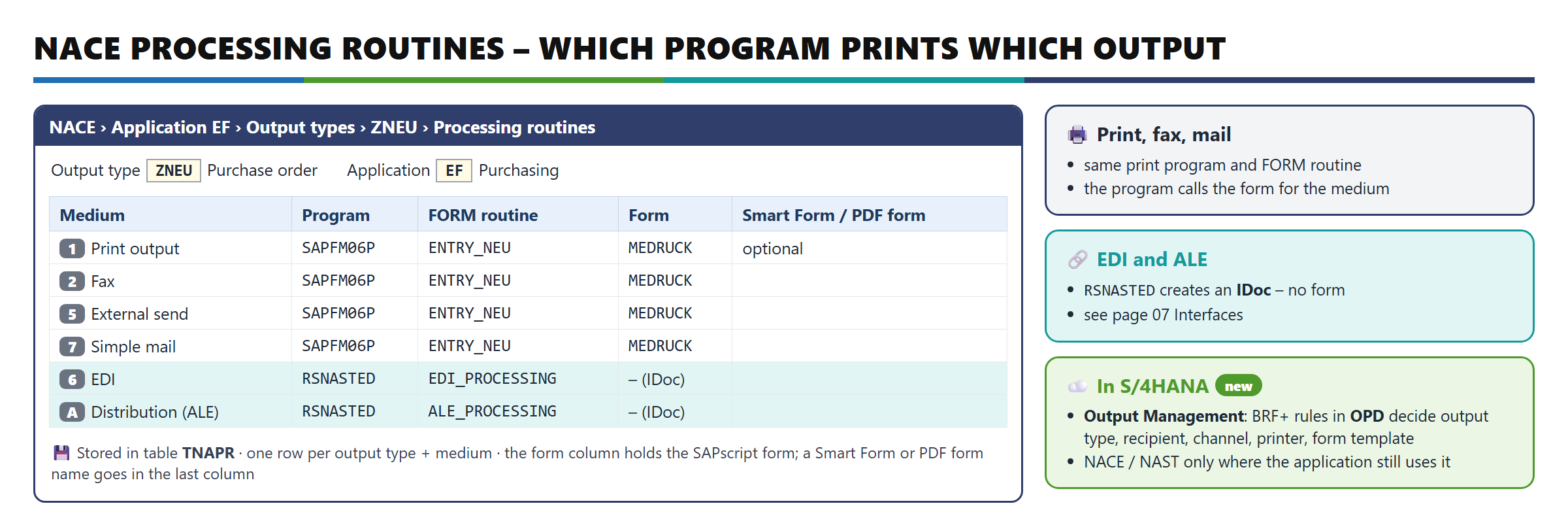
- NACE path: application (V1 sales, V2 shipping, V3 billing, EF purchasing) → Output types → Processing routines → Partner functions; condition records via the application's tcodes.
- Dispatch time: 1 = batch job (report RSNAST00), 2 = batch at a set time, 3 = manually from the application, 4 = immediately on save. Reprocess outputs with RSNAST00 or from the document (Extras → Output).
- Standard print programs: RVADOR01 (order, form RVORDER01), RVADDN01 (delivery), RVADIN01 (billing, form RVINVOICE01), SAPFM06P (purchase order, form MEDRUCK).
The output control calls the configured FORM routine of the print program – by convention ENTRY:
|
Part 3 – SAPscript
SAPscript prints preformatted text into preformatted forms (purchase requisitions, RFQs, order confirmations, delivery notes, invoices). Forms are client-dependent and no function module is generated – the composer interprets the form at runtime.
- Five components: editor (enter text lines), styles and forms (layout sets), composer (central output module, invisible to the user), programming interface (FMs such as OPEN_FORM), database tables (texts, forms, styles – STXH/STXL).
3.1 Elements of a form (SE71)
Element | Meaning |
|---|---|
Header | Administrative data and basic settings: first page, default paragraph, page format, orientation |
Pages | Each page has a name, its own layout and a next page (e.g. FIRST → NEXT → NEXT…) |
Windows | Named text areas: address, header, items, footer |
Page windows | A window placed on a page with position and size |
Paragraph formats | Margins, alignment, line spacing, tabs, font |
Character formats | Format parts of a paragraph: bold, italic, underline, font size, bar code |
Text elements | Named blocks inside a window ( |
Window type | Behaviour |
|---|---|
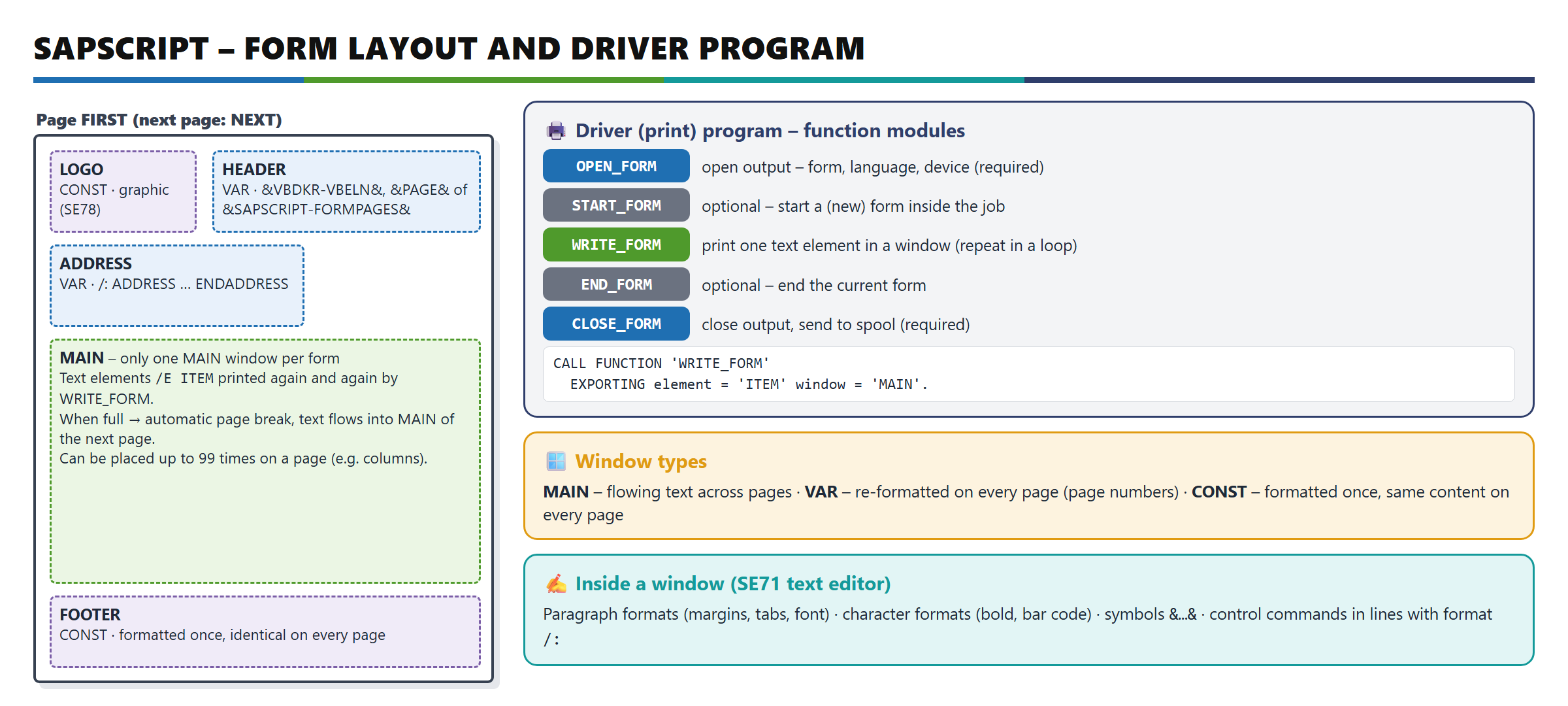
MAIN | Exactly one MAIN window per form (created by default). It holds the flowing text – when it is full, SAPscript triggers a page break and continues in the MAIN window of the next page. It can be placed up to 99 times on one page (e.g. columns); all MAIN page windows have the same width |
CONST | Processed like VAR – SAP recommends VAR instead (meant for content that is the same on every page, e.g. logo, footer). A form can have many CONST windows |
VAR | Content is re-formatted for every page – use it for page numbers or values that change |
3.2 Symbols and control commands
- Symbols are placeholders
&name&: system (&PAGE&,&NEXTPAGE&,&DATE&,&SAPSCRIPT-FORMPAGES&), program symbols = global data of the print program (&GS_ITEM-MATNR&), standard symbols (table TTDTG), text symbols defined with/: DEFINE.- Formatting options:
&field(Z)&no leading zeros,&field(C)&compress spaces,&field(I)&suppress if initial,&field+4(3)&offset and length.
- Formatting options:
- Control commands steer the composer (the editor does not interpret them): entered with paragraph format
/:, one command per line, command and parameters on one line. A wrong command line is treated as a comment and not printed.
Command | Purpose |
|---|---|
/: INCLUDE name OBJECT TEXT ID ST LANGUAGE EN | Insert a standard text (SO10) |
/: IF … /: ELSE /: ENDIF | Conditional output |
/: NEW-PAGE | Force a page break |
/: PROTECT … /: ENDPROTECT | Keep a block together on one page |
/: DEFINE &x& = 'value' | Text symbol |
/: SET DATE MASK = 'DD.MM.YYYY' | Date format |
/: ADDRESS … /: ENDADDRESS | Address formatted to the country's postal rules |
/: PERFORM form IN PROGRAM prog USING &a& CHANGING &b& /: ENDPERFORM | Call ABAP subroutine (parameters as tables of structure ITCSY) |
| Frames, switch style, fixed lines at top/bottom of MAIN |
3.3 Print program – form control function modules
FM | Purpose |
|---|---|
OPEN_FORM | Opens form output (form, language, device, dialog) – required |
START_FORM / END_FORM | Optional: start / end a form inside one spool job (several forms per job) |
WRITE_FORM | Outputs a text element in a window. Technically optional, practically always used |
WRITE_FORM_LINES / CONTROL_FORM | Output text lines from an internal table / send a control command |
CLOSE_FORM | Ends output and sends it to the spool – required; can return the OTF data |
|
3.4 Reusable texts (used by all three tools)
Text | Maintained in | Used by |
|---|---|---|
Standard text | SO10 (object TEXT, ID ST) | SAPscript |
Text module | SMARTFORMS → Text Module | Smart Forms; Adobe Forms context |
Document texts | In the application (header/item texts) | Read with READ_TEXT – text objects and IDs are defined in SE75 |
|
3.5 Tcodes, programs and tips
Tcode / program | Purpose |
|---|---|
SE71 / SE72 | Form Painter / SAPscript styles |
SE73 | Fonts and bar codes (new bar code technology supports 2D codes such as QR on recent releases) |
SE75 | SAPscript settings: text objects and text IDs |
SE76 / SE63 | Translate forms |
SE78 | Graphics: upload logos (BMP for Smart Forms; TIFF via RSTXLDMC for SAPscript) |
SO10 | Standard texts |
SCC1 | Copy a transport request into another client (forms are client-dependent); or SE71 → Utilities → Copy from Client |
RSTXSCRP / RSTXDBUG | Upload/download forms / SAPscript debugger (or SE71 → Utilities → Activate Debugger) |
SP01, SP02, SPAD | Spool requests, own spool requests, output devices (LOCL, PDF printers) |
RSTXPDFT4 | Convert a spool request to PDF |
- Limitations: client-dependent, much coding in the print program, very limited colour, no WYSIWYG layout.
- A SAPscript form can be migrated: SMARTFORMS → Utilities → Migrate SAPscript form (styles likewise).
In S/4HANA / clean core: SAPscript still runs with NAST-based output in S/4HANA on-premise, but new forms are built as Adobe forms.
Part 4 – Smart Forms
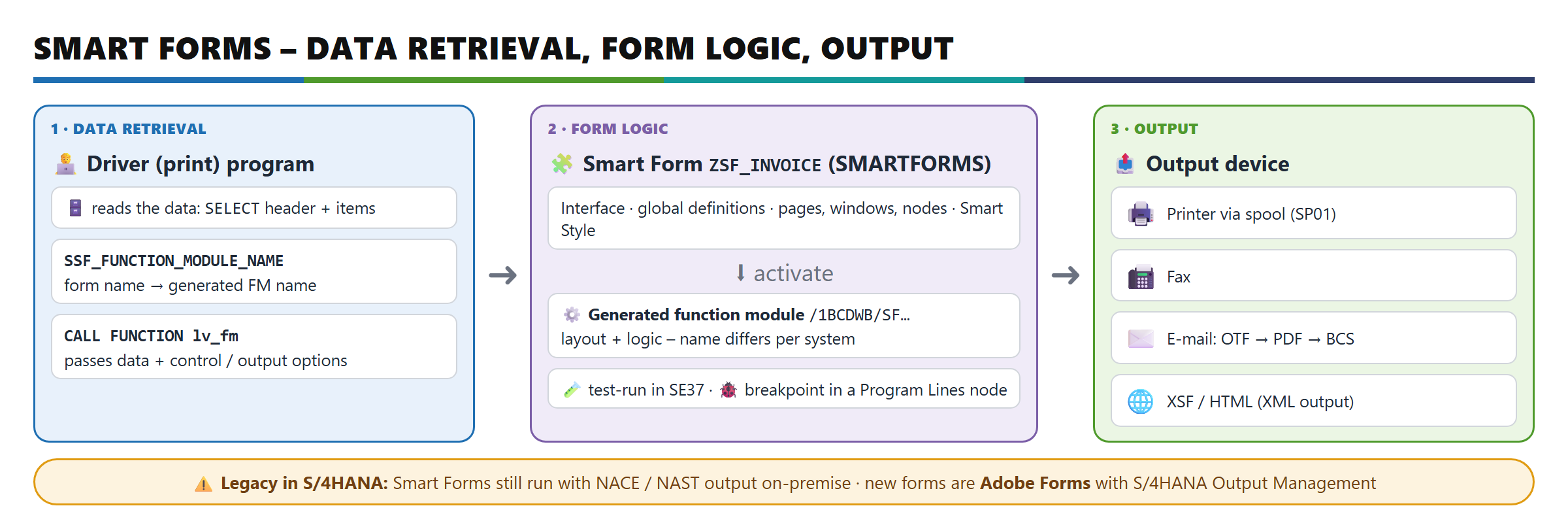
Graphical form tool (tcode SMARTFORMS), client-independent, for invoices, pay slips, quotations, sales and purchase orders. On activation it generates a function module that contains the form's layout and logic. The print program only fetches data and calls that FM – data retrieval is separated from presentation.
- Advantages over SAPscript: client-independent, less programming, colours and character formats, reusable Smart Styles, tables and templates, output to printer, fax, e-mail and XML (XSF/HTML).
4.1 Structure of a Smart Form
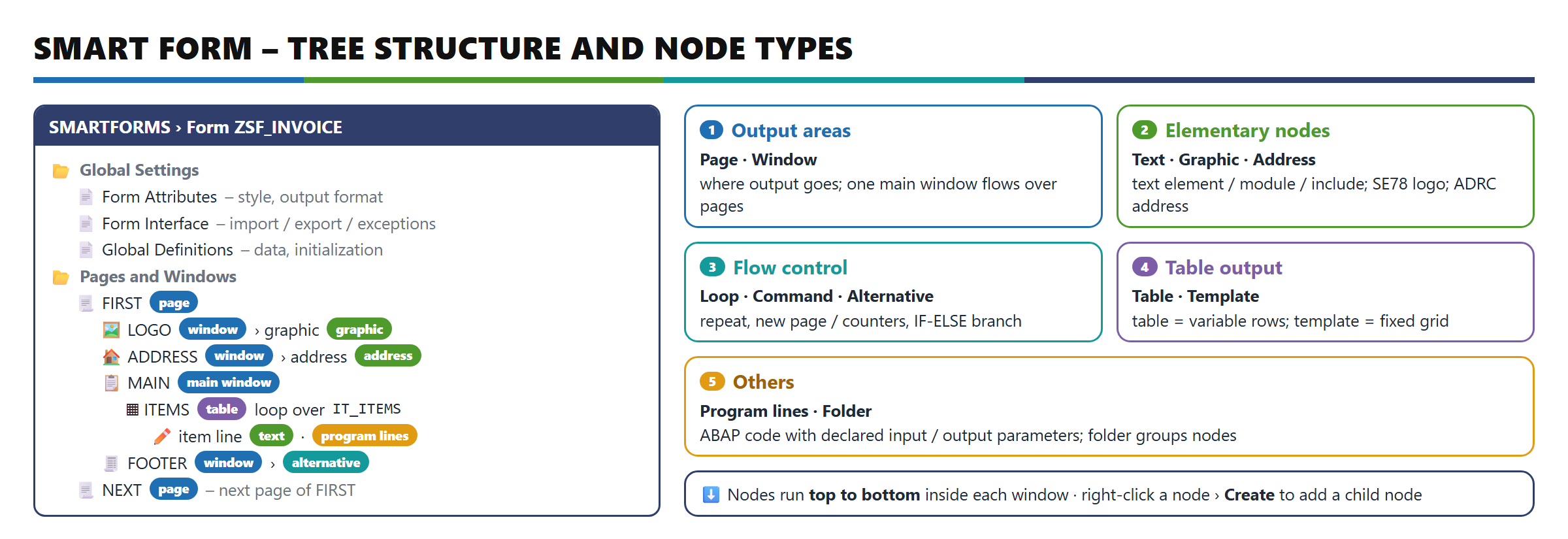
Node | Content |
|---|---|
Form attributes | Administrative data (created by/on, package), output format, default style |
Form interface | Import (program → form), Export (form → program), Tables (obsolete – use table types as import parameters), Exceptions |
Global definitions | Global data, types, field symbols, initialization code, form routines, currency/quantity reference fields |
Pages and windows | At least one page with one window; nodes are processed top to bottom. New window: right-click the page → Create → Window (or draw it in the Form Painter); position and size = left margin, upper margin, width, height |
Group | Nodes | Use |
|---|---|---|
Output areas | Page, Window | Where output goes |
Elementary | Text, Graphic, Address | Text element / text module / include text; logo from SE78; address from ADRC by address number (ADRNR) |
Flow control | Loop, Command, Alternative | Repeat over a table; new page / page counter / print control; IF-ELSE branch |
Table output | Table, Template | Table = variable rows (header, main area, footer, calculations tab for totals); Template = fixed rows/columns for static layout |
Others | Program lines, Folder | ABAP code (declare its input and output parameters!); group nodes |
Window type | Use |
|---|---|
Main | Continuous output such as item tables; flows over pages. One per page, same width on every page |
Secondary | Fixed-size output (address, header data) |
Copies window | Prints "Original" or "Copy" (uses SFSY-COPYCOUNT) |
Final window | Processed at the end of the form, so it can show totals or total pages on page 1 |
4.2 Texts, styles, graphics, system fields
- Text types: text element (only this form), text module (reusable across Smart Forms), include text (SO10, reusable everywhere), dynamic text (filled at runtime from a table of type TSFTEXT).
- Smart Styles (tcode SMARTSTYLES): paragraph and character formats, fonts, colours; one style for many forms; set in the form attributes or in the Output Options of a text node.
- Graphics: upload BMP in SE78, then a Graphic node. Bar codes: defined in SE73, used through a character format in the Smart Style.
- System fields: SFSY-PAGE (current page), SFSY-FORMPAGES (pages of the form), SFSY-JOBPAGES (pages in the job), SFSY-COPYCOUNT, SFSY-DATE, SFSY-TIME, SFSY-USERNAME, SFSY-SUBRC.
4.3 Driver program
The generated FM name (/1BCDWB/SF00000xxx) differs per system and changes after regeneration, so always get it with SSF_FUNCTION_MODULE_NAME. The generated FM is the form – it can be test-run in SE37, but it does not fetch data; the driver program does.
|
- Debugging: breakpoint in the generated FM, or
BREAK-POINT(all users) /BREAK <user>in a Program Lines node. - Translation: SE63 → Other Texts → Smart Forms. Transport: the form and style are normal client-independent repository objects.
In S/4HANA / clean core: Smart Forms still run with NAST-based output on-premise; the new output management works with Adobe forms, so new developments use Adobe.
Part 5 – Adobe Forms (SAP Interactive Forms by Adobe)
Introduced with SAP NetWeaver 2004. Tcode SFP, client-independent, output is always PDF. The layout is designed in the embedded Adobe LiveCycle Designer (ALD). Rendering is done by ADS – Adobe Document Services (a Java service; in the cloud: SAP Forms Service by Adobe).
- Advantages over Smart Forms: WYSIWYG design, graphics directly in the form, import existing PDF or Word designs, browser integration, interactive forms.
5.1 Scenarios
Scenario | How it works | Example |
|---|---|---|
Print (non-interactive) | PDF is printed, archived or sent by e-mail/fax | Invoice, delivery note |
Interactive offline | User receives the PDF (e.g. by e-mail via BCS), fills it without being logged on, sends it back; the issuer's system extracts the XML data from the PDF | Supplier self-registration form |
Interactive online | Form is shown in a Web Dynpro / portal app, prefilled (name, role…), the user stays connected and submits online | HR request in a portal |
Interactive forms need a separate Adobe licence; print forms do not.
5.2 Objects: interface and form
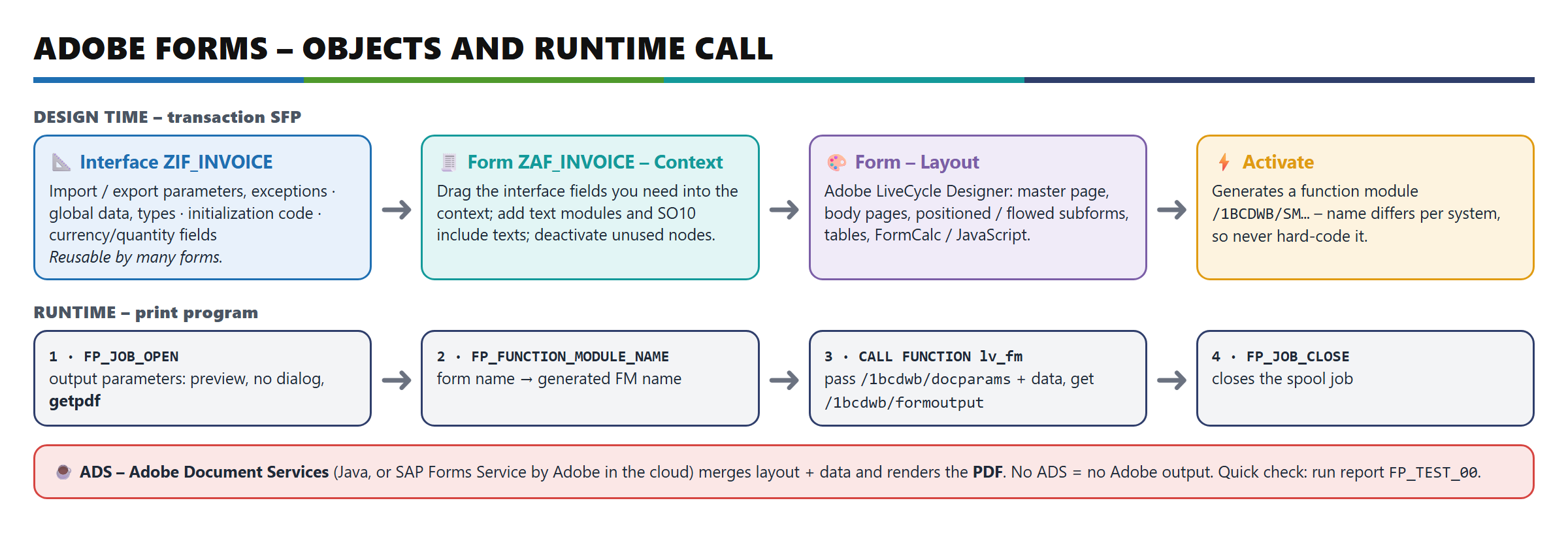
- The interface is a separate object (one interface can serve many forms; every form has exactly one). The form consists of context + layout.
Interface type | Use |
|---|---|
ABAP Dictionary-based | Most common – print and interactive forms |
Smart Forms-compatible | Same parameters as a Smart Form interface, so an old print program can call the Adobe form unchanged (used when migrating Smart Forms) |
XML Schema-based | Based on a W3C XML schema; generated when the form is used in Web Dynpro |
Interface part | Content |
|---|---|
Form interface | Import and export parameters, exceptions |
Global definitions | Global data, types, field symbols |
Initialization | Code (select/prepare data) and FORM routines |
Currency/quantity fields | Reference fields for amounts and quantities |
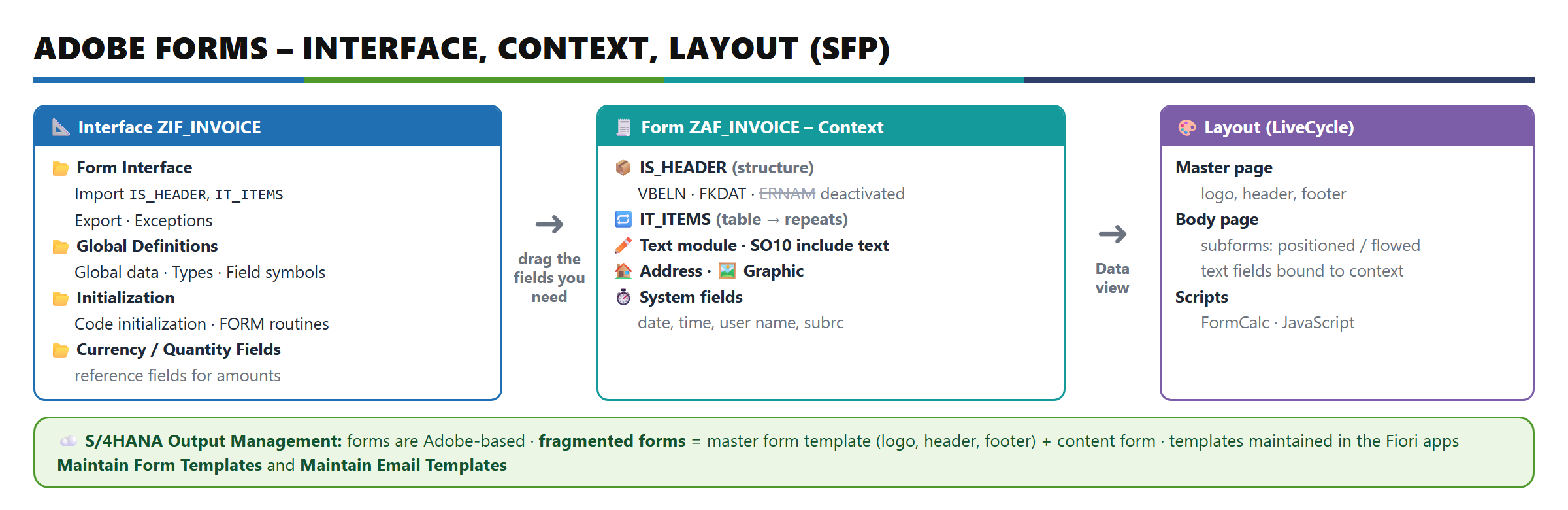
Form tab | Content |
|---|---|
Properties | Description, interface, layout type: Standard (print, archive, offline interactive), ZCI (Zero Client Installation – Web Dynpro), xACF (ActiveX, obsolete), Unknown (not yet classified, e.g. old forms) |
Context | Drag the interface fields you need (deactivate the rest); add text modules and SO10 include texts; system fields date, time, user name, subrc |
Layout | Adobe LiveCycle Designer: Design view (place elements), Data view (drag and drop fields), Hierarchy (element tree), Object palette (properties and data binding) |
5.3 Layout in LiveCycle Designer
- Master page: at least one (created automatically) – background, header/footer, page size and orientation for the body pages.
- Body page: the real pages; each derives size and orientation from a master page and starts with one subform covering the page.
- Subforms (like windows in Smart Forms): positioned – objects at fixed coordinates, hierarchy order irrelevant; flowed – objects follow each other, hierarchy order decides the position. Dynamic tables need a flowed subform with "Repeat subform for each data item" and "Allow page breaks".
- Objects: Text (static), Text Field (bound to data, input/output), Page n of m, images, barcodes, buttons, check boxes, radio buttons, drop-down lists.
- Patterns (Object palette): display patterns format output; validation patterns check user input in interactive forms.
- Conditional breaks: break a subform when a condition is true; force a page break between data sets with Object → Pagination → After: Go to Next Page.
- Translation: SE63 → Other Texts → PDF-Based Forms (PDFB).
5.4 Print program
|
- ADS check: report FP_TEST_00 prints a test form – if it fails, ADS (SM59 destination ADS) is not configured.
- Offline interactive data back into SAP: read the returned PDF with
CL_FP=>GET_REFERENCE( )→CREATE_PDF_OBJECT( )→SET_DOCUMENT( )→SET_EXTRACTDATA( )→EXECUTE( )→GET_DATA( )(XML). If the PDF comes back by e-mail, this code runs in an inbound handler – a class implementingIF_INBOUND_EXIT_BCS, registered in SO50.
5.5 Scripting – FormCalc and JavaScript
FormCalc | JavaScript | |
|---|---|---|
Default? | Yes – default language in Designer | No |
Best for | Short calculations: arithmetic, date/time, financial, logical functions | Complex interactive and dynamic logic (show/hide, loops over fields) |
Speed | Faster | Slower |
Objects |
|
|
|
|
- Drop-down values: fixed entries in List Items, or dynamic values via Data Binding (also Tools → Options → Data Binding). Buttons can trigger e-mail sending or switch actions on and off.
Part 6 – PDF and e-mail (BCS)
One home for sending documents by e-mail – used by forms, reports and workflows alike. Step 1: get the PDF as an xstring. Step 2: send it with BCS (Business Communication Services).
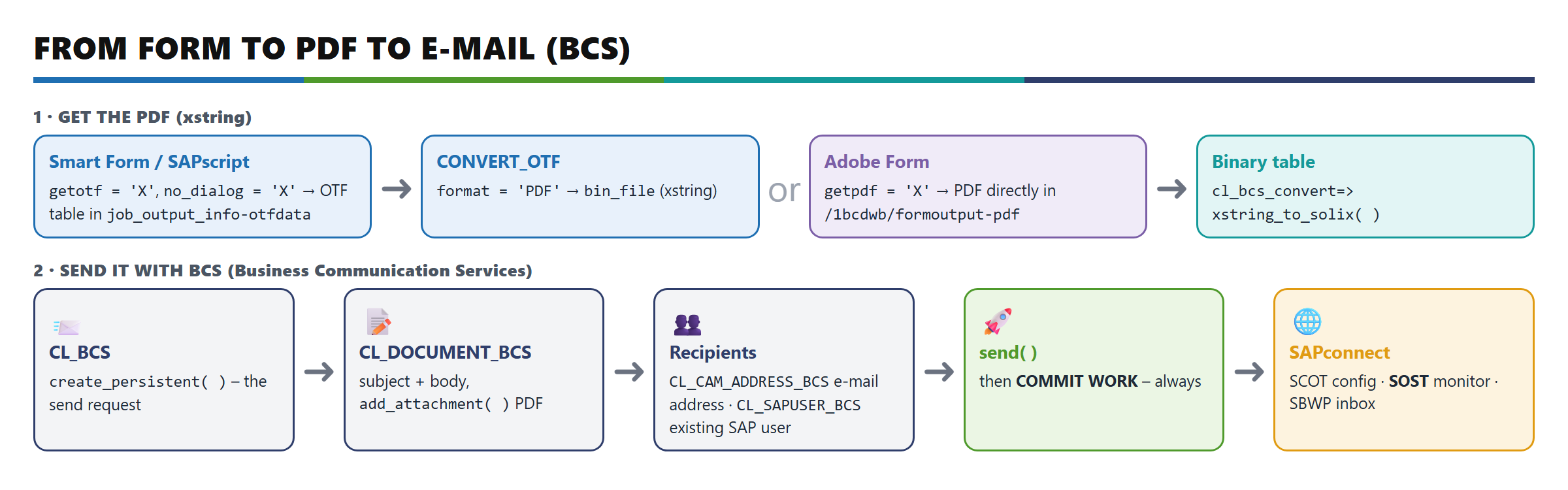
6.1 Smart Form (or SAPscript) → PDF
|
- SAPscript: set
options-tdgetotf = 'X'in OPEN_FORM; CLOSE_FORM returns the OTF table. Adobe:getpdf = 'X'givesls_output-pdfdirectly. A PDF can then be downloaded (GUI_DOWNLOAD) or mailed.
6.2 Sending with BCS
Class | Role |
|---|---|
CL_BCS | The send request: set document, sender, recipients, send |
CL_DOCUMENT_BCS | The document: subject, body, attachments |
CL_CAM_ADDRESS_BCS | Recipient (or sender) for an internet e-mail address |
CL_SAPUSER_BCS | Recipient or sender object for an existing SAP user – it does not create users |
CL_BCS_CONVERT | Conversions, e.g. |
Procedure: prepare subject and body → create the document (CL_DOCUMENT_BCS) and add the PDF attachment → create the send request (CL_BCS) and set the document → create sender and recipients and add them → optionally send immediately → send( ) → COMMIT WORK (always required – without it nothing is sent).
|
- External mail also needs SAPconnect configured (SCOT) and its send job. Monitor sent mails in SOST; the SAP inbox is SBWP (Business Workplace).
- Newer, simpler API: CL_BCS_MAIL_MESSAGE (released for ABAP Cloud and available in newer on-premise releases):
|
Part 7 – In S/4HANA
Topic | ECC (classic) | S/4HANA |
|---|---|---|
Output trigger | NACE: condition technique, NAST, TNAPR | Output Management with BRF+ decision tables: Fiori app / tcode OPD (Output Parameter Determination) decides output type, recipient, channel, form template and printer – see page 13 BRF+ |
Channels | Print, fax, mail, EDI via NAST | Print, e-mail, XML, IDoc; output requests visible in the apps |
Form tool | SAPscript, Smart Forms, Adobe | Adobe Forms are the standard (PDF-based, fragment-based templates: master form for logo/header/footer + content form) |
Templates | Copy SAP form in SE71/SMARTFORMS/SFP | Fiori apps Maintain Form Templates and Maintain Email Templates; data comes from OData/CDS-based form services |
Rendering | ADS on-premise | ADS on-premise, SAP Forms Service by Adobe on SAP BTP / in the cloud |
Old outputs | – | NAST-based output is still possible for some applications (switchable per application object type), so SAPscript/Smart Forms keep running in converted systems |
- BCS e-mail stays valid; in ABAP Cloud use CL_BCS_MAIL_MESSAGE.
- Interview tip: know NACE/NAST well (brownfield), and be able to explain the BRF+-based output management for greenfield projects.
Part 8 – Interview questions
1. Compare SAPscript, Smart Forms and Adobe Forms.
SAPscript (SE71): client-dependent, no generated FM, logic in the print program, limited layout. Smart Forms (SMARTFORMS, 4.6C): client-independent, graphical, generates an FM, Smart Styles. Adobe Forms (SFP, NW 2004): separate interface + form, PDF output via ADS, LiveCycle Designer, interactive forms; the standard in S/4HANA.
2. How is a print program linked to an output type?
In NACE: application → output type → processing routines, stored in table TNAPR (print program, FORM routine such as ENTRY, form name per medium). When the document is saved, output determination creates a NAST record; at dispatch time the system calls the FORM routine of the print program.
3. What is stored in NAST?
Output records (messages): document key, output type, partner, medium, dispatch time and processing status. Output type definitions are in T685, processing programs in TNAPR.
4. What window types exist in SAPscript?
MAIN (one per form, flowing text, page break when full, can be placed up to 99 times per page), CONST (processed like VAR – use VAR) and VAR (re-formatted on every page, e.g. page numbers).
5. Which function modules does a SAPscript print program use?
OPEN_FORM and CLOSE_FORM (required), WRITE_FORM for each text element, optionally START_FORM/END_FORM for several forms in one job, plus WRITE_FORM_LINES and CONTROL_FORM.
6. Why do you call SSF_FUNCTION_MODULE_NAME instead of the generated FM directly?
The generated name (/1BCDWB/SF…) differs between systems and can change when the form is regenerated; SSF_FUNCTION_MODULE_NAME returns the current name. The Adobe equivalent is FP_FUNCTION_MODULE_NAME.
7. Main window vs final window in Smart Forms? Table vs template?
The main window holds flowing output like item tables; the final window is processed at the end, so it can show totals anywhere. A table has a variable number of rows (header, main area, footer); a template has a fixed grid for static layout.
8. How do you convert a Smart Form to PDF and send it by e-mail?
Set getotf = 'X' and no_dialog = 'X', call the FM, convert job_output_info-otfdata with CONVERT_OTF (format 'PDF'), convert the xstring to SOLIX, then send with CL_BCS/CL_DOCUMENT_BCS and COMMIT WORK.
9. What are the parts of an Adobe Form and which interface types exist?
An interface (separate, reusable) and a form (context + layout). Interface types: ABAP Dictionary-based, Smart Forms-compatible and XML Schema-based.
10. What is ADS and how do you check it?
Adobe Document Services – the Java service that merges layout and data and renders the PDF. Without it no Adobe output is possible. Test with report FP_TEST_00 (destination ADS in SM59).
11. FormCalc vs JavaScript? Positioned vs flowed subform?
FormCalc is the default, fast, for short calculations; JavaScript is for complex dynamic logic. Positioned subforms place objects at fixed coordinates; flowed subforms place them one after another – needed for dynamic tables that grow over pages.
12. How does output work in S/4HANA?
The BRF+-based Output Management (OPD) determines output type, recipient, channel and form template; forms are Adobe-based (fragment templates managed in Fiori apps) and rendered by ADS or SAP Forms Service by Adobe. NACE/NAST remains only for some applications and converted systems.
🏠 Start Here · ◀ 10 · Enhancements · 12 · Workflow ▶ · Sections: CORE ABAP | OOPS ABAP | ABAP on HANA | Clean Core | RAP | ABAP Points | SAP Fiori | SAPUI5 | Mobile Development (MDK) | BTP Foundations | BTP Development | CAP | SAP Build | ABAP on BTP | Integration Suite | SAP Business AI | SAP BASIS | Security | SAP SDLC
Functional: FICO ABAP | TRM ABAP | VIM | SAP BIS | SD ABAP | MM ABAP | PP ABAP | QM ABAP | PM ABAP | PS ABAP | EWM | TM ABAP | GTM ABAP | EHS ABAP | HR ABAP | BW | SAP Datasphere | SAP Business Data Cloud | SAP MDG | SAP Analytics Cloud | SAP Ariba | SAP CX | SAP IBP