How a trading deal runs through SAP GTM from the first entry to the closed contract: create the trading contract, check and simulate, release it (manually, by workflow or automatically), let the system create the sales order and purchase order, execute deliveries, goods movements and invoices in the Trading Execution Workbench (TEW), and plan, accrue and settle the trading expenses. One-sided deals are matched through position and association management; letters of credit and credit limits are checked on the contract. Each part names the customizing that controls the step; Part 8 collects the key customizing and Part 9 the apps and transactions. Contract types, item categories and tables: page 02; postings and interfaces in depth: page 04; BAdIs and code: page 05.
Part 1 – The trading process end to end
The trading contract is the leading document of the whole deal. Everything else – sales order, purchase order, deliveries, goods movements, invoices, expense postings – is a follow-on or follow-up document of it and appears in its document flow tree. Changes are made in the contract and passed on by releasing it again.
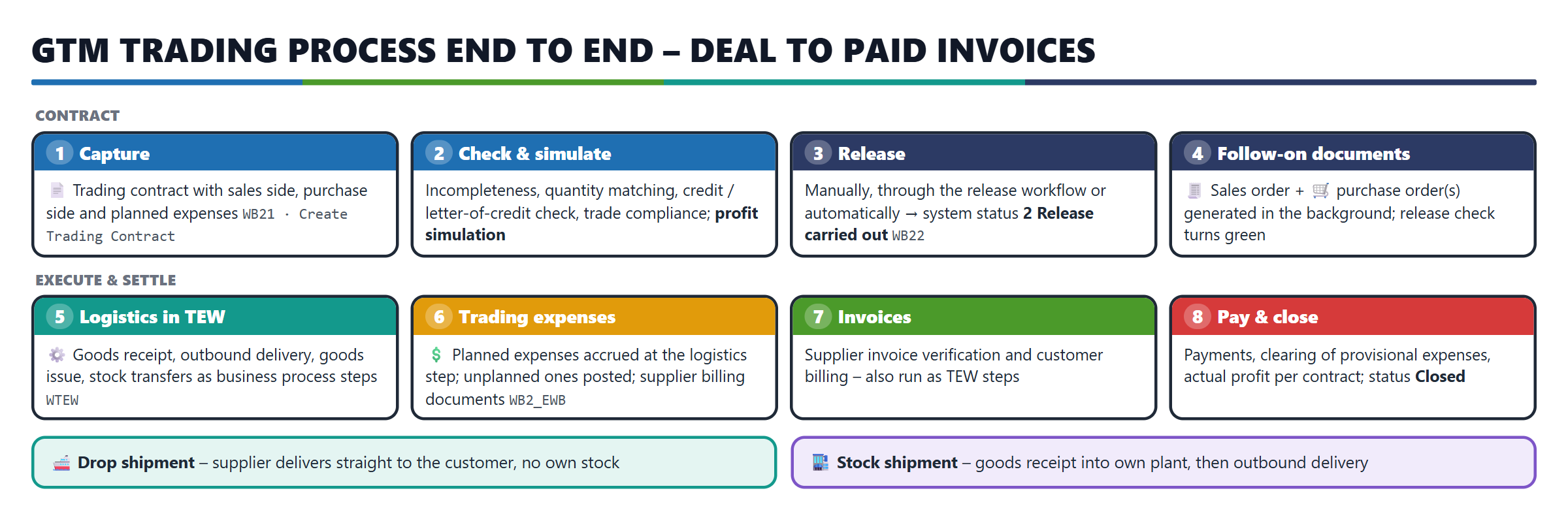
Step | What happens | Document / transaction |
|---|---|---|
1. Capture | Trader enters sales side, purchase side, quantities, prices and planned expenses | Trading contract – WB21 / Create Trading Contract |
2. Check and simulate | Incompleteness, quantity matching, risk (credit, letter of credit), trade compliance; profit simulation of prices and costs | Status view of the contract |
3. Release | Manually, through the release workflow or automatically on save (contract type) | WB22; workflow on BUS2124 |
4. Follow-on documents | Sales order and one or more purchase orders generated in the background | VBAK / EKKO; app Schedule Follow-On Document Processing |
5. Logistics | Goods receipt, outbound delivery, goods issue, stock transfers as TEW business process steps | WTEW |
6. Expenses | Planned expenses accrued at the logistics step, unplanned expenses posted directly; supplier billing documents | TEW or Expense Workbench WB2_EWB |
7. Invoices | Supplier invoice verification and customer billing | TEW steps (MIRO / billing in the background or dialog) |
8. Pay and close | Payments, clearing of provisional expenses, actual profit; status Closed | FI; WB22 status view |
1.1 Drop shipment and stock shipment
Variant | Goods flow | What controls it |
|---|---|---|
Drop shipment | The supplier delivers directly to the customer; the trader holds no stock – the typical commodity deal | Item category of the contract (goods receipt / invoice receipt settings, page 02) and the TEW group Drop Shipment |
Stock shipment | Goods receipt into the trader's plant, later outbound delivery and goods issue to the customer | Item category and the TEW group Stock Shipment |
- Compared with an SD third-party order (item category TAS, purchase requisition, PO), GTM creates the purchase order directly from the contract with the purchase price already agreed – the trader negotiates both sides at once and sees the margin before release.
Part 2 – Creating, checking and releasing a trading contract
2.1 Creating the contract
- WB21 (SAP Easy Access › Logistics › Global Trade Management › Trading Contract › Create) or the Fiori tile Create Trading Contract: enter the trading contract type and the organizational data, then business partners, items (material, quantity, unit, price, currency are mandatory) and item details; check the Status screen; save.
- Organizational data depends on the contract type: two-sided = sales and purchasing org data, sales-side = SD only, purchase-side = MM only. A contract can only be copied to a contract with the same organizational data (no one-sided → two-sided copy).
- SET/GET parameters default the org data: VKO2 (sales org), VTW2 (distribution channel), SPA2 (division), VKB2 (sales office), VKG2 (sales group), EKO2 (purchasing org), EKG2 (purchasing group), optional TEW_TYPE2 (TEW type) and WRK2 (plant).
- Create with reference – a whole contract (copy control) or single items (Edit › Item › Create Item with Reference), e.g. from a precontract; Create Item with Association Reference also copies the associated partner item.
- Partners are determined from master data with a partner determination procedure (as in SD) at header and item level and copied to the sales order and purchase order.
- Multiple currencies – sales currency, purchasing currency and a statistical currency per deal, with exchange rate and rate type (for example TTM, TTB, TTS) overridable in the contract.
2.2 Checks before release
Check | What it does | Effect |
|---|---|---|
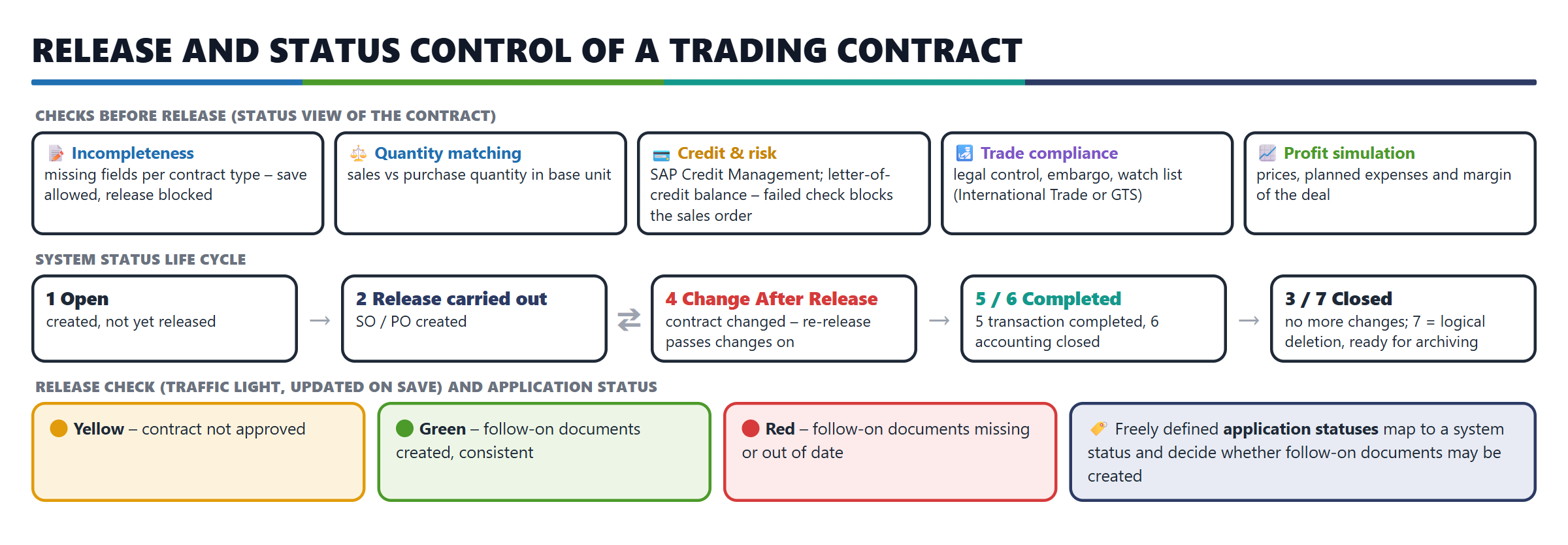
Incompleteness | Fields defined per contract type as required (e.g. Incoterms for export) | Save may be allowed, release is blocked until complete |
Quantity matching | Compares sales and purchase quantity, converted to the base unit; several POs are summed | Red light and log until quantities match; switched on per contract type |
Risk management check | Letter-of-credit balance when a payment guarantee procedure is assigned; credit check in domestic business | Contract can be saved, but automatic sales order creation is blocked |
Credit check | SAP Credit Management check for the partners (Part 6) | Per control rules of FIN-FSCM-CR |
Trade compliance | Legal control, embargo, watch list screening (International Trade) or SAP GTS | Status per inbound / outbound scenario |
Profit simulation | Prices, planned expenses and resulting margin of the deal | Decision support – no block |
2.3 Status control and release
System status | Meaning |
|---|---|
1 Open | Created, not released |
2 Release carried out | Follow-on documents created |
3 Closed | No more changes |
4 Change After Release | Contract changed after the follow-on documents were created – re-release needed |
5 Transaction Completed | Logistics finished |
6 Accounting Closed | Financial processing finished |
7 Closed (logical deletion) | Final; document ready for archiving |
- Application statuses are defined freely (status group of the contract type) and each is assigned to a system status. The application status shows the business progress ("approved") and decides whether the next step may run ("creation of sales and purchase orders allowed").
- Release check (traffic light, evaluated on save): yellow = not approved, green = follow-on documents created and consistent, red = follow-on documents missing or not up to date.
- Release creates the follow-on documents automatically in the background. When the contract is changed afterwards, the status becomes Change After Release, the light turns red, and the next release passes the changes to the sales order and purchase order.
- Mass and background creation – Fiori app Schedule Follow-On Document Processing (F6438) schedules jobs that create or update the follow-on documents, e.g. at night; errors (such as a contract not released for follow-on documents) come back as notifications to the job owner.
- Release by workflow – a user without release authorization forwards the contract with the Workflow Workbench: Trading Contract; the agent (standard role: purchasing group) executes the work item, which releases the contract and creates the follow-on documents. Workflows exist for display, change and release (business object BUS2124, task group TG03100002 – page 05).
- Closing – set an application status that maps to system status 7, or set the deletion flag (Trading Contract › Delete); afterwards no changes are possible and the contract can be archived.
- Automatic document adjustment (Trading Contract › Environment › Tools › Automatic Document Adjustment) – when condition records change, the system updates the affected contracts and follow-on documents without full repricing, as long as no invoices exist yet.
Part 3 – Executing the deal in the Trading Execution Workbench
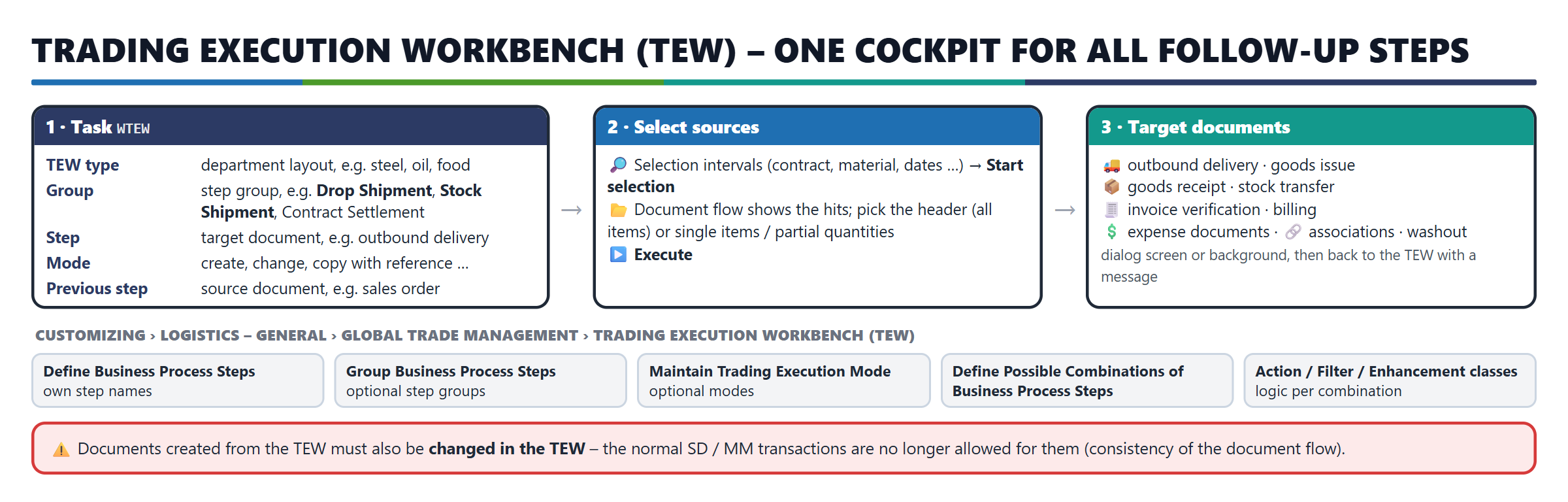
The TEW (transaction WTEW) is the trader's cockpit: instead of VL01N, MIGO, VF01, MIRO and the other single transactions, the user picks a business process step, selects the source documents and lets the TEW create the target documents – with dialog or in the background. TEW must be activated in GTM customizing and the SD / MM functions it calls must be customized for background processing; association management and expense management can be run from the TEW as well.
3.1 How a TEW step works
- 1. Task – choose the TEW type (role-based layout per department, e.g. steel, oil, food), the group (e.g. Drop Shipment, Stock Shipment), the step (target document, e.g. outbound delivery), the mode (create, change, copy with reference …) and the previous step (source document, e.g. sales order).
- 2. Select – selection intervals (contract number, material, dates …) → Start selection; the hits appear in the document flow area. Select the header (all items) or single items / partial quantities.
- 3. Execute – the TEW opens the target transaction with the data copied (e.g. Outbound Delivery Create: Overview) or creates the document in the background, then returns with a message and shows the new document in the flow.
- Selection settings are kept for the next session; all messages of the session are collected in a message area.
- Constraint – documents created from the TEW (goods receipt, invoice verification, outbound delivery, goods issue, billing) can afterwards only be changed in the TEW, not with the standard transactions, to keep the document flow consistent.
Typical step sequence | Drop shipment | Stock shipment |
|---|---|---|
Purchase side | Purchase order from the contract; supplier delivers to the customer | Purchase order → goods receipt into the trader's plant |
Sales side | Sales order from the contract; delivery-related steps as defined for the group | Outbound delivery → goods issue from the trader's plant |
Invoices | Supplier invoice verification, customer billing | Same |
Expenses | Planned expenses linked to the logistics step (Part 5) | Same |
The exact steps of each group come from customizing (Part 8) – the table shows the idea, not a fixed standard sequence.
Part 4 – One-sided deals: position and association management
A two-sided contract links purchase and sale automatically. When the trader buys without a customer (long position) or sells without a supplier (short position), he uses one-sided contracts (purchase-side or sales-side) and links them later. Position management has two functions for this: portfolio management and association management.
4.1 Portfolio management
- A portfolio is a predefined bucket (for example coffee by country of origin and crop year) used to classify contract items, report similar product lines and control risk per material, country, customer or supplier.
- Determination uses the condition technique: portfolio determination procedure (example GT0001) → portfolio type with access sequence (example G001) → portfolio tables (technically like condition tables, e.g. responsibility + material group) → portfolio record assigned to the item.
- Assigned automatically when material, quantity and value of an item are confirmed (timing set in customizing); visible under Goto › Item › Portfolio with a determination log; Redetermine Portfolio if alternative records exist. Position management must be activated in customizing.
4.2 Association management
- An association links a sales item and a purchase item for an association quantity (never more than the open quantity). Candidates are proposed by the common portfolio.
- Search strategies (assigned to the association group): candidates of the same period (same portfolio), candidates of different periods (e.g. old and new crop year), optional hierarchical search over more generic key fields.
- Where associations are maintained: in the trading contract (manually or automatically), when a sales-side logistics document is created (confirm the partner item), when a purchase document quantity changes (automatic or manual adjustment), or independently in the TEW.
- Reports (Logistics › Global Trade Management › Association Management › Reports): quantity overview with the long-short analysis (open purchase items = long, open sales items = short) and the association overview of all links of a contract item.
Part 5 – Trading expenses: plan, accrue and settle
Freight, loading, storage, insurance, customs duty and commissions belong to the deal but arise at different times, with different partners and on different accounts. GTM keeps them on the trading contract so that the profit simulation before release and the actual profit afterwards include all costs.
Type | Entered as | Posting | Example |
|---|---|---|---|
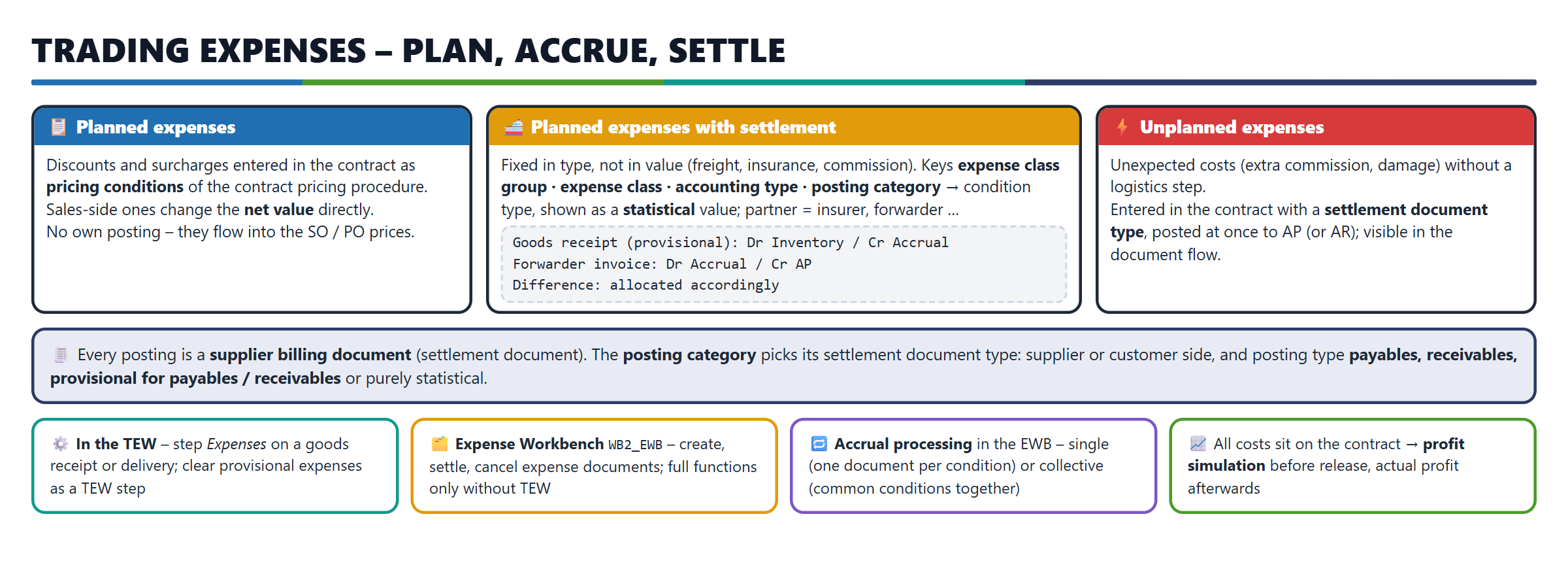
Planned expenses | Pricing condition in the contract pricing procedure (Planned Expenses screen; two-sided contracts first ask for the expense type) | No separate posting – part of the sales / purchase price; sales-side ones change the net value | Discount, surcharge |
Planned expenses with settlement | Expense class group, expense class, accounting type, posting category → condition type (statistical) + partner + estimated amount | Accrued at the logistics step (e.g. goods receipt), settled with the service provider's invoice | Freight, insurance, commission |
Unplanned expenses | Settlement document type, posting date, partner, plant, material, quantity, tax code, net price | Posted directly to AP (or AR) with a supplier billing document | Extra commission, damage |
5.1 Accrual and settlement
- All expense postings are supplier billing documents (settlement documents of settlement management). The posting category determines the settlement document type – supplier side or customer side – and the posting type: payables, receivables, provisional for payables / receivables (accrual) or purely statistical without an accounting document.
- Provisional posting example: freight is known only roughly at goods receipt → post Dr inventory / Cr accrual at goods receipt; when the forwarder's invoice arrives, clear the provisional expense (Dr accrual / Cr AP); differences are allocated. Cancelling reverses the supplier billing document.
- With Incoterms activated for the supplier billing document, freight expenses can be calculated from the Incoterms with the condition technique.
- Expenses can be posted together with the logistics step (Global Trade tab of the logistics document) or later as a separate step.
5.2 Where expenses are processed
Tool | Use |
|---|---|
TEW (WTEW) | Step Expenses with mode Create and a previous step such as Goods Receipt: copy the planned expense of the contract or create an additional one, save → supplier billing document and journal entry; a further TEW step clears provisional expenses |
Trading Expense Workbench (EWB) – WB2_EWB (Trading Contract › Environment › Trading Expense Workbench) | Create, change, cancel and settle expense documents, accounting release. Full functions only when the TEW is not active; with TEW only accounting release – BAdI WB2_ADDITIONAL_DATA, method SET_TEW_DISABLED, enables the full EWB anyway |
Accrual processing in the EWB | Filter by expense status (Expenses Not Accrued / Not Settled; only posting types provisional for payables / receivables count), then single accrual processing (one document per planned condition and contract) or collective (one document per common condition across contracts) |
Without TEW | Expense documents entered in the contract and its follow-on documents; not all TEW functions are available |
- Planned expenses must be part of the sales / purchasing pricing procedures (condition types of the contract pricing schema) – otherwise they are neither priced nor simulated. Account determination and postings: page 04.
Part 6 – Letters of credit, credit and compliance checks
- Documentary payments – in export deals the customer often pays by letter of credit (LC). If a payment guarantee procedure is assigned, the risk management check of the contract checks the customer's LC balance; a failed check still allows saving but blocks the automatic sales order.
- In S/4HANA the LC itself is a Trade Finance transaction of Treasury and Risk Management (letters of credit, standby letters of credit, bank guarantees). With the integration of Trade Finance with Sales, the LC is assigned to the sales order item and a risk check compares order (and optionally delivery) data with the LC terms, e.g. that the order value does not exceed the available LC amount (page 04).
- SAP Credit Management (S/4HANA: the only credit management; ECC also classic FI-AR-CR – Note 2270544) – credit checks for the partners already in the trading contract; activated per sales control group and per item category (Part 8). When the sales order is created, the credit exposure moves from the contract to the follow-on document.
- Trade compliance – activate trade compliance per contract type to run the International Trade checks (legal control, embargo, SAP Watch List Screening); results on the header status view, the item status view and the schedule line (inbound status for the purchase side, outbound for the sales side). SAP GTS can be integrated instead.
- Supplier evaluation – the standard MM supplier evaluation helps to pick the best supplier in the contract.
Part 7 – Special processes: shadow contracts, washout, agri contracts, STOs
Process | How it works |
|---|---|
Shadow trading contract | System-generated contract for a sales order or PO that was not created from GTM (e.g. from internal demand). The Trading Contract Synchronizer is called asynchronously by queued RFC, copies the position-relevant items and keeps the shadow contract in sync, so that the items reach the hedging solution. Expenses can be maintained; BOMs can be exploded in the shadow contract |
Washout | Opposite contracts for the same commodity with the same partner are offset financially, without delivery. In the TEW (group Contract Settlement, mode Washout detection) the system finds washout candidates; washout establishment creates a washout contract that posts the settlement on release |
Contracts for specific purposes (agri) | A purpose on the contract type: price fixing (pricing framework, e.g. 10,000 t wheat over 4 harvests), planned load and load (operational deliveries). Assignment management links load items to commodity items of price-fixing contracts; releasing a load contract creates the PO and goods receipt automatically |
Stock transport order | Contract with an STO order type: the supplying plant replaces the supplier; plants must belong to the company code of the org data; intra- and cross-company code STOs |
Bills of material, batches, variants | BOM items, batch determination and batch classification, configurable materials with fast entry of characteristic values (contract options – page 02) |
Part 8 – Key customizing
IMG path: SPRO › Logistics – General › Global Trade Management. GTM reuses SD and MM, so sales document types, item categories, copy control, purchasing document types and pricing must be set up first.
Activity (IMG node) | What it controls |
|---|---|
Activate Components | GTM itself, Trading Execution Workbench, association management, expense management |
Trading Contract › Define Trading Contract Types | Number ranges, org data, groupings, status group, incompleteness, checks, partner and text procedures, follow-on creation, trade compliance flag, output control indicator (NAST and/or S/4HANA output control), purpose (page 02) |
Trading Contract › Define Trading Contract Group, Define Control Groups Sales | Default groups and sales-side control, incl. activation of the SAP Credit Management check |
Trading Contract › Define Item Categories, Assign Document Type to Item Category | Item behaviour (drop / stock, credit check per item) and the document types of the follow-on documents |
Trading Contract › Define Incompleteness | Required fields per contract type |
Trading Contract › Trading Contract: Copy Control, Status Group for Copy Processes | Copying from released contracts only, schedule lines, batches, quantity rules, document flow update |
Trading Contract › Contract Settlement (copy control, Define Matching Group and Assignments) | Washout and other contract settlements |
Trading Contract › Shadow TC Creation | Prerequisites, copy control from sales order / PO to trading contract, BAdIs for copy relevance of SO / PO items, changeable BOM fields |
Trading Execution Workbench (TEW) › Define Business Process Steps, Group Business Process Steps, Maintain Trading Execution Mode, Define Possible Combinations of Business Process Steps | Steps, groups and modes offered per TEW type |
TEW › Define Action Class, Define Filter Class, Define Enhancement Class, Assign Action Classes to Combinations of Business Process Steps | Program logic executed for a step combination |
Expenses (expense classes, posting categories, settlement document types; BAdIs for the Expense Workbench) | Planned expenses with settlement, accruals, supplier billing documents |
Position management (portfolio types, tables, access sequences, determination procedure, association groups and search strategies) | Portfolio assignment and association candidates |
Message determination (application WT) or S/4HANA output control | Contract output to customer, supplier and employee (page 05) |
- Outside GTM: Financial Supply Chain Management › Credit Management (credit rules); Governance, Risk and Compliance › International Trade (compliance checks); Treasury and Risk Management › Trade Finance (LC integration with Sales); SAP Workflow settings for the contract workflows.
- Authorizations – role template SAP_EP_LO_WB20N; authorization objects W_WBHK_ORG (organizational data) and W_WBHK_TCT (contract type) with activities 01 create, 02 change, 03 display, 04 print, 07 activate, 24 archive, 25 reload and 43 release (the release check must be activated explicitly).
Part 9 – Apps and transactions per step
Step | SAP GUI transaction | Fiori app / menu |
|---|---|---|
Create contract | WB21 | Create Trading Contract |
Change / release, status | WB22 | Change Trading Contracts |
Display | WB23 | Display Trading Contracts |
List and process contracts | ECC: WB24, WB25 · S/4HANA: WBRR, WB24N, WB25 (WB24 not available) | Manage Trading Contracts (F6649) |
Precontracts | – | Manage Precontracts (F9331) |
Follow-on documents in background | – | Schedule Follow-On Document Processing (F6438) |
Execute logistics, invoices, expenses | WTEW | Logistics › Global Trade Management › Trading Execution Workbench |
Expenses, accruals | WB2_EWB | Trading Contract › Environment › Trading Expense Workbench |
Associations, long-short | – | Association Management › Reports |
Condition changes | – | Trading Contract › Environment › Tools › Automatic Document Adjustment |
- The SAP GUI screens can show side panels in SAP Business Client (role SAP_BSSP_LO_SIDEPANEL).
- Follow-on documents are standard objects: VA03 / ME23N / VL03N / VF03 / MIR4 display them; change them through the contract or the TEW.
Part 10 – Interview questions
Q1. Walk me through a GTM back-to-back deal.
Trading contract with sales and purchase side and planned expenses (WB21) → checks and profit simulation → release (WB22, workflow or automatic) → sales order and purchase order created in the background → goods receipt, delivery, goods issue in the TEW (WTEW) → expenses accrued and settled → supplier invoice and customer billing → payments, clearing of provisional expenses, close.
Q2. What happens when you change a released trading contract?
The system status becomes 4 Change After Release and the release check turns red. Releasing again passes the changes to the sales order and purchase order; the contract stays the leading document.
Q3. System status vs application status?
System statuses 1–7 are fixed by SAP (Open, Release carried out, Closed, Change After Release, Transaction Completed, Accounting Closed, Closed with logical deletion). Application statuses are customer-defined, each mapped to a system status, and control which follow-on steps are allowed.
Q4. What does the TEW do and why use it?
It is the trader's cockpit: one transaction for deliveries, goods movements, invoices, expenses and associations. The user picks TEW type, group, step, mode and previous step, selects source documents and executes. Documents created there may only be changed in the TEW.
Q5. Drop shipment vs stock shipment in GTM?
Drop shipment: supplier delivers directly to the customer, no own stock. Stock shipment: goods receipt into the trader's plant, then outbound delivery. The item category and the TEW group decide the steps.
Q6. Explain the three kinds of trading expenses.
Planned expenses are pricing conditions that change the price directly. Planned expenses with settlement are statistical estimates (freight, insurance) accrued at a logistics step and settled with the provider's invoice. Unplanned expenses are posted directly to AP or AR with a supplier billing document.
Q7. How is an accrued freight expense settled?
At goods receipt a provisional supplier billing document posts inventory against an accrual account. When the forwarder's invoice arrives, the provisional expense is cleared in the TEW or the Expense Workbench (accrual against AP); differences are allocated.
Q8. TEW or Expense Workbench – when which?
With TEW active, expenses are processed as TEW steps and the EWB (WB2_EWB) only does accounting release. Without TEW, the EWB has full functions (create, change, cancel, settle). BAdI WB2_ADDITIONAL_DATA method SET_TEW_DISABLED gives full EWB functions despite TEW.
Q9. How do you handle a purchase without a customer yet?
Create a purchase-side contract (long position). Position management assigns a portfolio by condition technique; later a sales-side contract is associated by association management. The long-short analysis shows unmatched quantities.
Q10. What is a shadow trading contract?
A contract the system creates and updates for a sales order or PO that did not come from GTM, via the Trading Contract Synchronizer (queued RFC). It copies position-relevant items so that risk and hedging see them.
Q11. How are letters of credit handled?
The contract's risk management check reads the customer's LC balance when a payment guarantee procedure is assigned; a failed check blocks automatic sales order creation. In S/4HANA the LC is a Trade Finance transaction in TRM assigned to the sales order item, with its own risk check.
Q12. Which customizing do you need before the first release works?
SD and MM basics (document types, item categories, pricing, org assignments), GTM Activate Components, contract type, groups, item categories with assigned document types, incompleteness and status group; TEW steps and combinations if the TEW is used; expense classes and settlement document types for expenses.
🏠 Start Here · ◀ 02 · Master Data · 04 · Integration & Reporting ▶ · Sections: CORE ABAP | OOPS ABAP | ABAP on HANA | Clean Core | RAP | ABAP Points | SAP Fiori | SAPUI5 | Mobile Development (MDK) | BTP Foundations | BTP Development | CAP | SAP Build | ABAP on BTP | Integration Suite | SAP Business AI | SAP BASIS | Security | SAP SDLC
Functional: FICO ABAP | TRM ABAP | VIM | SAP BIS | SD ABAP | MM ABAP | PP ABAP | QM ABAP | PM ABAP | PS ABAP | EWM | TM ABAP | GTM ABAP | EHS ABAP | HR ABAP | BW | SAP Datasphere | SAP Business Data Cloud | SAP MDG | SAP Analytics Cloud | SAP Ariba | SAP CX | SAP IBP