Offline is the main reason to build a native SAP app at all. This page explains offline OData end to end: how the encrypted offline store is built from defining requests, the initialize → upload → download cycle, the request queue, the ErrorArchive and conflict handling with ETags, the server-side application configuration file (.ini), delta tracking and sizing. Examples use MDK actions and the Sales Order Approval app for managers. SAP Mobile Services, its features and MDK basics are explained on Mobile Development (MDK) › 01 · Mobile Options & SAP Mobile Services and 02 · MDK Fundamentals; actions and rules in general on 03 · MDK Rules, Actions & Navigation.
Part 1 – Why offline OData, and the big picture
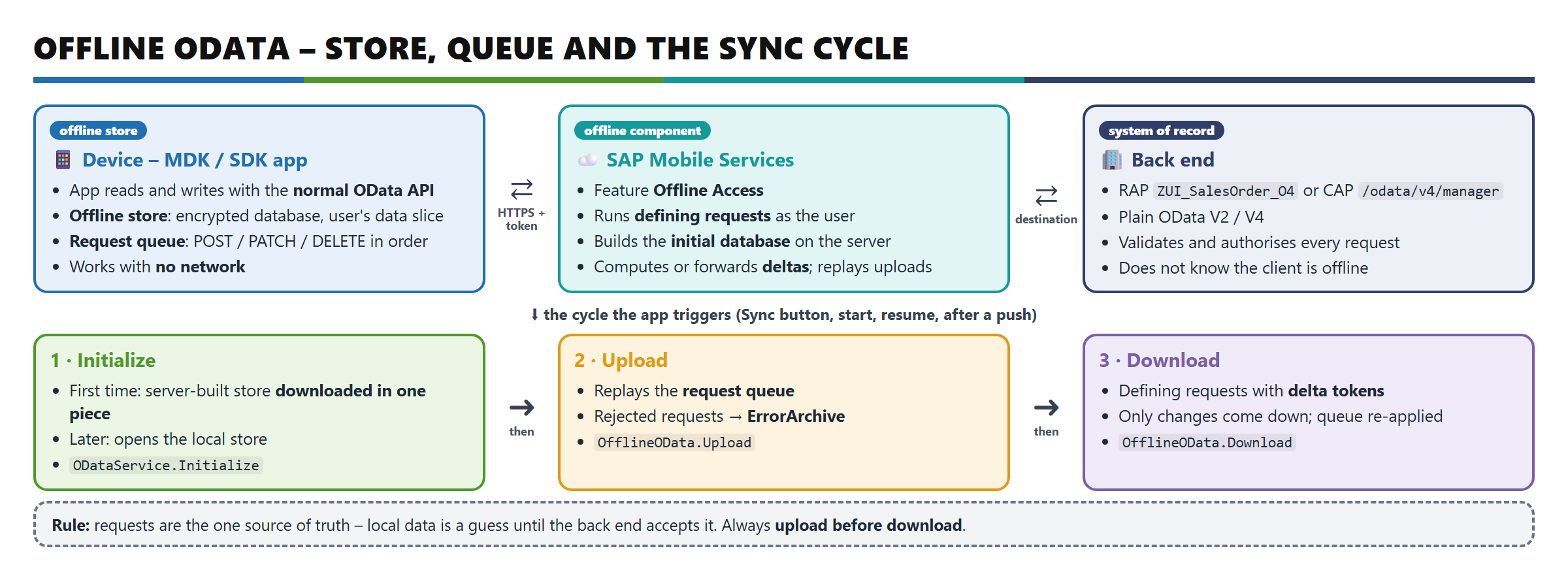
Why it matters: a sales manager approves orders in a plane, a technician works in a basement. A browser app simply stops; an offline app keeps working against a local database and synchronises later. The trick of SAP's offline OData is that the app still uses the normal OData API – read, create, update, delete – but the requests are served by a local store instead of the network.
Piece | Where it lives | What it does |
|---|---|---|
Offline store | Device (encrypted database, UltraLite technology) | Holds the user's slice of server data plus local changes; answers OData reads and writes |
Request queue | Inside the offline store | Every pending POST / PUT / PATCH / DELETE in order – the source of truth for local changes |
Offline OData component | SAP Mobile Services (feature Offline Access) | Runs the defining requests against the back end, builds the initial database, computes or forwards deltas, replays uploads |
Back end | RAP service | A normal OData V2 or V4 service; it does not know the client is offline |
SAP's documentation states the key rule plainly: the requests are the one source of truth; the local data is merely a guess until the back end has accepted them. Keep that sentence in mind for every design decision on this page.
- Supported back ends: OData V2 and OData V4 (with some V4.01 features, including the lambda operators
anyandall). - The store is encrypted at rest; it is unlocked through the app passcode or biometrics (→ 07 · Security, Device Management & the Order Approval Mobile App).
- MDK switches a service to offline with
"OfflineEnabled": truein the.servicefile (the default); the native SDKs use the offline OData library instead of the online provider (→ 06 · Native SDKs).
Part 2 – Defining requests: deciding what goes to the device
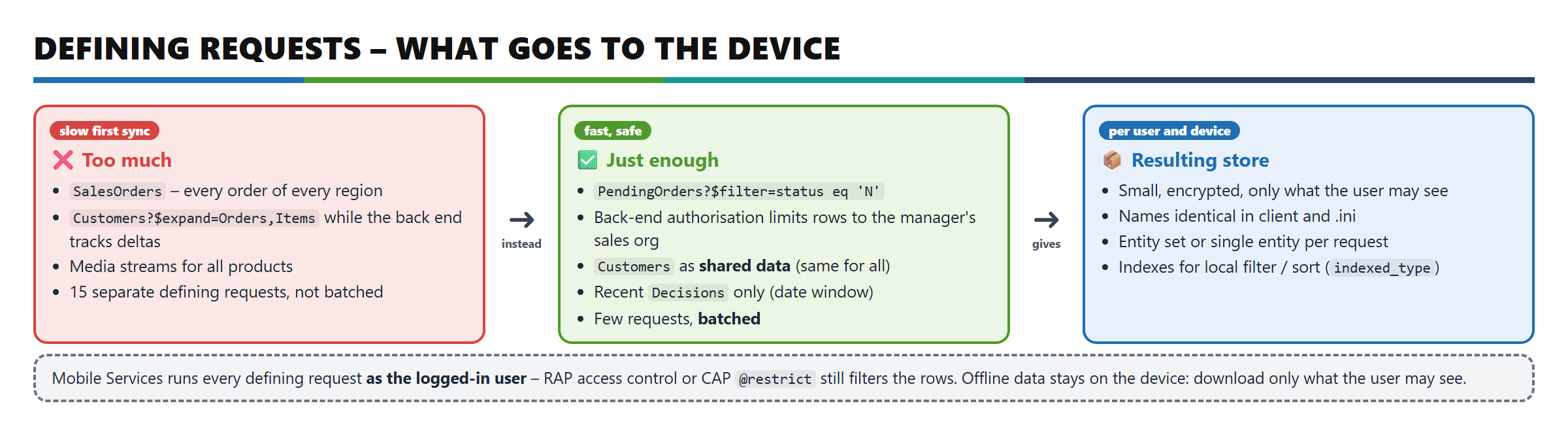
A defining request (also called defining query) is an OData read that tells Mobile Services which data belongs in the user's store. Mobile Services runs them as the logged-in user, so the back-end authorisation (RAP access control, CAP @restrict) still filters the rows.
Rules for good defining requests
- Each defining request targets an entity set or a single entity – nothing else is supported.
- Filter large sets: by user, sales organisation, status, date window.
PendingOrders?$filter=status eq 'N'instead ofPendingOrders. - Names must be unique and the same in the client code and in the server configuration (.ini); otherwise default settings are used. Prefer stable names – Mobile Services stores every defining request as metadata.
- Keep the number of defining requests small and batch them where possible; each one costs a round trip during download unless batched.
- Relationships: use
$expandonly when deltas are not tracked by the OData service (Mobile Services may track them). If the back end tracks deltas, use referential constraints with one entity set per defining request, and do not mix both for the same association. - Media entities: set
AutomaticallyRetrievesStreamsonly where the app really shows the stream; otherwise every entity costs an extra request.
MDK: the Initialize action opens the store
Action.Type.ODataService.Initialize opens (and on first use creates) the offline store with its defining requests. Each entry has a Name and a Query.
|
The date in the Decisions filter is a placeholder; in a real app a rule builds the date window. The ProgressText property of Initialize is deprecated – use ProgressMessages under OfflineOptions in the .service file.
|
Changing defining requests later: Action.Type.OfflineOData.Download accepts its own DefiningRequests (to add requests), and Action.Type.OfflineOData.RemoveDefiningRequest removes one by name. Removal must be allowed on the server (allow_defining_query_removal=Y in the .ini, Part 6).
Part 3 – The synchronisation cycle: initialize, upload, download
Everything the app does offline is local and immediate. Synchronisation is a separate, explicit step that the app triggers – on a Sync button, after login, on resume, or after a push notification.
Step | MDK action | What happens |
|---|---|---|
Open / initial download | Action.Type.ODataService.Initialize | First time: Mobile Services runs all defining requests, builds the store database on the server and sends it to the device as one pre-assembled file. Later: just opens the local store |
Upload | Action.Type.OfflineOData.Upload | Replays the request queue through Mobile Services to the back end |
Download | Action.Type.OfflineOData.Download | Re-runs the defining requests with delta tokens, so only changes come down; then the remaining local requests are re-applied on top |
Cancel |
| Stop a running sync (e.g. user leaves the page) |
Undo | UndoPendingChanges | Revert local changes of entities that were not uploaded yet |
Close / Clear |
| Close the store; Clear deletes it from the file system – by default only when nothing is pending ( |
Support | UploadStore | Upload the store file to Mobile Services so support can analyse it |
Order matters: upload first, then download
Always upload before download. The user then receives the server's reaction to their own changes (new status, back-end generated numbers) in the same sync. Download first would bring old data and leave the queue waiting.
|
What an upload failure really means
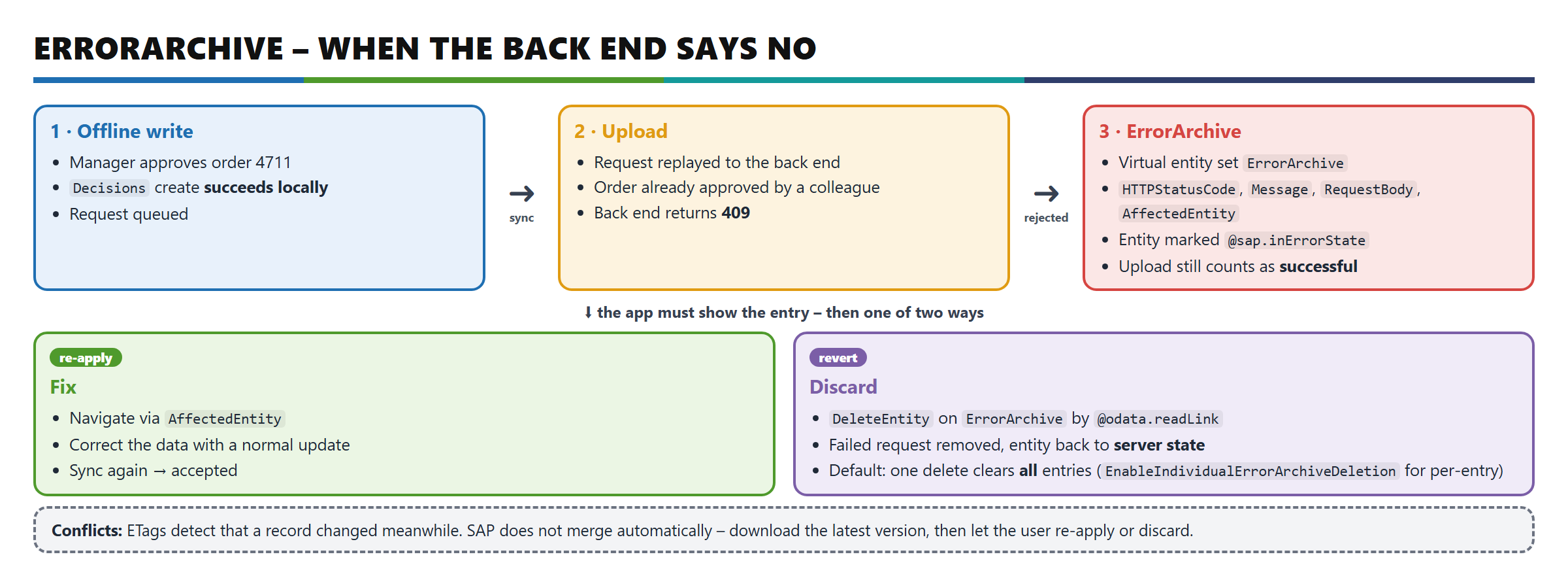
The MDK documentation is precise here: an upload fails only on communication errors. If the back end rejects single requests (validation error, missing authorisation, conflict), the upload is still treated as successful and the rejected requests go into the ErrorArchive. So OnFailure of the Upload action is for network problems; business errors need the ErrorArchive (Part 4).
Repeatable requests
If the connection breaks after the back end processed a POST but before the response arrived, the client would resend it and create a duplicate. Repeatable requests prevent that: either the back end supports them, or Mobile Services stores responses and recognises the resend (check_repeatable_requests=Y in the .ini, Part 6).
Interview tip: describe sync as "queue replay, then delta download", and mention that the server builds the initial database. That is what makes the first sync fast even for thousands of rows.
Part 4 – ErrorArchive and conflict handling
Why it matters: offline writes always succeed locally. The back end only sees them at upload – maybe hours later – and may refuse them. Without an ErrorArchive screen, users never learn that their approval was not posted. This is the number-one cause of "my changes disappeared" tickets.
The ErrorArchive entity set
ErrorArchive is a virtual, offline-only entity set in the store. Each entry describes one request the back end rejected. Read it like any entity set – with an object table bound to ErrorArchive or with clientAPI.read.
Property (selection) | Meaning |
|---|---|
| Incrementing request number; the custom tag of the request, if one was set |
HTTPStatusCode | Status the back end returned, e.g. 400, 403, 409, 412 |
| Vendor error code, error text (show it to the user), inner error and error domain from the back end |
| The original request, e.g. the POST of a |
AffectedEntity | Navigation to the local entity that is now in error state |
This is the full property list of the SAP offline OData documentation ("ErrorArchive Entity Properties"). Entities in error state carry the annotation @sap.inErrorState and can be found with the SDK query function OfflineODataQueryFunction.inErrorState() (Android) / OfflineQueryFunction.inErrorState() (iOS).
|
Resolving an error: fix or discard
- Fix: open the affected entity (navigate with
AffectedEntityas binding), correct the data with a normal update, and sync again. The SAP tutorial "Handle Error Archive in MDK" routes from the ErrorArchive entry to the right edit page with a rule. - Discard: delete the ErrorArchive entry with
Action.Type.ODataService.DeleteEntity, identified only by its@odata.readLink. Removing entries removes the failed requests and returns the entities to their server state. - By default, deleting one entry reverts all error states and discards all ErrorArchive data. To delete entries individually, set the store parameter
EnableIndividualErrorArchiveDeletionto true; then only that entry, its dependent entities and their pending requests go.
|
Conflicts with ETags
Two people can change the same record: the manager offline, a colleague online. OData uses ETags (entity versions) to detect this:
- A local update must carry the entity's original ETag; the store checks it, applies the change locally, creates a new local ETag and queues the request.
- At upload the back end compares the ETag. If the record changed meanwhile, the request fails, the error goes to the ErrorArchive, and the app decides – SAP does not merge automatically.
- Typical resolution: download (possibly with limited defining requests) to get the latest data and ETag, show both versions or a clear message, then re-apply or discard.
Design trick for approvals: instead of updating the order (which conflicts easily), create an insert-only Decisions record. The back end then checks "is the order still status N?" and rejects with a clear message such as "already processed by a colleague" – one ErrorArchive entry, easy to explain. This pattern is used in → 07 · Security, Device Management & the Order Approval Mobile App.
Common mistakes
- Treating
OnSuccessof Upload as "all changes posted" – always check the ErrorArchive after sync. - Calling actions or functions (e.g. RAP
approve) offline as if online. Offline,CallFunctiononly queues non-GET calls and returns an empty result, and GET functions do not work; the outcome arrives at upload. Model offline writes as plain creates / updates the back end processes on upload. - Clearing or resetting the store on logout before uploading – pending work is lost.
Part 5 – The request queue and local changes in detail
The request queue explains most "strange" offline behaviour. Each local create, update or delete adds a request; the local data is the result of applying the queue to the last downloaded server data.
Situation | What the user sees | Why |
|---|---|---|
Create offline | New entity at once, with a temporary key | Client-generated entity; replaced by the server version after upload and download |
Download while changes are pending | Own changes still visible | After download the remaining queue is re-applied on top of the fresh server data |
Back end changes a value on create (number, status) | Value appears only after the next download | The store only knows what the client sent; |
Update then delete the same entity | Entity gone | The queue holds both; Mobile Services can reorder or merge requests into change sets during upload |
Change uploaded but rejected | Entity marked in error state | Request moved to the ErrorArchive (Part 4) |
Local change expiry: the .ini parameter local_change_expiry controls how long local changes are kept after upload (default: never expire; zero means they expire at the next download). It matters when the back end processes changes asynchronously.
Interview tip: if asked "how does the app show a created order before sync?", answer: the store applies the queued POST locally with a temporary key; after upload and download the server entity replaces it.
Part 6 – Server-side settings: the application configuration file (.ini)
Some offline behaviour is configured on the server, per app, in Mobile Services: in the cockpit under the app's Offline feature (defining request settings), or by uploading an application configuration file (.ini) on its Configuration tab. The file has an [endpoint] section per back-end connection and optional [defining_query] sections.
|
name in [endpoint] must match the connection name (destination) of the app in the cockpit; name in [defining_query] must match the defining request name in the client.
Parameter | Section | Meaning (default) |
|---|---|---|
batch_all_defining_queries | endpoint | Send all defining queries of the endpoint in one batch (N) |
check_repeatable_requests | endpoint | Mobile Services provides repeatable requests when the service does not (N); |
indexed_type | endpoint | Client database index on properties, for |
prepopulate_offline_db | endpoint | What data is included when the database is created (Cloud Foundry default Y) |
local_change_expiry | endpoint | Hours local changes live after upload (never expire) |
max_delta_resends | endpoint | How often a delta link is resent during a download (5) |
allow_defining_query_removal | endpoint | Client may remove defining queries (N) |
refresh_in_order | endpoint | Run defining queries in file order (N) |
is_shared_data | defining_query | Cache the result on Mobile Services for all users (N); |
track_deltas | defining_query |
|
Other parameters exist (formats, collation, case sensitivity, date handling). Defaults in brackets are those of the SAP offline OData documentation "Application Configuration File" and "Defining Queries" (Cloud Foundry).
- Only share what is the same for everyone.
is_shared_data=Yon a user-filtered query would serve one manager's orders to another – a data leak, not a performance gain.
Part 7 – Delta tracking: keeping downloads small
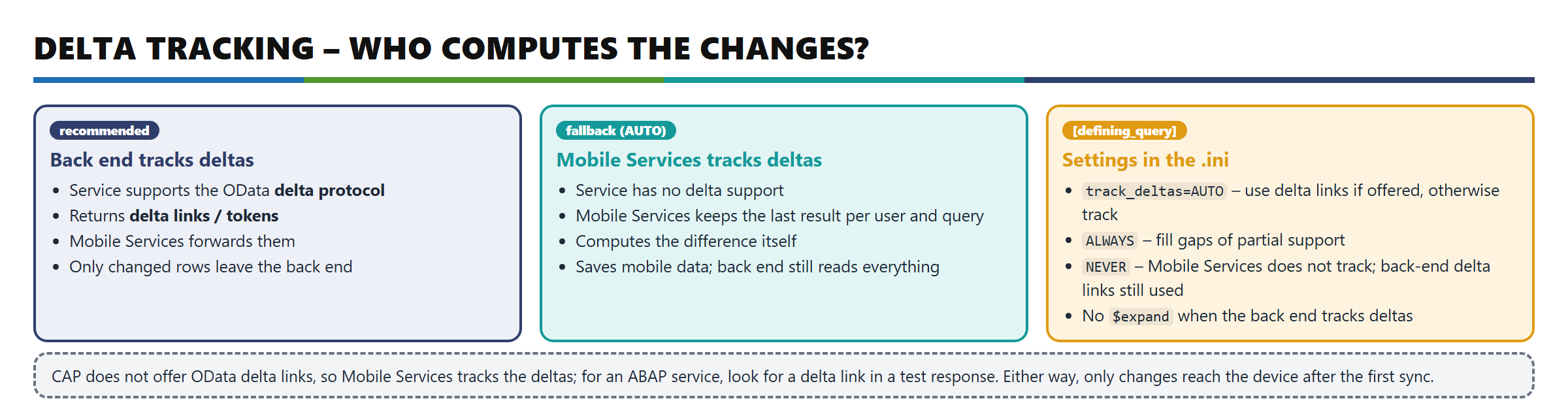
After the first sync, a download should bring only what changed. There are two ways to get these deltas:
Approach | How it works | When |
|---|---|---|
Back end tracks deltas | The OData service supports the delta protocol and returns delta links / delta tokens; Mobile Services simply forwards them | Recommended when the service supports it – saves work on the whole chain |
Mobile Services tracks deltas | Mobile Services keeps the last result per user and query and computes the difference itself | The service has no delta support; improves mainly the client side |
track_deltas=ALWAYS | Mobile Services fills gaps when the back end supports deltas only partly (e.g. tokens expire) | Partial back-end support |
track_deltas=NEVER | Mobile Services does not track deltas; delta links from the back end are still used | Data changes almost completely between syncs, so tracking saves nothing |
- With
AUTO(default behaviour) Mobile Services uses the delta links of the service when the query supports them, and tracks deltas itself otherwise. - CAP does not list the OData delta query protocol (delta links,
$deltatoken) among its supported features – only delta payloads for updates. For services without delta links the default setting lets Mobile Services track the deltas; CAP services can add change tracking via the Mobile Back-End Tools. For an ABAP service, look for a delta link at the end of a test query's response. Without delta links, Mobile Services' own tracking still saves mobile data. - Remember the
$expandrestriction from Part 2 when the back end tracks deltas.
Part 8 – Sizing and performance tips
Offline apps fail in production mostly because of volume: a first sync that takes ten minutes, or a store that slows the phone down. Plan the data volume like you plan an ABAP select.
Tip | Why |
|---|---|
Filter every large defining request (user, org, status, date window) | Device storage, first-sync time and back-end load all scale with rows |
Keep defining requests few and batched ( | Each one is a round trip during download otherwise |
Clean up defining requests and their data when no longer needed | Old data still syncs every time |
Page large reads in the app; SAP recommends about 1,000–2,000 entities per page | Long lists in one read cost memory and time |
Avoid filtering on collection properties with many items (over about 1,000) | The service loads all items into memory first; model them as an entity with a navigation property |
Add | Local queries on large sets become fast |
Share common master data ( | One back-end read for all users instead of one per user |
Don't retrieve media streams automatically unless needed | One extra request per entity |
Undo many pending changes in one call | Faster than one by one |
The store's internal database cache defaults to 75 MB with a hard limit of 250 MB; it can be raised with CACHE_MAX_SIZE in the extra database connection parameters (native memory – test before changing). Numbers from the SAP offline OData performance best-practices page.
When to sync
- At login / start (after Initialize) and on a visible Sync button with progress messages.
- On resume after a long time in the background (
OnResumeinApplication.app) – but not on every page change. - After a push notification ("new order waits") – the push only says that something changed; the sync brings what changed.
Common mistake: syncing in a loop every minute "to be safe". It drains the battery, loads Mobile Services and the back end, and does not make data more correct than a sync at the right moments.
Part 9 – Interview questions
Q1. What is a defining request and who runs it?
An OData read (entity set or single entity, usually filtered) that defines which data goes into the offline store. Mobile Services runs it against the back end as the logged-in user, so back-end authorisations still apply. In MDK it is listed in the DefiningRequests of the Initialize action.
Q2. Describe the synchronisation cycle.
Initialize opens the store; on first use Mobile Services runs the defining requests, builds the database on the server and ships it. Sync = upload (replay the request queue to the back end) then download (delta changes via delta tokens, then re-apply remaining local requests).
Q3. Why upload before download?
So the user gets the back end's reaction to their own changes – new numbers, statuses, rejections – in the same sync, and does not download data that is already outdated by the pending queue.
Q4. The Upload action returned success. Were all changes posted?
Not necessarily. Upload fails only on communication errors; requests the back end rejects go into the ErrorArchive and the upload still counts as successful. The app must read the ErrorArchive and show the entries.
Q5. How do you resolve an ErrorArchive entry?
Fix: navigate to the affected entity, correct it with a normal update and sync again. Discard: delete the ErrorArchive entry with a DeleteEntity action by its read link, which removes the failed request and returns the entity to server state. By default one deletion clears all entries; EnableIndividualErrorArchiveDeletion allows per-entry deletion.
Q6. How are conflicts detected?
With ETags. Local updates carry the original ETag; at upload the back end compares it and rejects the request if the record changed. The rejection lands in the ErrorArchive and the app decides – download the latest version, then re-apply or discard. There is no automatic merge.
Q7. What is the application configuration file used for?
Server-side offline settings per app in Mobile Services: an [endpoint] section (batching of defining queries, repeatable requests, client indexes, local change expiry, defining-query removal) and [defining_query] sections (shared data cache, delta tracking mode). Names must match the connection and defining request names.
Q8. Back-end delta tokens or Mobile Services delta tracking?
Back-end delta links are preferred – only changed rows leave the back end. If the service lacks delta support, Mobile Services keeps the previous result and computes the difference (AUTO), which still saves mobile data. ALWAYS fills gaps of partial support.
Q9. What are repeatable requests?
Protection against duplicates when a response is lost: the resent POST is recognised and the stored response is returned instead of processing it twice. Either the back end supports it or Mobile Services provides it (check_repeatable_requests).
Q10. Scenario: the first sync of a new technician app takes 12 minutes. What do you do?
Measure the rows per defining request; add filters (own region, open orders, last 90 days); share common master data with is_shared_data; batch defining queries; stop automatic stream retrieval; check the back end's performance for each query; and move rarely used data to on-demand online reads or later defining requests.
Q11. Scenario: a manager approved an order offline, but a colleague approved it online first. What happens and how should the app react?
The manager's request is accepted locally and queued. At upload the back end sees the order is no longer status N (or the ETag no longer matches) and rejects it; the request goes into the ErrorArchive. The app shows "already processed", offers Discard (DeleteEntity on the ErrorArchive entry) and then downloads the current status. Using an insert-only Decisions entity keeps this case simple.
🏠 Start Here · ◀ 03 · Rules & Actions · 05 · Deploy & Lifecycle ▶ · Sections: CORE ABAP | OOPS ABAP | ABAP on HANA | Clean Core | RAP | ABAP Points | SAP Fiori | SAPUI5 | Mobile Development (MDK) | BTP Foundations | BTP Development | CAP | SAP Build | ABAP on BTP | Integration Suite | SAP Business AI | SAP BASIS | Security | SAP SDLC
Functional: FICO ABAP | TRM ABAP | VIM | SAP BIS | SD ABAP | MM ABAP | PP ABAP | QM ABAP | PM ABAP | PS ABAP | EWM | TM ABAP | GTM ABAP | EHS ABAP | HR ABAP | BW | SAP Datasphere | SAP Business Data Cloud | SAP MDG | SAP Analytics Cloud | SAP Ariba | SAP CX | SAP IBP