The investigation process begins after detection. During investigation, either master data or business transactions are examined to determine whether there are irregularities or not. The work object is the alert; investigators assign it, document their findings, run tasks from task list templates, request approvals and finally decide. Worklists handle mass hits without a full investigation, and reporting shows the volume and effectiveness of the work. How alerts are created: page 02; extending apps and network analysis: page 04.
Part 1 – Alerts: the central work object
An alert is a warning that the system creates when a detection strategy finds irregularities, or that users create manually. Alerts are the central work objects for investigators: they store the results of the detection and are used to confirm the findings – whether they turn out to be false or true positives.
- Header = the investigation object (e.g. supplier); items = the detection objects that passed the threshold (e.g. three payments), each with its risk score, threshold and method details.
- Strategies with the same investigation reason add items to the same alert; a different reason opens a separate alert (page 02 Part 2).
Alert attribute | Meaning |
|---|---|
Alert lifecycle | Not Started, In Process, Completed (Part 2) |
Finding | Confirmed, False Alarm, Closed Without Investigation |
Creation mode | Manual or by detection |
Risk factor / risk rating | Risk factor = risk score ÷ threshold; the 0–5 star risk rating scales it against the maximum risk factor of the investigation object type – used for prioritising (page 02 Part 5) |
Risk value | Amount at risk: average, maximum or total of the item risk values |
Evaluation type | Win-based (financial outcome) or loss-based (actual loss, opportunity cost) |
Solution | SAP Business Integrity Screening or SAP Business Partner Screening |
Transfer status / ID | Whether and where the alert was transferred to an external system |
Other | Investigation reason and object type, alert group, access group, category, phase, fraud division, person responsible, due date, business system |
Functions for working with alerts
Function | Purpose |
|---|---|
Manage Alerts | App to display, create, assign and complete alerts (Part 3) |
Task List | Creates and distributes tasks for investigation and remediation (Part 5) |
My Approvals | When an investigator sets the decision, the system checks whether an additional approval step is required – the approval request process (Part 4) |
Part 2 – Alert statuses and lifecycle
The status of an alert changes at different points of its lifecycle:
Term | Status | Meaning |
|---|---|---|
New alert | Not Started | Just created, not yet processed |
Open alert | Not Started or In Process | Still needs work – the backlog |
Transferred alert | – | Transferred to another system (e.g. an external case management system) for further investigation |
Closed alert | Completed | Decision taken for every item; kept for audit and reporting |
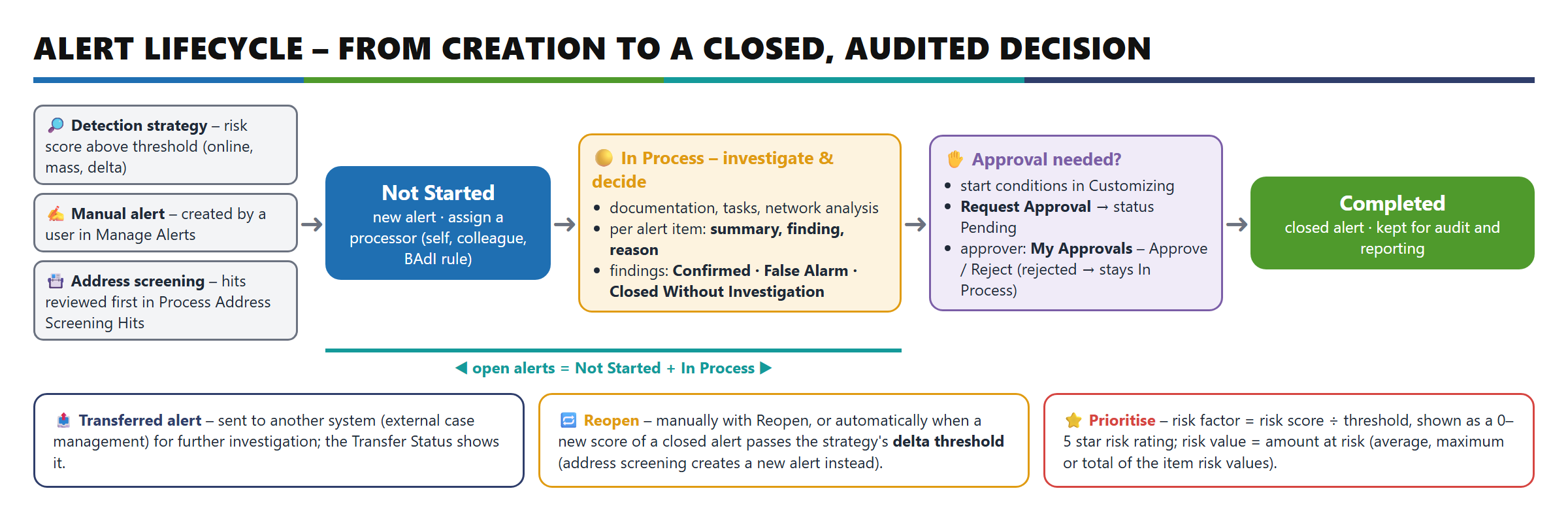
- A closed alert can be reopened manually (Reopen) or automatically when a new score passes the strategy's delta threshold.
- An alert stays In Process while any item lacks a decision, while an approval is pending or was rejected, and while investigation tasks are open.
Part 3 – Manage Alerts, assignment and address screening hits
Manage Alerts lists all alerts (filter, export to a spreadsheet, save a filter as a launchpad tile), lets you contact colleagues, create alerts manually, assign alerts to yourself or others and complete them.
3.1 Alert detail sections
Section | Content |
|---|---|
Header | Set in Process, Reopen, Assign, Edit (phase, fraud division, category, group), Action (transfer to an external system), Go To (navigate to source systems) |
Info | Alert attributes |
Detection | Alert items with detection object, strategy run, risk score, threshold, risk value and the detection methods that fired, with details (additional information procedure, page 02 Part 8) |
Address Screening Hits | Hits and the reviewers' earlier decisions and comments |
Documentation | Notes, tasks and files in a hierarchy (alert must be assigned to you and In Process) |
Tasks | Task lists of the alert (Part 5) |
Network Analysis | Related entities as a graph or table (Part 7) |
Activity | Log of status changes, document changes, decisions and users |
Decision | Summary, finding and reason per item; Complete |
- Tab order and visibility are set in Customizing.
3.2 Assigning processors
- New alerts must get a processor: in Manage Alerts (any alert) or in Process Address Screening Hits (address screening alerts). Only users with an investigator role defined in Customizing qualify.
- Risk value and customer extension fields of an alert: BAdI FRA_BADI_ALERT_MODIFY (Modify Alert at Creation or Update, page 04 Part 10).
3.3 Address screening hits – two phases
- Phase 1 – review (often a shared service centre): in Process Address Screening Hits the reviewer sets Hit = Yes (true match) or No (default for hits below 100 %) and submits. Alerts with only "No" hits are closed automatically.
- Phase 2 – investigation by the compliance team: submitted alerts appear in Open Screening Alerts for all members of the responsible group (maintained in Manage User Groups Screening); a member claims the alert and processes it in Manage Alerts.
Part 4 – Decisions and the approval request process
Each alert item needs a summary, a finding (Confirmed, False Alarm, Closed Without Investigation) and a reason (Customizing: Define Reasons for Closing Alerts). When the investigator sets the decision, the system checks the start conditions (Customizing) whether an approval is required.
Step | Who | What happens |
|---|---|---|
1 | Investigator | Request Approval instead of Complete; approver entered or determined via Manage User Groups Approvals. Approval status Pending, alert stays In Process (Cancel Approval withdraws) |
2 | Approver | Opens the request in My Approvals (directly or through a group), reviews the alert, Approve or Reject (rejection needs a note) |
3a | Investigator | Approved → opens the alert and Saves to complete it (otherwise it stays In Process); approved items are listed on the Investigation Overview card My Approved Alert Items |
3b | Investigator | Rejected → alert stays In Process; adjust the decision and resubmit |
- Why it matters: four-eyes principle for high-risk decisions, e.g. closing a sanctions hit as False Alarm.
Part 5 – Tasks, task lists and templates
A task represents a single activity that has to be done. A task list is a collection of tasks that have to be processed. A template is a blueprint that can be reused in either the investigation or the remediation phase of alert processing.
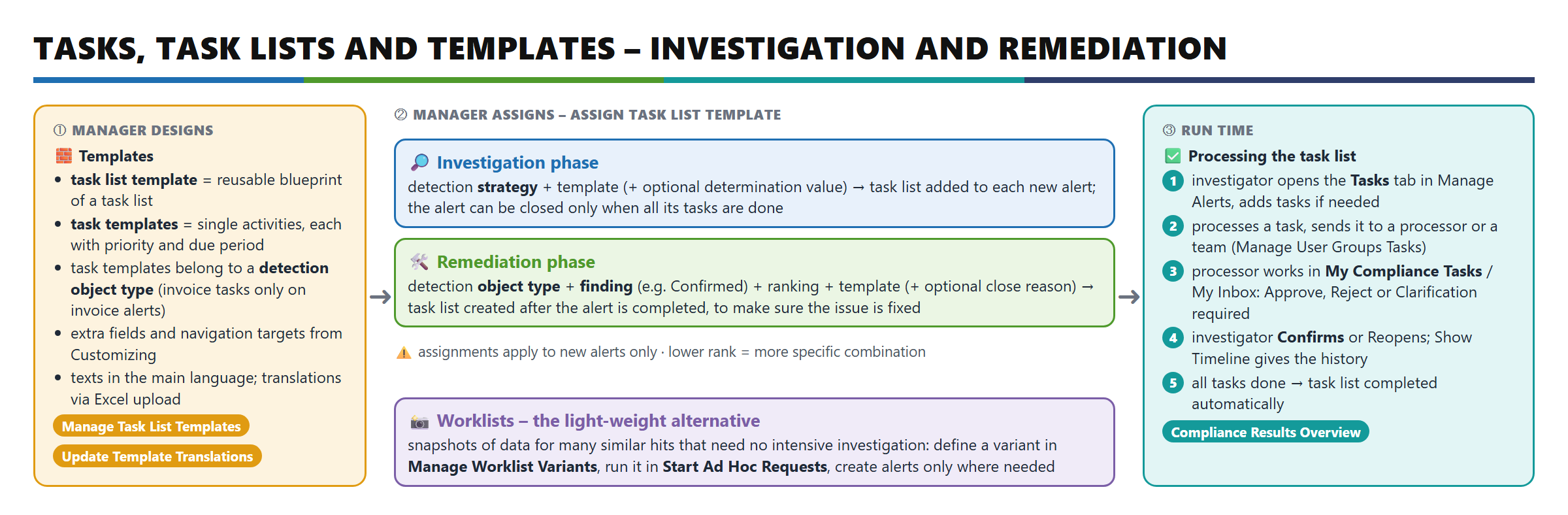
Step | Who / app | Detail |
|---|---|---|
Design | Manager · Manage Task List Templates | Creates task list templates and task templates (priority, due period, detection object, extra fields, navigation targets); translations via Update Template Translations |
Assign – investigation | Manager · Assign Task List Template | Template → detection strategy (+ optional determination value). The task list is added to new alerts; the alert can be closed only when all tasks are done |
Assign – remediation | Manager · Assign Task List Template | Template → detection object type + ranking (+ optional close reason). Tasks are created after the alert is completed, to make sure the issue is fixed (e.g. block the supplier, recover the payment) |
Process | Investigator · Manage Alerts (Tasks tab) | Adds tasks, sends them to a processor or a team (Manage User Groups Tasks), confirms or reopens them |
Execute | Processor · My Inbox | Approve, Reject or Clarification required |
Monitor | Investigator · Compliance Results Overview | Outstanding and completed tasks; task list completes automatically when all tasks are done |
- Assignments apply to new alerts only – alerts created before the assignment do not get the task list.
Part 6 – Worklists
Worklists complement the investigation process. With worklists you create snapshots of data that can be used for investigation. They support scenarios with a large number of similar "hits" that do not need intensive investigation – where one full alert per hit would flood the team.
- A worklist type is configured in Customizing; a worklist variant (name, filter fields, display fields) is created per user in Manage Worklist Variants.
- Variants are run in Start Ad Hoc Requests: select the variant, enter filters, execute, analyse – and, depending on the settings, create alerts only for the cases that need an investigation.
- The audit trail of address screening is delivered as such a worklist (Part 8).
Part 7 – Network analysis
Network analysis visualises the relationships of the entities connected to an alert – business partners, bank accounts, addresses, documents – as a graph of nodes and edges or as a table. Investigators use it to spot suspicious patterns, e.g. a supplier and an employee sharing a bank account or several suppliers at one address.
- Shown in the Network Analysis section of the alert; which entities and relations appear depends on Customizing and the data model.
- Extendable with additional data providers and BAdIs (page 04).
Part 8 – Reporting: dashboard, KPIs, external tools and audit trail
Reporting shows the volume and the effectiveness of the work being done in SAP Business Integrity Screening. The application offers four ways:
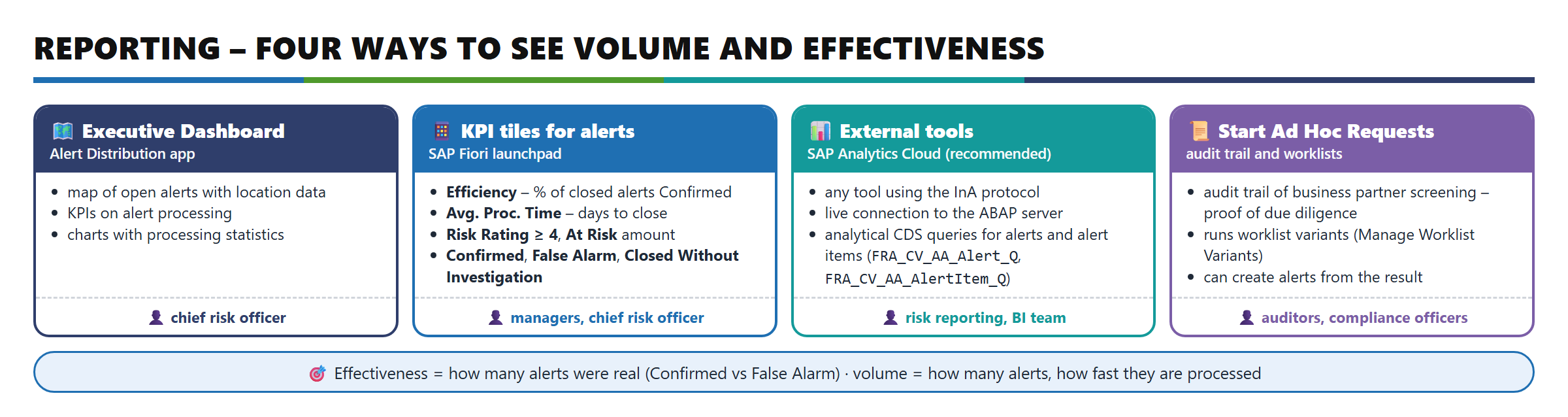
Channel | What you get |
|---|---|
Executive Dashboard | In the Alert Distribution app (role SAP_FRA_CHIEF_RISK_OFFICER): a map of open alerts with location data, KPIs on alerts and alert processing, charts with processing statistics |
SAP Fiori apps (KPI apps for alerts) | Management KPI tiles (table below) for the chief risk officer and manager roles; the Investigation Overview app as the standard analysis application |
External tools | Any tool that connects to the ABAP server through the InA protocol; SAP recommends SAP Analytics Cloud with a live connection on the analytical CDS queries for alerts (FRA_CV_AA_Alert_Q) and alert items (FRA_CV_AA_AlertItem_Q). Live connections in general: SAP Analytics Cloud › 03 Integration with SAP S/4HANA & Other Systems |
Start Ad Hoc Request | Displays the audit trail for auditing business partner screening or verifying due diligence: when a partner was screened and with which result |
KPI tile | Shows |
|---|---|
Efficiency | Share of completed alerts with finding Confirmed |
Avg. Proc. Time | Average days from alert creation to closing |
Risk Rating ≥ 4 | Number of In Process alerts rated 4 or 5 stars |
At Risk | Total amount at risk in In Process alerts |
Confirmed | Loss (aggregated risk values) of confirmed alerts this calendar year |
False Alarm / Closed Without Investigation | Number of such alerts this calendar year |
Part 9 – Interview questions
Q1. What is an alert in BIS?
A warning created when a detection strategy finds irregularities, or manually by a user. It is the central work object for investigators: the header is the investigation object, the items are the detection objects with their scores, and the investigator records whether the finding is true or false.
Q2. Explain new, open, transferred and closed alerts.
New = Not Started; open = Not Started or In Process; transferred = handed to another system for further investigation; closed = Completed.
Q3. What can you do in Manage Alerts?
Display, create (manually), assign and complete alerts; see detection details, documentation, tasks, network analysis and activity log; record decisions; transfer alerts; export lists and save filters as tiles.
Q4. How does the approval request process work?
When the investigator sets a decision, start conditions decide whether approval is needed. The investigator requests approval (status Pending), the approver approves or rejects in My Approvals, and after approval the investigator saves to complete the alert; a rejection keeps it In Process.
Q5. What is the difference between a task, a task list and a template?
A task is one activity, a task list a collection of tasks for an alert, a template a reusable blueprint for task lists and tasks used in the investigation or remediation phase.
Q6. How are task list templates assigned for investigation versus remediation?
In Assign Task List Template: for investigation to a detection strategy – tasks must be done before the alert can close; for remediation to a detection object type – tasks are created after the alert is completed. Templates are built in Manage Task List Templates.
Q7. When do you use worklists instead of alerts?
When there are many similar hits that need no intensive investigation. A worklist is a snapshot of data defined by a variant (Manage Worklist Variants) and run in Start Ad Hoc Requests; alerts are created only where needed.
Q8. How are address screening hits processed?
Two phases: a reviewer marks each hit Yes or No in Process Address Screening Hits (No closes the alert), then the compliance team claims confirmed alerts in Open Screening Alerts and investigates them in Manage Alerts. Intelligent screening auto-closes repeats of rejected hits.
Q9. What is network analysis used for?
To visualise relationships between the entities of an alert – partners, bank accounts, addresses, documents – as a graph or table, revealing patterns such as shared bank accounts. It can be extended with data providers and BAdIs.
Q10. Which reporting options does BIS offer?
The Executive Dashboard in Alert Distribution, Fiori KPI tiles (efficiency, average processing time, at risk, confirmed, false alarm), external tools such as SAP Analytics Cloud on analytical CDS queries via InA, and the audit trail through Start Ad Hoc Request.
Q11. How do you prove due diligence for sanctions screening to an auditor?
Switch on the audit trail for the address screening methods; every screened partner and result is logged and can be shown with Start Ad Hoc Request – including partners that produced no hit.
Q12. How can alerts be assigned automatically?
Through the risk value, which comes from the detection method or BAdI FRA_BADI_ALERT_MODIFY (Modify Alert at Creation or Update); assignees must have an investigator role defined in Customizing. Address screening teams are maintained in Manage User Groups Screening.
🏠 Start Here · ◀ 02 · Detection · 04 · Development ▶ · Sections: CORE ABAP | OOPS ABAP | ABAP on HANA | Clean Core | RAP | ABAP Points | SAP Fiori | SAPUI5 | Mobile Development (MDK) | BTP Foundations | BTP Development | CAP | SAP Build | ABAP on BTP | Integration Suite | SAP Business AI | SAP BASIS | Security | SAP SDLC
Functional: FICO ABAP | TRM ABAP | VIM | SAP BIS | SD ABAP | MM ABAP | PP ABAP | QM ABAP | PM ABAP | PS ABAP | EWM | TM ABAP | GTM ABAP | EHS ABAP | HR ABAP | BW | SAP Datasphere | SAP Business Data Cloud | SAP MDG | SAP Analytics Cloud | SAP Ariba | SAP CX | SAP IBP