Two artifacts of a business process project carry most of the business logic that people see and change: forms – the no-code user interfaces for starting a process and for the tasks in My Inbox or SAP Task Center – and decisions – business rules as decision tables or text rules that the process calls instead of hard-coding thresholds and approvers. This page covers both at technical-consultant depth: form types, the form editor with every field type, validation, tables, attachments and dynamic data sources, approval forms and task settings (recipients, due dates, Task Center actions), custom SAPUI5 task forms, data types, the decision editor (inputs, outputs, decision tables, hit policies, text rules, operators and functions), how processes and APIs call decisions, and the Sales Order Approval example's forms and decision table with test cases. Processes, triggers and flow controls: page 03; actions used as form data sources: page 06; My Inbox, release and deploy: page 07. Facts as of November 2026.
Part 1 – Forms in SAP Build Process Automation
A form captures and shows information during a running process. The same form editor builds four kinds of form:
Kind | Used as | Reaches the user via | Outcomes |
|---|---|---|---|
Start (trigger) form | Trigger of a process (Submit a Form) | Form link or a SAP Build Work Zone tile (Process Trigger app with the | One – any button submits and starts the process |
Form step | Data entry or completion task in the middle of a process | Task in My Inbox / SAP Task Center | Submit, or several custom buttons (each a branch) |
Approval form | Approval task | Task in My Inbox / SAP Task Center | Approve / Reject by default, more can be added |
SAPUI5 form | Custom task UI built in SAP Business Application Studio | My Inbox | Defined in the app's manifest (Part 6); cannot be a start form |
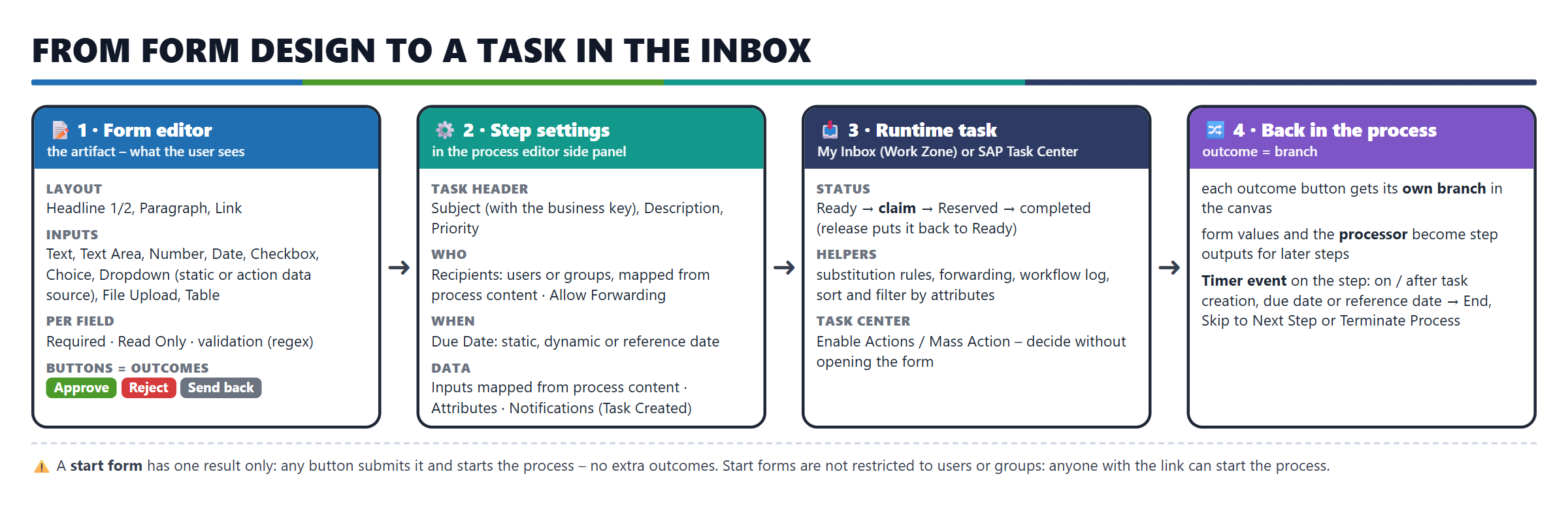
- Create a form from the process editor (Add Process Step › Form / Approval › Blank Form / Blank Approval) or in the project Overview. An approval form can be based on another form – all its fields are added as read-only fields, which is the quickest way to show the request to the approver.
- Generate a form (Overview › Generate › Form, or Ask AI in the smart menu) creates a form from a prompt – not an approval form. Generative AI features are deprecated and no longer available from January 2027.
- A form is an artifact: it is released and deployed with the project. After deployment, form links and launchpad parameters are available in Control Tower › Environments › Triggers (type Form).
Part 2 – The form editor: layout, fields, validation and buttons
Element | Options | Limits / notes |
|---|---|---|
Headline 1 / 2 · Paragraph | Static text, movable | Headline 120, paragraph 8,000 characters |
Text | Min / max characters, Read Only, Required, Description, input validation | Max 256 characters |
Text Area | Same as Text | Long text (comment, justification) |
Number | Fixed decimal places, min / max value, Read Only, Required | Double precision |
Date | Based on the user's location; all, only past or only future dates | – |
Checkbox · Choice | Read Only, Required; Choice = radio options, vertical alignment | – |
Dropdown | Manual entries (multiple selection possible) or a data source from an action | Max 1,000 items, 64 characters each |
File Upload / Attachment | Max number of files, Required, Read Only | Needs SAP Document Management Service; 20 MB per file, 10 files per submission |
Table | Columns Text, Number, Date, Checkbox, Dropdown; add / remove rows | Part 3 |
Link | HTTPS, HTTP or mailto address with display text | Mappable – can be overwritten from process content |
- Field settings: Required (must be filled to continue), Read Only (shows earlier data), Multiple Selection (dropdown), Description (shown as help).
- Input validation for Text and Text Area: Letters, Numbers, Letters and Numbers, Alphanumeric (Latin letters and Arabic digits) or Custom Validation with a regular expression, testable in the editor (e.g.
^[A-Z]{2}[0-9]{8}$for a document number). - Field names are limited to 100 characters, descriptions to 256. The identifier of a field is what later steps see in the process content – choose stable names before release.
2.1 Buttons and outcomes
- The default button is Submit; approval forms have Approve and Reject. Add buttons with + Add Button: Button Type predefined (translated label) or Custom (your text, only in that language), Style Positive (green), Negative (red), Neutral (grey), Identifier.
- Each outcome becomes its own branch after the step in the process canvas – e.g. Approve, Reject, Send back (with a go-to step to the requester's form).
- Deleting an outcome does not update the process automatically: remove the steps of that branch, then choose Update Step.
- Start forms must not have extra outcomes – a Cancel button would still start the process.
Part 3 – Dynamic forms: mapping, data sources and tables
3.1 Mapping process content
- Every form field is an input of the step: in the side panel (Inputs) map it from the process content – trigger data, earlier form fields, action results, decision outputs, custom variables, metadata. Mapped plus Read Only = display field.
- Every field is also an output: later steps see the entered values and the step metadata (e.g. who processed it).
3.2 Data sources for dropdowns
A dropdown can show live data from a back end, e.g. customers from SAP S/4HANA:
- Create an action project from an OpenAPI 2.x / 3.x JSON specification (max 5 MB) that contains a GET request returning an array; on its output set the tag Main Output Array (root-level array); release and publish to library.
- In the form editor: Dropdown › Data to display › Data Source › choose the library and action, a destination variable and the available data to show. The dependency to the action project is added automatically.
- Search: if the action defines the
$searchparameter, the dropdown becomes a value help with search. - Dependent dropdowns: actions with string or number inputs can depend on other fields – e.g. Region shows only the regions of the selected Country (Add Dependency; date values are not supported).
- Security limitation: the action is called without checking the end user's authorization – a participant can technically read back-end data they are not authorised for. Expose only non-sensitive value lists, or use a technical API that filters the data.
- Only GET actions and only dropdown fields can use data sources; RFC actions cannot be used for value help.
3.3 Tables
- A Table has columns you define; the participant adds as many rows as needed (Allow Add/Remove Rows, on by default). The number of columns is unlimited; the number of rows cannot be predefined.
- Bind the table to a list of a data type of type Object with the Required constraint – lists of strings, numbers or booleans do not work, even for one-column tables.
- Use Bind List to show a table of an earlier form in a later form; it is read only by default.
- Read Only on columns is not a security setting – the browser can still change the content. Validate critical values again in a decision or the back end.
- A dropdown column prevents setting the whole table to read only.
3.4 Attachments
- File Upload stores documents in SAP Document Management Service (repository + attachment destination in the subaccount).
- Restrictions: files uploaded to a trigger form stay orphaned if the form is not submitted; uploads in a cancelled task stay; there are no process-level authorizations on documents – anyone with access to the repository can see them.
Part 4 – Approval forms and task settings
Clicking a form or approval step in the process editor opens its settings – they define the task in the inbox, not the form layout:
Setting | What it does | Tip |
|---|---|---|
Step Name | Name on the canvas | Verb + object: "Approve sales order" |
Subject | Title of the task in the inbox (max 255 characters) | Include the business key from process content: "Approve sales order 4711" |
Description | Text inside the task (max 2,000 characters) | What the approver must check |
Priority | Low, Medium, High, Very High | Map dynamically if urgency depends on value |
Recipients | Users or groups – mapped from process content or entered | Groups, often a decision output (Part 5) |
Allow Forwarding | Recipient may forward the task to another user | Off for segregation-of-duties approvals |
Due Date | No due date, static (1–999 minutes … years), dynamic (number from content) or reference date (UTC) | Basis for timer events and inbox sorting |
Enable Actions · Enable Mass Action | Outcomes appear as generic decisions in SAP Task Center; mass action for many tasks at once | Mass action is switched off if the form has a mandatory input |
Allow App Navigation | "Open in App" in Task Center opens the task in My Inbox | Needed for custom logic of SAPUI5 forms |
Inputs · Outputs | Mapping of fields; read-only list of produced data | – |
Attributes | Business values shown as filter and sort criteria in My Inbox / Task Center | Required for Intelligent Recommendations |
Notifications | Task Created: None, Default Template or a Custom Template | Part 5 |
- Timer events on the step (step menu › Options › Handle Event › Timer Event): start on task creation, after a wait, on the due date or a reference date, then send a reminder, escalate to another approver (Skip to Next Step) or cancel (Terminate Process) – page 03 Part 5.
- Approval patterns: sequential levels (approval after approval, levels from a decision), parallel fixed approvers (branch), dynamic parallel approvers (subprocess Run in parallel over a list, end condition "first rejection"), send back for rework (outcome + go-to step + custom variables).
- Who approved is available as step output (processor) – store it for the audit trail and use it in Run step on behalf of for the follow-up action.
Part 5 – Recipients, notifications and the inbox
5.1 Recipients
- Supported recipient identifiers: global user ID (user UUID, the default), user ID, login name, e-mail. The identifier is set with the property
wfs.subjectNameIdentifier(userUuid,userId,loginName,email,displayName) on theIdentity_Authentication_Connectivity_IDSdestination and must match the subject name identifier of SAP Cloud Identity Services. - Max 100 users and 100 groups per task, 255 characters each.
- Prefer groups (maintained in SAP Cloud Identity Services) over user lists: removing a person from a group takes effect centrally, without changing processes or decisions – better for compliance.
- User IDs are matched case-sensitively, also when they look like e-mail addresses; if the identity providers cannot be aligned, tasks can be matched by global user ID (SAP Note 3667737).
- If user IDs are stored in decisions or constants, plan the lifecycle (leavers, department changes) – e.g. with the administrative REST APIs.
5.2 Notifications
- A notification template is a reusable message artifact with Email, In-App and Mobile tabs, variables from the task, an associated event (None or Task Created) and an optional base template.
- Attach it to a form step (Notifications tab) or use it in a Notification step; unmapped variables block the release.
5.3 Where the task appears
- My Inbox (in SAP Build Work Zone, same subaccount): claim a task (Ready → Reserved), release it back, sort / filter / group, workflow log, share by e-mail, substitution rules. Different subaccounts: use SAP Task Center.
- SAP Task Center aggregates tasks from several SAP applications; actions for SAPUI5 forms complete the task without running the app's own logic, and a refresh can take up to 30 seconds. Details: page 07.
Part 6 – Custom SAPUI5 task forms
When the no-code form is not enough – complex layouts, charts, own validations, calls to several services – build an SAPUI5 application in SAP Business Application Studio and use it as a form or approval step.
- Add the namespace
sap.bpa.tasktomanifest.json:_version, category (standardorapproval), outcomes, and inputs / outputs as draft-07 JSON schemas (the context received from and sent back to the workflow API). - Version 1.0.0: standard → outcome
submit; approval →approveandreject. Version 1.1.0: custom outcome IDs withtypepositive, negative or neutral. The outcomes define the actions the app creates for My Inbox. - Adapt
Component.jsandApp.view.xml, deploy the app, then Overview › Import › Form with the Application ID and Application Version from the manifest; add it via Add Process Step › Form or Approval. - An SAPUI5 form cannot be a start form. A new app version is not picked up automatically – select it under Available Versions in the step.
|
Part 7 – Data types
A data type describes a structure used as input or output of processes, decisions, automations, triggers and variables. Without it only the basic types are available.
- Overview › Create › Data Type › New Field: simple fields (string, number, boolean), fields of type object or another data type, New Child for nesting, List for arrays.
- Decisions additionally offer the basic types Date and Date/Time for their parameters and variables.
- Constraints: Required (must be supplied) and Enumeration (allowed values; case-sensitive) – enumerations appear as value help in decision tables.
- Strict data types accept no additional properties; all data types from SDK packages are strict.
- Shortcuts: Import an Excel file (one column per field; several sheets merge into one type), generate from a prompt, or reuse types from dependencies (actions bring their request / response types).
- Naming rule: a decision input parameter must not have the same name as a data type – otherwise export / import of decision tables fails.
Part 8 – Decisions: concepts and the decision editor
A decision is a collection of rules that automates a business decision inside a process: who approves, which discount, is the request complete, which route. It replaces the Business Rules capability of SAP Workflow Management and is the cloud counterpart of BRF+ (see CORE ABAP › 13 BRF+).
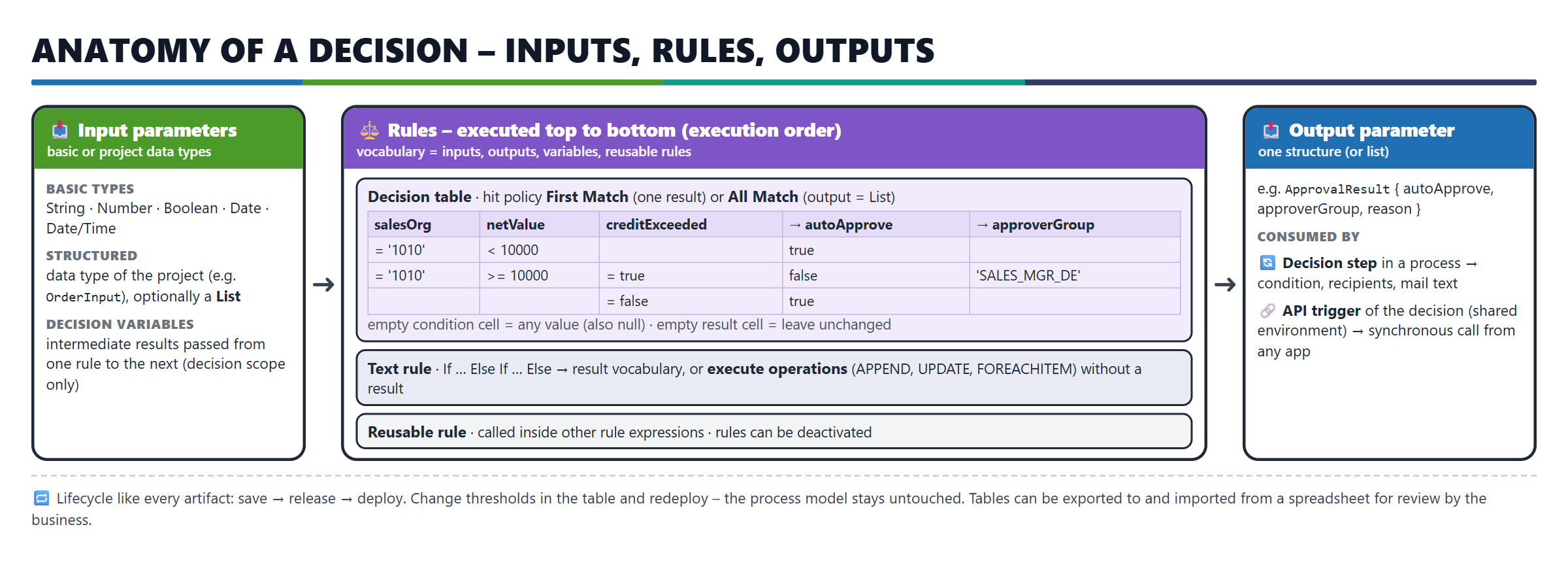
Concept | Meaning |
|---|---|
Input parameters | Typed inputs (basic: Boolean, Date, Number, String, Date/Time, or a project data type; optional List) |
Output parameter | The result structure (or a list for All Match); can be Same as Input to enrich the input |
Decision variables | Intermediate results of one rule reused by another; visible only inside the decision |
Vocabulary | Everything a rule can use: inputs, output, variables, reusable rules |
Rules | Decision tables and text rules, executed in the execution order of the Rules tab (move up / down) |
Reusable rule | Rule category whose result is used inside other rule expressions (a text rule with execute operations cannot be reusable) |
Decision diagram | Graphical view from inputs via rules to the output; click a node to see details |
8.1 Building a decision
- Create the data types first, then Overview › Create › Decision (name, identifier, description).
- Inputs/Output tab: Create Input Parameter for each input, Create Output Parameter for the result.
- Rules tab › Create Rule: Rule Type (decision table or text rule – cannot be changed later), name, category (orchestrated or reusable), hit policy, then condition and result columns from the vocabulary.
- Fill rows, Save, check the Design Console; rules can be duplicated, deactivated (skipped at runtime, still editable, changes the execution order) and re-configured.
- Generate in Decision (generative AI): Explain this Decision and Generate Rule from a prompt (max 1,000 characters, using only the decision's parameters), Fix Gaps – deprecated, available until January 2027.
Part 9 – Decision tables, text rules, operators and functions
9.1 Decision tables
- Condition columns ("If") are vocabulary fields or expressions, with an optional fixed operator in the header; result columns ("Then") are fields of the result vocabulary. Rows: Add Row › Insert First / Insert After, copy, cut, paste, delete.
- Hit policy: First Match returns the first matching row – row order matters, put specific rows first and a catch-all last. All Match returns all matching rows – the output must be a List.
- Empty condition cell = matches any value, including blank and null. Empty result cell = the field is left unchanged.
- Export / Import a decision table as a spreadsheet: business experts maintain rows offline, IT imports and redeploys (only the table content is exported).
- Result behaviour with several rules: with the new behaviour (default for new decisions) list results of all rules are appended; in the old behaviour a decision table replaced the list while a text rule appended. Switching an old decision to the new behaviour cannot be reverted.
9.2 Text rules
- With result vocabulary: If … Else If … Else, each Then sets values of the result.
- For execute operations (No Result): Then runs APPEND or UPDATE on parameters or variables, and the loop function FOREACHITEM over a list (with a current-item decision variable and an optional Where filter).
- Use text rules for few, readable conditions; decision tables for many combinations that the business maintains.
9.3 Operators
Group | Operators | Example |
|---|---|---|
Comparison |
| order.netValue >= 10000 |
Logical |
| customer.country = 'US' OR customer.country = 'CA' |
Mathematical |
| order.amount * order.taxRate |
Range |
| score IN [1..10) |
Array | EXISTSIN NOTEXISTSIN | salesOrg EXISTSIN ['1010','1710'] |
String |
| name MATCHES 'Jo.*' |
9.4 Functions
Group | Functions (selection) |
|---|---|
Time and duration |
|
Select |
|
Aggregate |
|
Advanced |
|
Loop / execute |
|
- Autosuggest (Ctrl + Space) lists only the operators and functions that fit the expression; list inputs cannot be condition headers but can be used inside cells, e.g.
'BLR' EXISTSIN SELECT(Employees).
Part 10 – Using decisions: processes, APIs, lifecycle and legacy business rules
10.1 In a process
- Add Process Step › Decision › choose the decision; map each input parameter from the process content. The output structure becomes step output for conditions, recipients, form fields and mail texts.
- Keep thresholds, approver groups and routing in decisions, the flow in the process: a new threshold is a table change and redeploy, not a process redesign.
10.2 As an API
- To call a deployed decision in a shared environment from another application, add an API trigger for the decision – in the decision editor (More › Create an API Trigger; cannot be removed again) or in Control Tower › Environments › Triggers › Add Trigger › API › Execute = the decision.
- The call is a POST to the trigger URL with the decision's input payload, authenticated with OAuth 2.0 client credentials from the service key; it runs synchronously and returns the output – e.g. a CAP service or SAP Build Apps reuses the same discount rule as the process.
- The REST APIs of SAP Build Process Automation ("invoke a decision", workflow and task APIs) are documented on the SAP Business Accelerator Hub; the legacy Business Rules APIs live under
<endpoints.api>/public/rule/runtime/rest(execution) and…/public/rule/repository/rest(authoring).
10.3 Lifecycle and testing
- Decisions are released and deployed with their project (page 07). A changed table = new project version → deploy; plan who is allowed to change decisions in production.
- Testing: the editor validates syntax in the Design Console; test the logic with a test matrix of inputs and expected outputs (Part 11) by calling the deployed decision through its API trigger, or by running the process in a test environment with prepared data. Export the table for a business review.
- Live process projects (Store content) use Manage Decisions: a decision has policies with priorities and rules; Draft → Release Version (x.y.z, each part up to six digits) → Revised Content → Activate; only drafts can be edited (Copy To Draft).
10.4 Legacy: Business Rules of SAP Workflow Management
Legacy – know it for interviews. The Business Rules capability used rule projects with data objects, rule sets, rules and rule services (API entry points), deployable to the cloud runtime or directly to S/4HANA / SAP HANA. Rule projects are exported, imported into SAP Build Process Automation and their rule services redeployed; new rule projects cannot be created there – new logic is modelled as decisions. Rules repository APIs are not exposed, so the rule builder UI control does not work.
Aspect | BRF+ (ABAP) | Decision (SAP Build Process Automation) |
|---|---|---|
Runs in | The ABAP system (S/4HANA, ECC) | SAP BTP, next to the process |
Modelled by | Developers / key users in the BRF+ workbench | Citizen developers and business experts, no-code |
Building blocks | Applications, functions, rulesets, expressions (decision table, tree, formula) | Decisions, decision tables, text rules, reusable rules |
Called from | ABAP code (function call), workflow, output determination | Processes, API trigger |
Typical use | Logic inside one ERP transaction | Cross-system process logic, side-by-side |
Part 11 – Sales Order Approval: forms, decision and test cases
The process (page 03 Part 8) needs one approval form, an optional start form for manual exception requests, and the decision Determine approver.
11.1 Forms
- Start form "Request credit exception" (alternative trigger): Text
salesOrder(Required, custom validation^[0-9]{1,10}$), Dropdowncustomerfrom an action data source, NumbernetValue, Text Areajustification(Required), File Upload for the customer's guarantee letter. - Approval form "Approve sales order": Headline with the order number, read-only fields order, customer, net value, currency, credit limit, exposure, decision reason; Text Area
comment(Required); buttons Approve, Reject and a neutral Send back. - Settings: Subject "Approve sales order 4711" (mapped), Priority High (the approval is time-critical), Recipients =
approverGroup, Allow Forwarding off, Due Date 2 days, attributes order / customer / net value, Notifications › Task Created = custom template, timer event on the due date.
11.2 Decision "Determine approver"
Input OrderCheck (salesOrg string, netValue number, creditExceeded boolean); output ApprovalResult (autoApprove boolean, approverGroup string, reason string). Decision table, First Match:
salesOrg | netValue (EUR) | creditExceeded | → autoApprove | → approverGroup | → reason |
|---|---|---|---|---|---|
< 10000 | true | 'Small order' | |||
= false | true | 'Within credit limit' | |||
= '1010' | > 100000 | = true | false | 'SALES_DIR_DE' | 'Large order over credit limit' |
= '1010' | = true | false | 'SALES_MGR_DE' | 'Credit limit exceeded' | |
= '1710' | = true | false | 'SALES_MGR_US' | 'Credit limit exceeded' | |
false | 'CREDIT_MGMT' | 'No rule for sales org' |
- Row order is the logic: small orders first, then within-limit, then the specific large-order row before the general 1010 row, and a catch-all last so the output is never empty.
- The process reads the output: condition on
autoApprove, recipients =approverGroup; the reason goes into the task description and the rejection mail. Classic analogy: a BRF+ decision table called from a workflow step.
11.3 Test cases
# | salesOrg / netValue / creditExceeded | Expected result | Checks |
|---|---|---|---|
1 | 1010 / 5,000 / true | autoApprove, 'Small order' | First row wins although credit is exceeded |
2 | 1710 / 80,000 / false | autoApprove, 'Within credit limit' | Empty cells match any value |
3 | 1010 / 250,000 / true | SALES_DIR_DE | Specific row before the general row |
4 | 1010 / 50,000 / true | SALES_MGR_DE | General sales-org row |
5 | 1710 / 50,000 / true | SALES_MGR_US | Second sales org |
6 | 2000 / 50,000 / true | CREDIT_MGMT | Catch-all row |
11.4 Common mistakes
- Thresholds as numbers in process conditions instead of the decision.
- No catch-all row in a First Match table – unmatched inputs leave the output empty and the approval has no recipient.
- Relying on Read Only table columns or dropdown data sources for security.
- Individual user IDs as recipients, typed in a different case than the identity provider sends them.
- Extra outcome buttons on a start form, or deleting an outcome without Update Step.
Part 12 – Interview questions
Q1. Which kinds of forms does SAP Build Process Automation offer?
Start (trigger) forms reached by form link or Work Zone tile, form steps and approval forms that become tasks in My Inbox or SAP Task Center, and custom SAPUI5 forms imported by application ID and version (not usable as start forms). Approval forms have Approve and Reject outcomes by default.
Q2. How do outcomes of a form influence the process?
Each button is an outcome with its own branch after the step (Positive, Negative or Neutral style). A start form has no extra outcomes because any button starts the process; deleting an outcome requires removing its branch and Update Step.
Q3. How do you fill a dropdown with live S/4HANA data?
Publish an action project with a GET operation returning an array, tag the output as Main Output Array, add $search for value help, then choose it as data source with a destination variable in the form editor; dependent dropdowns use action inputs. The end user's authorization is not checked.
Q4. Which settings define an approval task?
Subject with the business key, description, priority, recipients (users or groups, often from a decision), allow forwarding, due date (static, dynamic, reference date), Task Center actions and mass action, app navigation, attributes, notification template; timer events react to the due date.
Q5. Why should recipients be groups, and what about user IDs?
Groups from SAP Cloud Identity Services are maintained centrally, so leavers and changes need no process change. Users are matched case-sensitively on the configured subject name identifier (default global user ID); max 100 users and 100 groups per task.
Q6. When do you build a custom SAPUI5 task form and what is required?
For complex UIs or logic. Add the sap.bpa.task namespace (category, outcomes, draft-07 JSON schemas for inputs and outputs) to manifest.json, adapt Component.js and the view, deploy, import by app ID and version, and select new versions explicitly. Task Center actions bypass the app's own logic.
Q7. What is a decision and what are its parts?
A collection of rules automating a business decision: typed input parameters, one output parameter, decision variables, a vocabulary, rules executed in execution order (decision tables, text rules, reusable rules) and a decision diagram. It replaces the Business Rules capability and is the cloud counterpart of BRF+.
Q8. Explain First Match versus All Match.
First Match returns the first matching row, so row order matters and a catch-all row belongs last. All Match returns every matching row and needs a list output. Empty condition cells match any value including null; empty result cells leave the field unchanged.
Q9. Decision table or text rule?
Decision tables for many combinations of the same inputs that the business maintains (also via spreadsheet export / import). Text rules for a few readable If / Else If conditions or for execute operations (APPEND, UPDATE, FOREACHITEM) on lists.
Q10. How can an application outside the process use a decision?
Add an API trigger for the decision in the shared environment and POST the input payload with OAuth client credentials; the call is synchronous and returns the output. The APIs are documented on the SAP Business Accelerator Hub.
Q11. How do you test and change a decision safely?
Validate in the Design Console, run a test matrix of inputs and expected outputs against the deployed decision (API trigger) or a test process, let the business review the exported table, then release a new version and deploy through test to production environments with controlled change rights.
Q12. Scenario: approver thresholds change every quarter. How do you design it?
Put thresholds and approver groups into a decision table (First Match, catch-all row), keep the process flow generic (condition on autoApprove, recipients from approverGroup), let business experts maintain the table via export / import or the editor, and redeploy only the project version – the process model stays unchanged.
🏠 Start Here · ◀ 03 · Processes & Triggers · 05 · Automations & RPA ▶ · Sections: CORE ABAP | OOPS ABAP | ABAP on HANA | Clean Core | RAP | ABAP Points | SAP Fiori | SAPUI5 | Mobile Development (MDK) | BTP Foundations | BTP Development | CAP | SAP Build | ABAP on BTP | Integration Suite | SAP Business AI | SAP BASIS | Security | SAP SDLC
Functional: FICO ABAP | TRM ABAP | VIM | SAP BIS | SD ABAP | MM ABAP | PP ABAP | QM ABAP | PM ABAP | PS ABAP | EWM | TM ABAP | GTM ABAP | EHS ABAP | HR ABAP | BW | SAP Datasphere | SAP Business Data Cloud | SAP MDG | SAP Analytics Cloud | SAP Ariba | SAP CX | SAP IBP