An automation is the robotic process automation (RPA) part of SAP Build Process Automation: a bot that works through user interfaces – SAP GUI, browsers, Windows applications, Excel, Outlook, PDF files – exactly as a person would, plus API, BAPI and document-extraction activities where they help. You design it in the browser (application capture or the recorder, then the automation editor), release and deploy it to an environment, and the Desktop Agent on a Windows (or, for web only, macOS) machine runs it – attended next to a user or unattended on a dedicated machine. This page covers the whole chain at technical-consultant depth: when to use a bot at all, capture and declaration, the editor, SDK packages, the agent and its installation, triggers and agent management, monitoring, security and the architect view. Running example: the Sales Order Approval process (page 03), whose approved orders must also be keyed into a legacy credit tool that has only a Windows user interface. Calling APIs with actions: page 06; processes and triggers: page 03; monitoring of process instances and lifecycle: page 07.
Part 1 – When a bot is the right answer – and when it is not
Why bots at all? Some steps run in applications without an API: an old Windows tool, a supplier portal, an Excel macro, a mainframe terminal. An automation imitates the user's clicks and keystrokes. RPA is the last resort for integration: SAP's own S/4HANA integration guide ranks remote calls (released APIs, OData, RFC, Integration Suite) first and lists UI automation for systems without a remote connector, because a bot is less robust, less scalable, not suited for heavy workloads and breaks when a screen changes (page 06, Part 1).
Use an automation when … | Prefer an action, iFlow or event when … |
|---|---|
The target has no API (legacy Windows tool, web portal of a partner, terminal emulator) | A released API exists on the SAP Business Accelerator Hub (page 06) |
Desktop work around SAP: read Excel / Outlook / PDF, fill SAP GUI screens from them | The data is in S/4HANA and can be read through an OData service or CDS view |
A short-term bridge until an API is available (migration, interim solution) | Volume is high or response time matters – APIs scale, bots wait for screens |
A person must stay in control (attended helper that pre-fills a screen) | The step must be audited under the approver's identity – use an action with principal propagation |
Documents must be read with Document Information Extraction and keyed into a UI | A business event can start the process directly (event trigger, page 03) |
- Tip for interviews: say when you would not use RPA – whenever a released API, an iFlow or an event exists. A bot is a workaround with maintenance cost, not an integration architecture.
- Clean core angle: bots touch S/4HANA only through its UI and leave no code in the ERP, but they depend on screens that change with every upgrade – keep them for the gaps, not as the main interface.
Part 2 – Architecture and building blocks
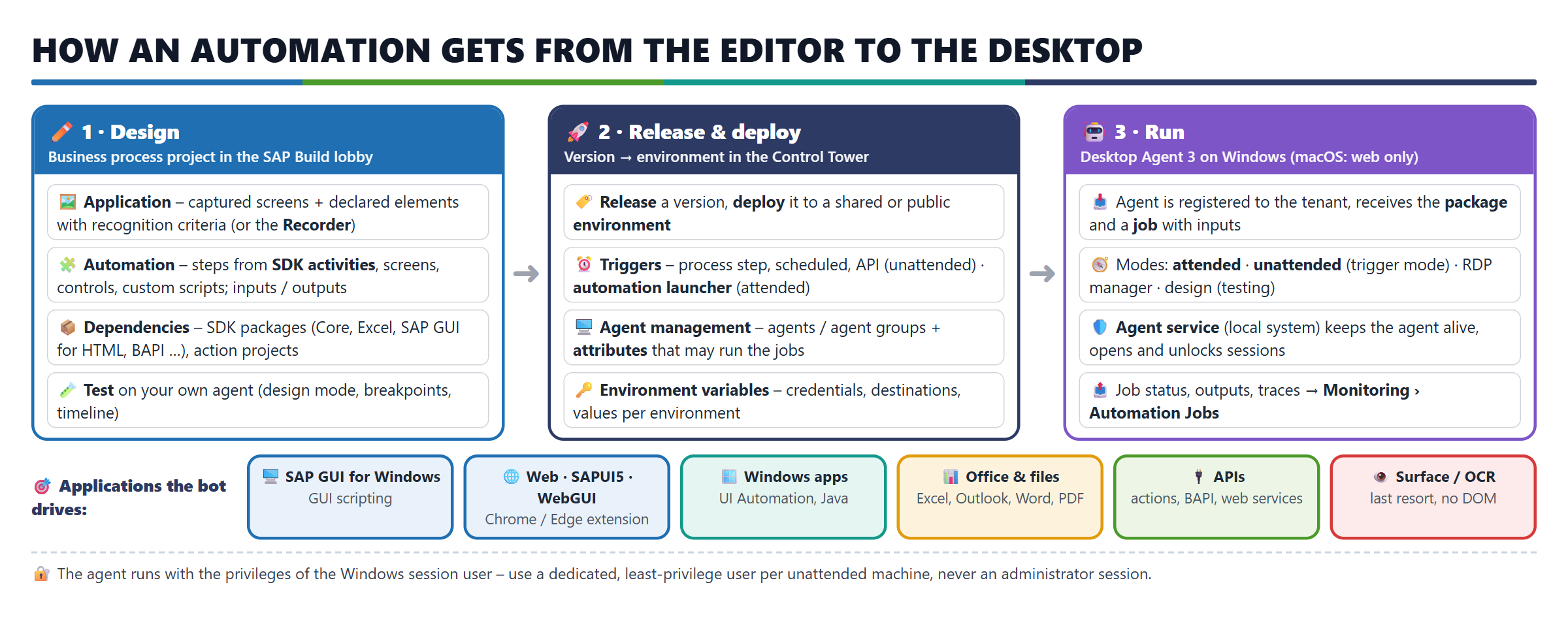
Automations live in a business process project next to processes, forms and decisions (page 03). A process uses an automation as a process step; an automation can also run on its own through triggers or the automation launcher.
Artifact / component | What it is | Where |
|---|---|---|
Application | Captured screens of one application with declared elements and recognition criteria | Project › Create › Application |
Automation | A flow of steps: SDK activities, screen activities, controls, custom scripts, other automations; input and output parameters | Project › Create › Automation (automation editor) |
Data type | Structure used as input / output of automations and processes (can be imported from an Excel file) | Project › Create › Data Type |
SDK package | Versioned library of activities (Core, Excel, SAP GUI for HTML, BAPI …), added as a project dependency | Project properties › Dependencies |
User task / alert / document template / file | Pop-up form for attended bots, alert definition, Document Information Extraction template, attached file | Project › Create |
Automation launcher | Lists the automations a user may start in attended mode (one per project) | Project › Create › Automation Launcher |
Environment | Deployment target with triggers, launchers, agent management, alert handlers, variables and API keys | Control Tower › Environments |
Desktop Agent | On-premise component that receives packages and jobs and drives the applications | User session on a PC, VM or server |
Agent service |
| Installed with the agent (admin rights) |
2.1 Lifecycle in one paragraph
Create the project → capture the application → build and test the automation on your own agent (the agent switches to design mode) → release a version → deploy it to an environment and fill the environment variables → add a trigger (unattended) or configure the automation launcher (attended) and assign agents → jobs run and appear in Monitoring › Automation Jobs. Transport and versioning of projects in general: page 07.
2.2 Legacy names – know them for interviews
- SAP Intelligent RPA (2.0) was the stand-alone RPA product; its cloud designer ("Cloud Studio") became the automation editor of SAP Build Process Automation, and the help still calls the cloud tenant "Cloud Factory" in places. The older Windows-based Desktop Studio projects must be migrated to cloud projects to run on Desktop Agent 3.
- Desktop Agent 2 reached end of mainstream maintenance on 30 June 2024; Desktop Agent 3 is the current agent (SAP now simply calls it "desktop agent"). Agent 2 projects need Core SDK ≥ 1.26 (and PDF SDK ≥ 1.26 if used) before they run on Agent 3.
- SAP Intelligent RPA cannot be used together with SAP Build Process Automation in the same subaccount; Task Automation content in the Store comes from SAP Intelligent RPA and contains only automation artifacts.
Part 3 – Capturing and declaring applications, and the recorder
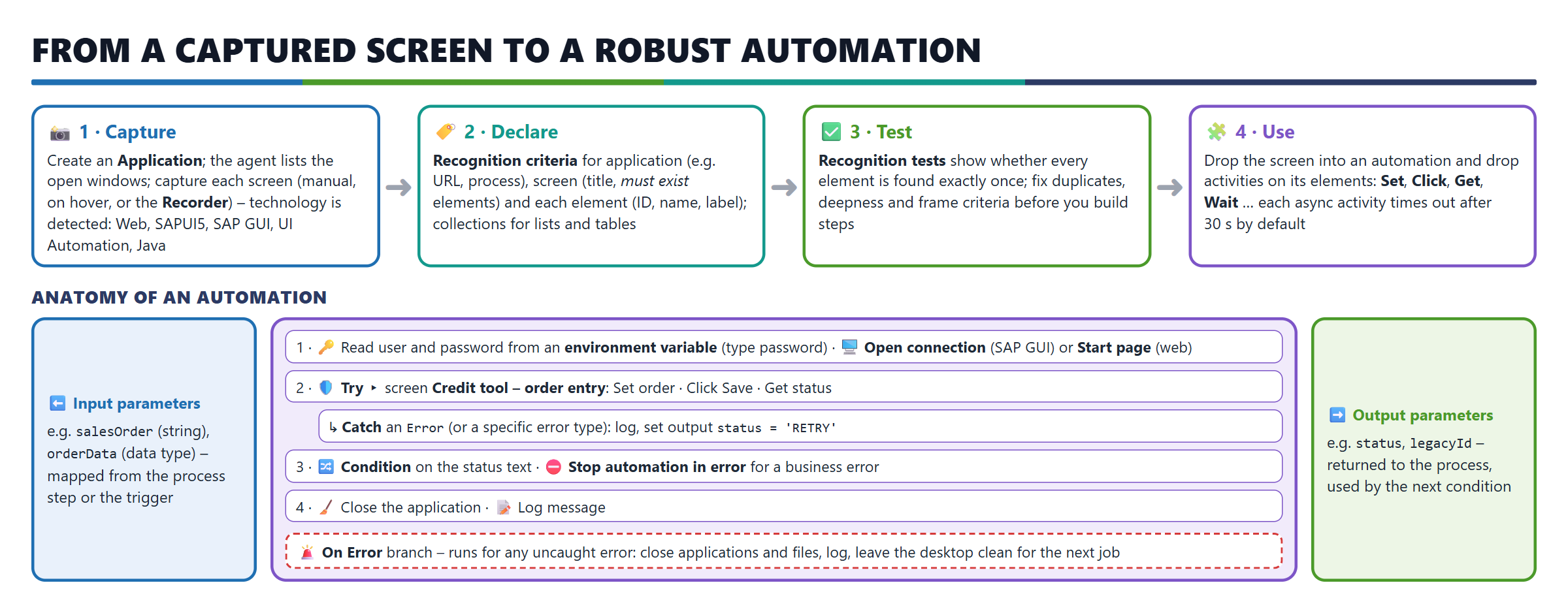
Before a bot can click a button it must recognise the application, the screen and the element at run time. Capturing records screenshots and the technical tree (DOM, UI Automation tree, SAP GUI object tree); declaring means choosing the recognition criteria the agent uses later.
3.1 Capture and declare – step by step
- Prerequisites: the Desktop Agent is registered to the tenant and the Chrome or Edge browser extension is enabled. Project › Create › Application; the agent lists the detected applications and screens on your machine.
- Pick a screen, choose Manual Capture (technology is detected automatically), optionally set capture options, Capture; capture further screens, sub-screens and frames (each frame of a web page is captured separately).
- Declare the application (e.g. domain / URL for web, process name for Windows), each screen (title, URL, elements that must exist or must not exist) and each element (ID, name, label, parent, deepness; collections for lists and table rows).
- Run the recognition tests: every element must be found exactly once; an orange warning means the criteria match several elements. Then Test the application before using it in an automation.
- Guidelines: Windows display scale and browser zoom at 100 % – otherwise highlighting and click coordinates are wrong at run time.
3.2 Supported technologies
Technology | What it automates | Notes |
|---|---|---|
Web | HTML pages in Chrome and Edge tabs (one tab = one application instance) | Browser extension required; the only technology on macOS; Internet Explorer only with the legacy Agent 2 |
SAPUI5 | Fiori / UI5 apps – an extension of the web technology with UI5 control semantics | SAPUI5 SDK activities |
SAP GUI | SAP GUI for Windows through the SAP GUI Scripting API | Scripting must be enabled on client and server; 64-bit agent drives 32- and 64-bit SAP GUI |
SAP GUI for HTML | WebGUI transactions in the browser | SAP GUI for HTML SDK; authorization object |
UI Automation | Windows desktop apps: Win32, WinForms, WPF, MSAA-based technologies such as Qt | Microsoft UI Automation protocol |
Java | Java Swing and JavaFX applications on Windows | Desktop Agent 3 with the V3 extension; 32- and 64-bit JDK 11 environment variables |
Surface automation | Image recognition and OCR when no technical tree is accessible | Only on UI Automation sub-screens; English, French, German OCR; same scaling at design and run time |
Emulator (HLLAPI) | Terminal / mainframe screens through a third-party emulator | Desktop Agent 3 on Windows |
3.3 SAP GUI scripting – the prerequisite everyone forgets
- Server side: transaction RZ11, profile parameter
sapgui/user_scripting=TRUE(if you get "Exception has been thrown by the target of an invocation", also setsapgui/user_scripting_set_readonly=FALSE). Scripting is off by default – SAP recommends enabling it only for the users who need it. - Client side: SAP GUI options › Accessibility & Scripting › Scripting › Enable scripting (the notification options are not needed for bots).
- Use a supported SAP GUI for Windows release; applications can change between releases and some controls are not scriptable (SAP Note 587202). If the
DllSurrogateregistry value of SAP GUI is missing after a SAP GUI update, the 64-bit agent sees SAP GUI as a plain UI Automation app (SAP Note 3422846).
3.4 The recorder
The recorder captures screens and generates the automation steps while you perform the transaction, instead of declaring everything by hand. It supports SAP GUI for Windows, SAP GUI for HTML, SAPUI5, SAP SuccessFactors, SAP Ariba, Web Dynpro, generic web pages and UI Automation (desktop) applications – and can mix web technologies in one recording session.
Capture mode | Behaviour |
|---|---|
Automatic (default) | Captures every new or changed screen by itself – SAP GUI for Windows (from SAP GUI 7.70 patch 3), UI Automation, WebGUI, SAPUI5, SuccessFactors, Ariba, SAP Business ByDesign, Concur; not for non-SAP web pages |
Manual | First screen automatic, later screens only when you choose New Screen Capture after a capture hint – skipping captures produces a wrong automation |
On Hover | Capture menus and hover-only controls with hover + Ctrl or Shift |
- Workflow: Record → perform the steps (an action appears after Enter, i.e. after the server round trip) → Stop → Export into a new automation or append to an existing one; then refine the generated steps, screens and elements.
- SAP GUI for Windows: the recorder generates Open Connection (connection name exactly as in SAP Logon), Click Sync on buttons and Set Busy Wait Time for busy sessions. Passwords are recorded as
****– replace them with a parameter or environment variable of type password. - WebGUI recordings can batch actions on one screen (Optimize for faster execution in the test dialog) – switch it on only for finished automations, not while debugging.
Part 4 – Designing automations in the automation editor
The automation editor is a no-code canvas. The side panel offers Automations (reuse other automations), Screens (captured screens), Activities (from SDK packages), Data Types, Processes (start a process from a bot) and Controls. Each step has input parameters, output parameters and a step name.
4.1 Data
- Input / output parameters of the automation: simple types, data types or
any, optionally lists; names alphanumeric, starting with a letter. They are the interface to the process step or trigger. - Variables of each step (referenced as
Step3.status), set and changed with the expression editor; dates, enumerations and list functions are available there. - Environment variables (project properties): placeholders for values per environment – texts, numbers, passwords, destinations, data types; values are set at deploy time (text and password up to 256 characters).
4.2 Controls
Control | Purpose |
|---|---|
Condition | Branches defined by expressions; the default branch catches the rest |
For Each · Repeat · Forever · Loop End | Loop over a list, a fixed number of times or until a condition; leave a loop early |
Screen Switch | Branch on which screen appeared (e.g. error pop-up vs next screen) |
Type Switch | Branch on the type of a variable |
Try / Catch | Catch errors of the steps in the Try branch; one Catch per error type ( |
Stop automation in error | Raise a business error with your message inside a condition branch |
End | Stop the automation successfully |
Custom script | JavaScript (ES6) step with its own inputs and outputs |
Group | Visual grouping of steps |
4.3 Custom scripts
Use a custom script only when no SDK activity exists – SDK activities are versioned and deprecated with notice, scripts are not, and SAP support cannot debug large scripts. Typical use: build the options object for Call Web Service with Destination, transform JSON, compute values.
|
- Several outputs are returned as a map:
return { status: 'OK', count: 3 };. SDK activities are called as<alias>.<module>.<activity>(), project artifacts as$.myApp. - Put
awaitin front of every asynchronous SDK call inside a script – otherwise you get unhandled rejections or a crashed job. - Review scripts and regular expressions in recognition criteria before release: the tenant cannot detect harmful code, and badly written regex can consume exponential CPU.
4.4 Structuring large automations
- Generate a Sub-Automation from two or more continuous steps (right-click) – reusable, testable, keeps the main flow readable.
- Trigger as a new job on a sub-automation step: it runs as a separate job, possibly on another agent (not visible in test mode).
- Option Can only be started from another automation when creating an automation: no own trigger or launcher entry.
- Add a Process to an automation: the bot starts a process of the same or a dependent project (it only triggers it, it does not wait for it).
4.5 Error handling
Mechanism | Use it for |
|---|---|
Try / Catch | Known, local errors – element not found, wrong Excel range – handled on a side branch; |
On Error node (Error tab of the canvas) | Any uncaught error: log, take evidence, close applications and files so the next job starts clean; all variables of the main flow are visible |
Stop automation in error | Business errors ("credit tool rejected the order") that should fail the job with a clear message |
Timeouts | Asynchronous screen activities (Click, Get, Set) and Call Web Service wait 30 s by default – change in Automation Details › General › Advanced Settings or per activity |
Wait Until Screen Responds | UI Automation apps that hang in a busy state after an action |
4.6 Testing and debugging
- Test opens the tester panel: choose the environment that contains your local agent, enter input parameters (and environment variable values), optionally show event logs. The agent switches to design mode and returns to its previous mode after 30 minutes of inactivity.
- Breakpoints on steps; debugging toolbar Resume (F8), Step over (F9), Step into (F10), Step out (Shift+F1), Stop (Shift+F8); watch variables, see the timeline with the failing step in red.
- Sales Order Approval bot – design summary: input
salesOrder,customer,amount; read the credit tool's user and password from environment variables of type password; Try: open the tool, enter the order, save, read the status message; Catch: log and set outputstatus; On Error: close the tool; outputstatusandlegacyIdback to the process, where a condition handles failures.
Part 5 – SDK packages and the activities you use most
Activities come from SDK packages that you add as project dependencies (the mandatory ones are added when you create the first automation or capture). Each package is versioned; Update all SDK in the dependencies tab moves a project to the latest versions, and a project declares the minimum agent version that may run it (Project properties › Agent Version).
SDK package | Typical activities |
|---|---|
Core SDK | Logs, waits, clipboard, files and folders, dialogs, alerts, Call Web Service (with or without destination), API access token for S/4HANA Cloud, local agent variables and credentials, command line |
SAPUI5 SDK · SAP GUI for HTML SDK | Control-aware activities for Fiori / UI5 and WebGUI screens |
Excel · Word · Outlook · PowerPoint SDK | Open workbook, read / write ranges, sort, filter, mail send / read / move, documents; Excel "(from file)" activities work without the Excel application and on macOS |
PDF SDK | Open PDF, read text and tables, regular expressions |
Document Information Extraction SDK | Online OCR, extraction with pre-trained models or templates (replaces the deprecated extraction activities of the PDF SDK) |
SAP BAPI SDK | Call BAPIs and RFCs from a bot; BAPI action group generates data types for a selected BAPI |
SAP Ariba · SAP SuccessFactors SDK | Activities for these SAP cloud UIs |
Google Workspace · Google Authorization · Document AI · Vision AI · Cloud Storage | Google services with OAuth or service-account authentication |
Microsoft 365 Cloud SDK | Office 365 cloud services, authenticated through an Azure application registration |
Web SDK · Java SDK | Additional web and Java technology activities |
- Activity status: beta (hidden unless "Include unreleased activities"; never in production) → active → deprecated (warning, substitute named) → decommissioned (gone). Check deprecations before each SDK update.
5.1 Activities worth knowing in detail
Activity / feature | Key facts |
|---|---|
Call Web Service with Destination | HTTP request through a BTP destination added in the Control Tower; the |
Get SAP S/4HANA Cloud API Access Token | Attended bots call S/4HANA Cloud OAuth APIs as the logged-on business user instead of a technical user; returns a CSRF token for POST / PUT / DELETE, session valid 30 minutes; terminate the session at the end |
Local agent variables | Small values kept between runs in the Windows registry of the agent machine (up to 100 per project); not for passwords or personal data |
Local agent credentials | Login + password in the Windows Credential Manager (prefix |
Raise Alert | Raises an alert defined in the project (message with parameters, severity); an alert handler in the environment sends e-mails (up to 50 dynamic recipients) |
BAM activities | Business Activity Monitoring: start / split / stop timers, counters and notify messages; downloadable as CSV from Monitoring › Automation Overview |
Actions in automations | Add an action project as dependency – actions appear as action groups in the tools panel (proxy and certificate handling via the Core SDK); RFC actions cannot be used in automations (page 06) |
5.2 BAPI calls from a bot
- The BAPI SDK calls BAPIs and RFCs from the agent machine (SAP connection or SSO, Microsoft C++ runtime on the machine). The BAPI action group UI picks a BAPI and generates its data types (no nested structures).
- Architect view: a BAPI call needs an agent machine and every bot run is metered – for system-to-system calls prefer an RFC action or an Integration Suite iFlow (page 06); use the BAPI SDK when the bot anyway runs on the desktop and needs one call in the middle of UI work.
5.3 Document processing
With the Document Information Extraction SDK a bot reads invoices, purchase orders, payment advices or custom documents: Open Document (Online OCR) for scanned documents, Extract Data (Pre-Trained Model) for standard document types, or a document template with a schema (Invoice, Purchase Order, Payment Advice or Custom; sample document up to 50 MB and 100 pages, PDF / JPEG / PNG / TIFF). The Document Information Extraction service is available only in the regions listed in the SAP Discovery Center.
Part 6 – The Desktop Agent: install, register, update
The Desktop Agent is installed per user session, not per machine: it is identified by machine name and session user, and it runs with that user's privileges. As of November 2026 Desktop Agent 3 runs on Windows 10 / 11 and Windows Server 2016 / 2019 / 2022 (Windows 11 and Server 2022 are the reference platforms) and on macOS 14 / 15 for web automation only; Windows needs .NET Framework 4.7.2 or higher, and the browser extensions for Chrome and Edge are installed with the agent.
6.1 Installation
- Download repository: an administrator creates a user in the Repository-Based Shipment Channel (RBSC) and stores its secret ID in Control Tower › Agent Update (the secret ID expires every six months and is regenerated automatically by default).
- Control Tower › Agents › Go to Download Page → setup for your OS.
Install mode | Folder | Use it for |
|---|---|---|
All users / per machine (admin rights) |
| Unattended machines, RDP servers – recommended |
Current user (no admin rights) |
| Developers and attended users |
- Enable the browser extension (Chrome: extensions page; for unattended runs also "Continue running background apps"), then Register Agent and Activate the tenant in the agent.
- Register manually: Control Tower › Agents › Register New Agent › Copy → in the agent › Tenants › Add Tenant, paste the URL into Domain, save, activate and authenticate in the browser.
- Mass roll-out: a PowerShell script started from a Run registry key installs the agent silently (
/S) at first logon, with anagentSettings.jsonand amass_registration.json:
|
6.2 Agent service and unattended sessions
- The agent service (
SAPDesktopAgentService.exe, local system identity) is required for unattended mode: it keeps the agent running, opens the Windows session at boot and unlocks it when an activity needs the real screen (keystrokes, mouse clicks, maximize, focus). - Store the session credentials: agent › Settings › System › Open and unlock session automatically with user and password, or as administrator
cxStoreCred userId=DOMAIN\User password=… type=UNLOCK(password shorter than 32 characters). Credentials stay in the local "Session 0" credential store and are never sent to the cloud. - Automatically Start at Windows Logon and Reopen session after (minutes) keep sessions alive even when local policies log users off.
- RDP Manager mode: one agent opens and supervises several Windows RDP sessions (checks every 30 seconds, retries twice) in which other agents run bots – the answer to "the screen is locked". An agent in RDP Manager mode itself runs no automations; use only one RDP manager per set of connections.
6.3 Agent modes and status
Mode | Meaning |
|---|---|
Attended | The user starts automations from the agent, or launcher events start them; jobs can start even while the agent is disconnected if the project was used in the last two weeks |
Unattended (labelled Trigger mode in current agents) | The agent takes jobs from triggers and processes without user interaction |
RDP Manager | Manages secondary Windows sessions; no own automations |
Design | Set automatically while you test from the editor; back after 30 minutes of inactivity |
- Agent statuses in Control Tower › Agents: Disconnected, Preparing, Idle (connected, no project), Starting, Ready (project loaded), Paused, Running, Busy (maintenance). Check that your agents are connected before running the first job; inactive agents are removed after six months.
6.4 Updates and versions
- New agent versions arrive about monthly (second digit, 3.33 → 3.34) and are distributed automatically after a delay – default 7 days, configurable 0–21 days in Agent Update › Change Settings. Patches (third digit) are pushed immediately.
- Early adopter agents get the new version without delay to test your projects; Managed mode switches automatic updates off and lets you choose the distributed version.
- Support window: an Agent 3 version is supported for six months, after that agents are updated immediately (SAP Note 3152105). The agent service is not auto-updated in current-user installations.
Part 7 – Attended and unattended: triggers, launchers and agent management
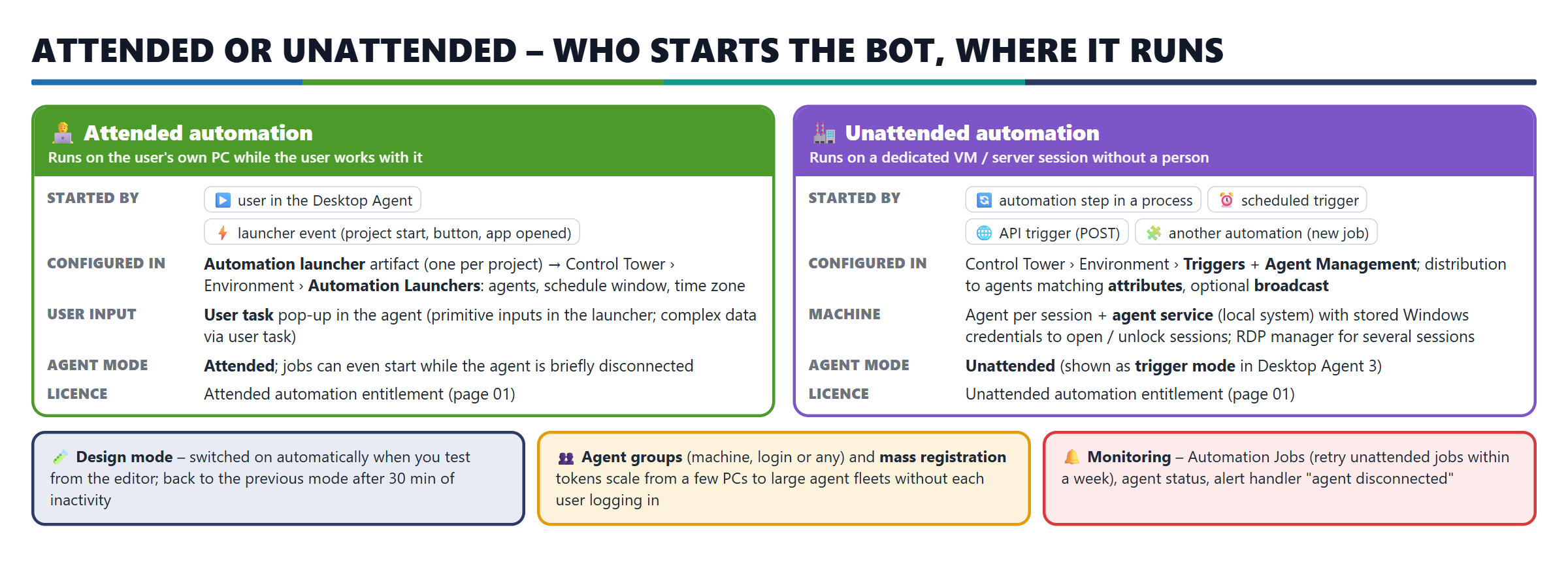
How the bot starts | Mode | Set up |
|---|---|---|
Automation step in a process | Unattended | Process editor › Add › Automation; inputs mapped from the process content; the step waits for the job result |
Scheduled trigger | Unattended | Control Tower › Environments › Triggers › Add Trigger › Scheduled (or in the project); input values, distribution to agents with matching attributes, optional broadcast to all eligible agents |
API trigger | Unattended | Trigger of type API on the automation; an external system starts it with an HTTP POST (OAuth + API key, page 06 Part 8); the response returns the job ID |
Another automation | Unattended | Sub-automation with Trigger as a new job |
Automation launcher – manual | Attended | User starts the bot from the Desktop Agent within the configured time window |
Automation launcher – events | Attended | Event such as project start, button click or application opened starts the bot automatically |
- Broadcast without an attribute filter can flood all agents with jobs – always combine it with attributes. Option New job off: no new job while one with the same inputs is still running.
- Automation launchers accept only primitive input types; complex inputs come from a user task pop-up in the bot (user tasks wait until the maximum job timeout).
7.1 Environments and agent management
- An environment is the deployment target: shared environments (created by ProcessAutomationAdmin, shared with developers) isolate projects, versions and configurations; the public environment holds everything deployed without a specific environment.
- Agent Management of the environment lists the agents and agent groups that may receive its jobs; an agent can belong to several environments.
Agent group type | Contains | Typical use |
|---|---|---|
Machine | Computer names – any user on those machines | Pool of unattended VMs |
Login | User logins – only those users | Attended users of a department |
Any | Agents that register with a mass registration token | Large roll-outs; can be mapped to a SAML attribute of the identity provider |
- Single agents for fewer than about 5 users, agent groups for 5–20, mass registration above 20 (SAP's own guidance). Mass registration tokens expire after at most one year, can serve up to 25 agent groups and optionally auto-approve agents (less secure).
- Agent attributes (defined by ProcessAutomationAdmin; up to 20 attributes with 20 values, 25 characters, case-sensitive) route jobs: e.g.
SAPGUI = 7.80,REGION = EUon the agent, the same filter on the trigger.
Part 8 – Running, monitoring and troubleshooting bots
Where | What you see and do |
|---|---|
Monitoring › Automation Jobs | Every job with status (Ready, Running, Successful, Failed, Canceled, Expired), project and version, environment, machine, login, trigger, duration; cancel Ready jobs; Retry failed, expired or canceled unattended jobs within one week; include test jobs on request |
Control Tower › Agents | Status, mode, version, project, attributes, shared groups; event history as CSV, jobs executed, agent inventory (agent, service, OS, Office, browser, antivirus details) |
Traces / support mode | Activate traces on a trigger or launcher, export them from the job; support mode on the agent for detailed logs |
Alert handlers | E-mails for raised alerts and for the Agent Disconnected event (optionally only after a threshold); SMTP destination required |
Notifiers | API, e-mail or chatbot notifications about job execution on a trigger |
Simultaneous Quota Usage | Attended and unattended jobs running at the same time vs the quota from your entitlements |
Process and workflow instances | For automations called from a process: the process instance in error and its retry – page 07 |
8.1 Typical failures and fixes
Symptom | Likely cause | Fix |
|---|---|---|
Job stays Ready / expires | No eligible agent connected in the environment or attributes do not match | Check agent status and mode (trigger mode), agent management, attributes |
Element not found | Screen changed, zoom not 100 %, wrong criteria | Re-capture, adjust criteria, run recognition tests |
Clicks fail on a server | Session locked or logged off | Agent service with stored credentials, RDP manager |
SAP GUI not recognised | Scripting disabled, | RZ11 / client options; SAP GUI patch |
Agent shows Unregistered / 403 | IP allowlist, missing role collection, wrong tenant URL | Register again with the correct tenant URL; check roles |
Bot works on dev agent only | SDK or agent version differs, minimum agent version | Align versions, update SDKs, redeploy |
Quotas worth knowing (paid tenant, as of November 2026): 100 agents active at the same time, 100 agent groups, 10,000 active job runs, 1,000 triggers; job inputs and outputs are kept for three months. Check "Quotas, Restrictions, and Limits" in the help before sizing.
Part 9 – Security, governance and the architect view
9.1 Security checklist
- The agent has the privileges of the session user – run unattended bots under a dedicated, least-privilege Windows user and a named technical SAP user, never in an administrator session.
- Mistake: a bot posting in SAP GUI under one shared Windows and SAP user – no traceability. Use named technical users per bot or machine and log every run.
- Attended bots with technical-user credentials cannot be told apart in audit logs; SAP recommends principal propagation (e.g. the API access token activity) for attended bots or unattended bots with their own users.
- Passwords belong in environment variables of type password or the local credential store – never in project files, logs or local agent variables. Password variables are protected in the cloud and in transit, but readable by whoever controls the agent session.
- Job inputs and outputs travel between cloud and agent; outputs are visible to ProcessAutomationAdmin. For sensitive data pass a file reference inside the company network instead of the data itself.
- Enable SAP GUI scripting only for bot users; review custom scripts, logging calls and regex before release; keep personal data out of project files.
9.2 Architect decisions
Decision | Recommendation |
|---|---|
API or bot? | API / action / iFlow / event first (page 06); bot only for UI-only systems or as an interim bridge with an exit plan |
Attended or unattended? | Attended for helpers the user supervises and for per-user credentials; unattended for volume, schedules and process steps – needs dedicated VMs, agent service and unattended entitlements |
Sizing | Jobs run one at a time per agent session – size the number of VMs / sessions (RDP manager) from volume × average run time; separate DEV / QA / PROD agents through environments and agent groups |
Robustness | Try / Catch + On Error from the start, idempotent steps (check before create), clear outputs for the calling process, alerts on failure |
Lifecycle | Pin minimum agent version, use early adopter agents to test new versions, schedule SDK updates, keep one automation project per application area |
Licensing | Attended and unattended automations are separate entitlements; since April 2025 SAP Build Process Automation is also part of the SAP Build build-default plan – details on page 01 |
9.3 Third-party RPA: the UiPath add-on
SAP Build Process Automation, foundation add-on by UiPath is an SAP solution extension with its own licence. With it, a process step can call a UiPath automation (designed in UiPath Studio Web, arguments as inputs and outputs) and a queue trigger starts a process when an item is added to a UiPath queue. Identity runs through SAP Cloud Identity Services, and each Identity Services tenant maps to exactly one UiPath organization. Use it when a company standardises on UiPath bots but wants SAP Build Process Automation as the process layer.
9.4 Example: the legacy credit tool in the Sales Order Approval process
After the approval form, an unattended automation step passes salesOrder, customer and amount to a bot in agent group CREDIT_TOOL_VMS (attribute APP = CREDITTOOL). The bot logs on with a named technical user from a password environment variable, enters the order in the Windows credit tool, reads the confirmation number and returns status and legacyId. A condition in the process sends a notification to the sales back office when status is not OK; failed jobs are retried from Automation Jobs after the cause is fixed, and an alert handler mails the RPA team when the VM's agent disconnects. When the credit tool gets an API, the automation step is replaced by an action – the process does not change.
Part 10 – Interview questions
Q1. What is the Desktop Agent and what is the difference between attended and unattended automations?
The on-premise component of SAP Build Process Automation, installed per user session and registered to the tenant; it downloads the project package and runs jobs. Attended bots run on the user's PC and are started by the user or launcher events; unattended bots run on dedicated machines, started by process steps, scheduled or API triggers, and need the agent service to open and unlock sessions.
Q2. When do you use an RPA automation, and when not?
Only when the target has no API or event – legacy Windows tools, partner portals, Excel or e-mail steps, or as an interim bridge. If a released API, an iFlow or an event exists, use it: bots break when screens change, scale worse and are harder to secure and audit.
Q3. Explain capture and declaration.
Capture records screens and their technical tree (DOM, UI Automation or SAP GUI objects) through the agent. Declaration chooses recognition criteria for the application, each screen (including must-exist elements) and each element, so the bot finds them at run time. Recognition tests confirm each element is unique before you build steps.
Q4. What must be configured before a bot can automate SAP GUI for Windows?
SAP GUI scripting on the server (RZ11 sapgui/user_scripting = TRUE, ideally only for bot users) and on the client (Enable scripting), a supported SAP GUI release, and an agent that can reach SAP GUI scripting (64-bit agent, DllSurrogate registry value). The recorder then generates Open Connection with the SAP Logon connection name.
Q5. How do you handle errors in an automation?
Try / Catch for expected errors on specific steps, the On Error branch to log and clean up any uncaught error, Stop automation in error for business errors, sensible timeouts (30 s default for asynchronous activities) and outputs that tell the process what happened. Failed unattended jobs can be retried from Automation Jobs within a week.
Q6. How do you install and roll out Desktop Agents for 50 unattended VMs?
Per-machine installation with admin rights (agent and service, service auto-updated), a silent setup from a logon script with agentSettings.json in unattended mode, registration with a mass registration token into an agent group, session credentials stored for the agent service, attributes to route jobs, and managed or early adopter updates so a new agent version is tested before it reaches production.
Q7. How does a job find the right agent?
The project is deployed to an environment; the environment's agent management lists the allowed agents or groups; the trigger or launcher can restrict distribution to agents matching attributes. An eligible agent must be connected in the right mode with a version at least the project's minimum agent version.
Q8. Where do passwords for the target application live?
In environment variables of type password, set at deployment per environment, or in the local Windows credential store via the local agent credentials activities – never in project files, logs or local agent variables. Session unlock credentials are stored by the agent service locally and never sent to the cloud.
Q9. What changed from SAP Intelligent RPA and Desktop Agent 2?
SAP Intelligent RPA became part of SAP Build Process Automation; its Cloud Studio is now the automation editor inside business process projects. Desktop Agent 2 left mainstream maintenance on 30 June 2024; Agent 3 installs per session without admin rights, updates itself, supports Java and macOS (web), and needs Core SDK 1.26 or higher in migrated projects.
Q10. Scenario: approved orders must also be entered in a legacy credit tool without an API. Design it.
An unattended automation step after the approval passes the order data to a bot in a dedicated agent group; the bot logs on with a named technical user from a password variable, enters the order inside a Try block, returns status and legacy ID, and cleans up in On Error. A condition handles failures, alerts notify the RPA team, and the step is replaced by an action once the tool offers an API.
Q11. Scenario: a scheduled bot runs fine in test but jobs in production stay Ready and then expire.
No eligible agent picks them up: check that the production agents are connected and in trigger (unattended) mode, that they are in the environment's agent management, that the trigger's attribute filter matches the agent attributes, and that the agent version meets the project's minimum version.
Q12. How would you call a BAPI in an automated process – BAPI SDK or something else?
For a system call inside a process prefer an RFC action (RFC destination and Cloud Connector) or an Integration Suite iFlow exposed as an action – no desktop, no bot metering. Use the BAPI SDK only when a desktop bot needs the call in the middle of UI work; the BAPI action group generates the data types.
🏠 Start Here · ◀ 04 · Forms & Decisions · 06 · Actions & APIs ▶ · Sections: CORE ABAP | OOPS ABAP | ABAP on HANA | Clean Core | RAP | ABAP Points | SAP Fiori | SAPUI5 | Mobile Development (MDK) | BTP Foundations | BTP Development | CAP | SAP Build | ABAP on BTP | Integration Suite | SAP Business AI | SAP BASIS | Security | SAP SDLC
Functional: FICO ABAP | TRM ABAP | VIM | SAP BIS | SD ABAP | MM ABAP | PP ABAP | QM ABAP | PM ABAP | PS ABAP | EWM | TM ABAP | GTM ABAP | EHS ABAP | HR ABAP | BW | SAP Datasphere | SAP Business Data Cloud | SAP MDG | SAP Analytics Cloud | SAP Ariba | SAP CX | SAP IBP