A process is only finished when it runs safely in production: approvers must find their tasks, support must see and repair failed instances, process owners want KPIs, and every change must move from DEV to PROD in a controlled way. This page covers that run side of SAP Build Process Automation: My Inbox and SAP Task Center for task processing, the lobby Monitoring applications for technical monitoring, process visibility (visibility scenarios, Process Workspace) for business monitoring, the project lifecycle (release, deploy, versions, environments, transport) and the administration in the Control Tower (roles, API keys, quotas). Running example: the Sales Order Approval process from page 03 (approval form from page 04, release action from page 06). Facts are as of November 2026.
Part 1 – The run side at a glance
Once a project version is deployed into an environment, it creates runtime objects: process instances, user tasks (work items), automation jobs on Desktop Agents and – if a visibility scenario is deployed – visibility events. Three groups of people work with them, each in its own tool and with its own role collection.
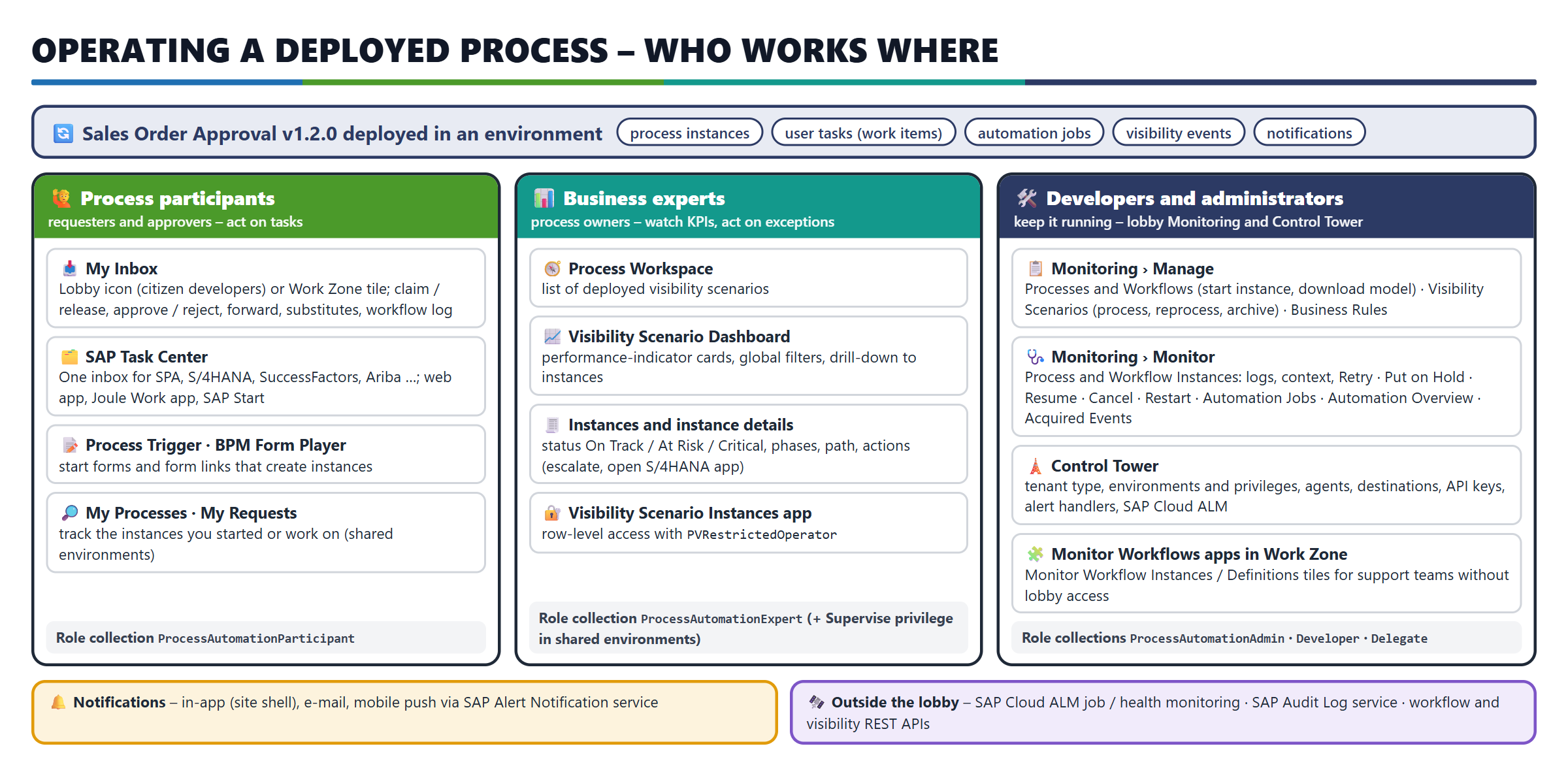
Tool | Who | Where it runs | Typical role collection |
|---|---|---|---|
My Inbox | Approvers, requesters with follow-up tasks | Lobby (citizen developers) or SAP Build Work Zone tile | ProcessAutomationParticipant |
SAP Task Center | Everybody with tasks from several SAP systems | Task Center web app in Work Zone, Joule Work mobile app, SAP Start | Task Center roles + participant |
Process Trigger, BPM Form Player | Requesters | Work Zone tiles, form links | ProcessAutomationParticipant |
My Processes / My Requests | Participants following their instances | Work Zone | Any Process Automation role collection |
Process Workspace, Visibility Scenario Dashboard | Process owners, business experts | Work Zone (also from Monitoring for developers) | ProcessAutomationExpert |
Visibility Scenario Instances | Participants who track requests | Work Zone | ProcessAutomationParticipant or a custom role with PVOperator |
Monitoring (Manage / Monitor) | Support, developers | SAP Build lobby | ProcessAutomationAdmin |
Control Tower | Administrators | SAP Build lobby | ProcessAutomationAdmin |
- Technical monitoring answers "is it running, and if not, why?" (instances, jobs, agents, events). Business monitoring (process visibility) answers "how well does the business process perform?" (cycle time, open requests, violations) – Part 4.
- Most participant and expert tools are HTML5 apps that SAP Build Process Automation delivers into the subaccount; they appear in the HTML5 Apps content channel of SAP Build Work Zone after Update Content in the Channel Manager (Work Zone itself: page 08).
Part 2 – My Inbox, SAP Task Center and notifications
2.1 From approval step to task
Every approval or form step of a process creates a user task (task instance) for its recipients – users, groups, or an expression such as the manager returned by an action. A task has many recipients but only one processor:
Task status | Meaning | How it changes |
|---|---|---|
Ready | Visible to all recipients | Created by the process; back to Ready when the processor releases it |
Reserved | Claimed by one recipient – now only in that user's inbox | User chooses Claim; a single recipient is the processor automatically |
Completed | Decision taken (Approve / Reject or another outcome); process continues | Processor submits the form |
Canceled | Instance was canceled | Administrator cancels the process instance |
- Priority (Low, Medium, High, Very High), due date and subject are set in the task step; the subject should carry the business key, e.g.
Approve order {salesorder} – {netamount} EUR. - The decision is always recorded with the processor's identity – an e-mail link only points to the task, the approval itself happens in the inbox.
2.2 My Inbox
My Inbox is the Fiori inbox of SAP Build Process Automation. Citizen developers open it from the My Inbox icon in the lobby (for testing); process participants use the My Inbox tile in an SAP Build Work Zone site – Work Zone and Process Automation must then run in the same subaccount.
Feature | Details |
|---|---|
Task list | Sort by priority, due date, title, creator; filter by priority, due date, status, creation date; group by title, priority, status, task type |
Claim / Release | Claim makes you the processor (Ready → Reserved); Release gives the task back |
Process the task | Task details with the approval form; actions (Approve, Reject …) at the bottom |
Forward | Pass a task to another user (user search parameter) |
Workflow log | Chronological events of the instance behind the task (user IDs only) |
Substitution | Manage My Substitutes – planned and unplanned (2.3) |
Share via e-mail | Sends a link to the task |
Rate limits | Too many requests show "usage limits are reached" – retry later |
Administrators tune My Inbox with a local copy of the app in the Work Zone Content Manager (Navigation tab, one local copy per display variant):
Parameter | Default | Use |
|---|---|---|
substitution | true | Shows Manage My Substitutes; use together with |
userSearch | true | Allows entering a user ID when forwarding or creating substitutes |
listSize | 100 | Maximum number of tasks loaded |
showLog | true | Shows the Show Log button |
2.3 Substitution
Type | Behaviour |
|---|---|
Planned | You set substitute and period; the rule activates and deactivates itself on the dates; the substitute sees your tasks directly |
Unplanned | For sudden absence; the substitute must activate the rule under Substitute For before tasks arrive |
- The substitute's user ID is case-sensitive – copy the format from Support Information (CreatedBy) of any task.
- Only individual users can be substituted, not role collections. Tasks already claimed by the substitute stay with the substitute after the period ends.
2.4 SAP Task Center – the unified inbox
SAP Task Center federates tasks from many providers into one list, so a manager approves a Build Process Automation request, an S/4HANA purchase requisition and a SuccessFactors change in one place. SAP recommends Task Center as the central inbox for SAP Build Process Automation and offers a feature comparison and transition guide from My Inbox.
Aspect | SAP Task Center |
|---|---|
Access | Task Center web app (tile in SAP Build Work Zone standard or advanced), Joule Work mobile app, SAP Start |
Providers | SAP Build Process Automation (all approval use cases), S/4HANA (on-premise, Cloud Public and Private Edition), SuccessFactors, Ariba Buying / Sourcing, Concur, Fieldglass, Cloud for Customer, Marketing Cloud, Advanced Financial Closing, Work Zone advanced edition, UiPath, third-party providers via an API |
Federation | One destination per provider; Task Center creates a connector and stores tasks in a task cache. Initial pull: tasks of the last 90 days (adjustable to 180 with |
Recipients | Up to 100 users and 100 groups per task are stored; one processor |
Features | Search, sort, filter, Open in App, mass actions, comments, attachments, claim / release, forward, outbox, activity log, substitution management – support differs per provider |
Substitution | Only rules created in Task Center Substitution Management – except rules from My Inbox of SAP Build Process Automation, which are honoured |
Identity | Requires SAP Cloud Identity Services – Identity Authentication with global user IDs; form recipients in Process Automation must be global user IDs (users or group members) |
Service plans |
|
Not covered | SAP ECC tasks are not planned – ECC customers use My Inbox on a central Fiori front-end server |
Decision | My Inbox | SAP Task Center |
|---|---|---|
Task sources | SAP Build Process Automation only | Many SAP and third-party providers |
Clients | Lobby, Work Zone tile | Work Zone tile, Joule Work app, SAP Start |
Setup effort | Low: add the HTML5 app to a role | Higher: IAS with global user IDs, destinations per provider, Task Center subscription |
Best for | Pilot, single-product scenarios, testing | Enterprise rollout with tasks from several systems |
2.5 Notifications
Notifications tell users that a task waits for them. They are delivered through the SAP Alert Notification service and arrive in three channels: in-app (bell icon in the site shell, opens My Inbox or Task Center), e-mail (with a link to the task) and mobile push to the Joule Work app (formerly SAP Mobile Start). Supported events: task created, task forwarded, and a notification step modelled in the process.
- Setup outline: SAP Cloud Identity Services; role collection with
Business_Notifications_Admin; a Work Zone standard edition site with Show Notifications; generate credentials in Site Manager › Settings › Notifications; create the destinationAlert_Notification_Connectivity_ANS(OAuth2ClientCredentials); SMTP mail destination for e-mail. - Destination property
sap.processautomation.notifications.ui=local_inbox(default, My Inbox) ortask_centerdecides which inbox a notification opens. - Mail steps and notification templates inside a process (e.g. the rejection mail to the sales rep) are modelled in the process – page 03.
- Mistake: recipients defined as plain e-mail addresses while Task Center expects global user IDs – the task exists in the monitor but nobody sees it in Task Center.
Part 3 – Technical monitoring in the lobby
The lobby tab Monitoring collects the events of deployed processes, workflows and automation jobs. It needs the ProcessAutomationAdmin role collection (or environment privileges, Part 5). The same views are available as tiles in SAP Build Work Zone.
Section › application | What you see and do |
|---|---|
Manage › Processes and Workflows | Deployed process, workflow and guided-process definitions; Show Instances, Start New Instance (with sample context JSON), Download Model |
Manage › Visibility Scenarios | Deployed scenarios, processing jobs, dashboard link, archive download (Part 4) |
Manage › Business Rules | Manage Rule Projects app for business rules projects imported from the Business Rules capability (live process content) |
Monitor › Process and Workflow Instances | All instances with status, logs, context; Retry, Put on Hold, Resume, Cancel, Restart (3.1) |
Monitor › Automation Jobs | Every bot run: status, trigger, agent machine, duration, traces (3.2) |
Monitor › Automation Overview | Ongoing jobs, agent status, history, logs, alerts, data export |
Monitor › Acquired Events | Events received by process visibility, event errors, business events that started processes (3.3) |
3.1 Process and workflow instances
By default the list shows only instances that are not Completed or Canceled. Search by instance ID, definition, subject, business key or initiator; Adapt Filters adds status, project, definition, hierarchical level (root instances only), started / completed before and after, started by. Filtered URLs can be bookmarked.
Action | When | Effect |
|---|---|---|
Retry | Instance in Error | Re-executes the failed step and continues from there |
Put on Hold | Running or Error | Suspends the instance |
Resume | Suspended | Continues; if it was suspended because of an error, the failed step is retried |
Cancel | Any open instance | Terminates permanently – no retry or restart afterwards |
Restart | Instance should run again | Starts from the beginning with the same inputs; log and context are kept, all steps (also approvals) run again |
- Instance details: Logs (step by step, error messages, download as JSON), Context (copy to clipboard), links to Root, Parent and Definition, View Instances for subflows and task instances – an administrator can change the processor or recipients of a stuck task here.
- If Retry after error is configured for an action, the log shows Remaining Retries and Next Retry Scheduled After before the instance goes to Error.
- Guided processes and variants: only Retry and Cancel are available.
Runtime limit (paid tenant) | Value |
|---|---|
Workflow context size | 100 KB per instance – keep big data out of the context, use subprocess outputs |
Action step | Connect 1 min, socket 3 min, total 4 min; request 512 KB, response 100 KB |
Script task | 150 ms execution time |
Activities per instance | 2,000; then the instance goes to Error; up to 10 retries with 200 additional activities each |
Referenced subflow nesting | 20 levels |
API rate limit | 200 requests per second per tenant and capability |
Typical support case (Sales Order Approval): the release action fails because the destination user in PROD is locked. The instance goes to Error, the log shows the HTTP 401 of the action. Fix the destination (credentials, principal propagation, Cloud Connector), test it in the BTP cockpit, then choose Retry – the process continues with the same context, the approval is not repeated.
3.2 Automation jobs and agents
Topic | Details |
|---|---|
Job status | Ready, Running, Successful, Failed, Canceled, Expired; warning icon when the job has errors |
Filters | Date range, automation, status, project, machine; Include Test Jobs for design-time runs |
Cancel | Jobs in status Ready |
Retry | Failed, expired or canceled jobs younger than one week, unattended, not a child job, package still deployed |
Traces | Screenshots and step details when traces are activated; Export Traces; needs authorization |
Automation Overview | Ongoing jobs (Ready, Running, Pending, Waiting), agents (Idle, Busy, Disconnected …), executed jobs, tenant logs, alerts |
Data Export | Historical job data (2 million records, 2 years), distribution data (30 days), business activity monitoring data (90 days) as CSV – may contain personal data |
Quota usage | Attended and unattended jobs running simultaneously against the entitled quota |
- Common warning: the agent version configured in the project (Settings › Agent Version) is higher than the installed Desktop Agent – lower it, release and deploy again. Agents and RPA in depth: page 05.
3.3 Acquired events
- Visibility Events – events received for visibility scenarios; filter by process definition, instance, event type, timestamp, environment; import a JSON file of events; delete up to 1 million matching events. Events reach a subaccount only if at least one visibility scenario is active.
- Visibility Event Errors – events that could not be consumed, with the error (kept 30 days).
- Business Events – events from S/4HANA and other sources that started processes through event triggers in the last 7 days, with source and payload (event triggers: page 03 / 06).
- Manage Notifications – e-mail when the event count reaches a threshold.
3.4 Alerts and notifiers
Mechanism | Purpose | Configured in |
|---|---|---|
Alert handler | E-mail when an automation raises a business alert (variables such as | Control Tower › environment › Alert Handlers (SMTP destination needed) |
Notifier | E-mail, API call or chatbot message on job start, success, failure, cancel or expiry of scheduled and API triggers | Control Tower › environment › Triggers › Add notifier |
Visibility notifications | E-mail on processing failures and skipped instances of a scenario | Visibility Scenarios › Manage Notifications |
3.5 Monitoring outside the lobby
Channel | Use |
|---|---|
Monitor Workflows apps in Work Zone | Monitor Workflow Instances / Definitions tiles for support teams; restricted to shared environments with a custom role collection (WorkflowAdmin, WorkflowContextViewer, RegistryDelegate, AdvancedUser + Administrate and View Logs privileges) |
My Processes app | Participants see instances they are involved in; shared environments only, instances created after a redeploy on or after 1 May 2025; My Requests variant shows own requests |
SAP Cloud ALM | Destination |
SAP Audit Log service | Security events: logins, unauthorized access, environment / API key / trigger changes; retention 3 months – download what you need for audits |
REST APIs | Workflow APIs under |
Built-In Support | Support icon in the shell bar: knowledge search, chatbot, SAP experts |
Part 4 – Process visibility: visibility scenarios and Process Workspace
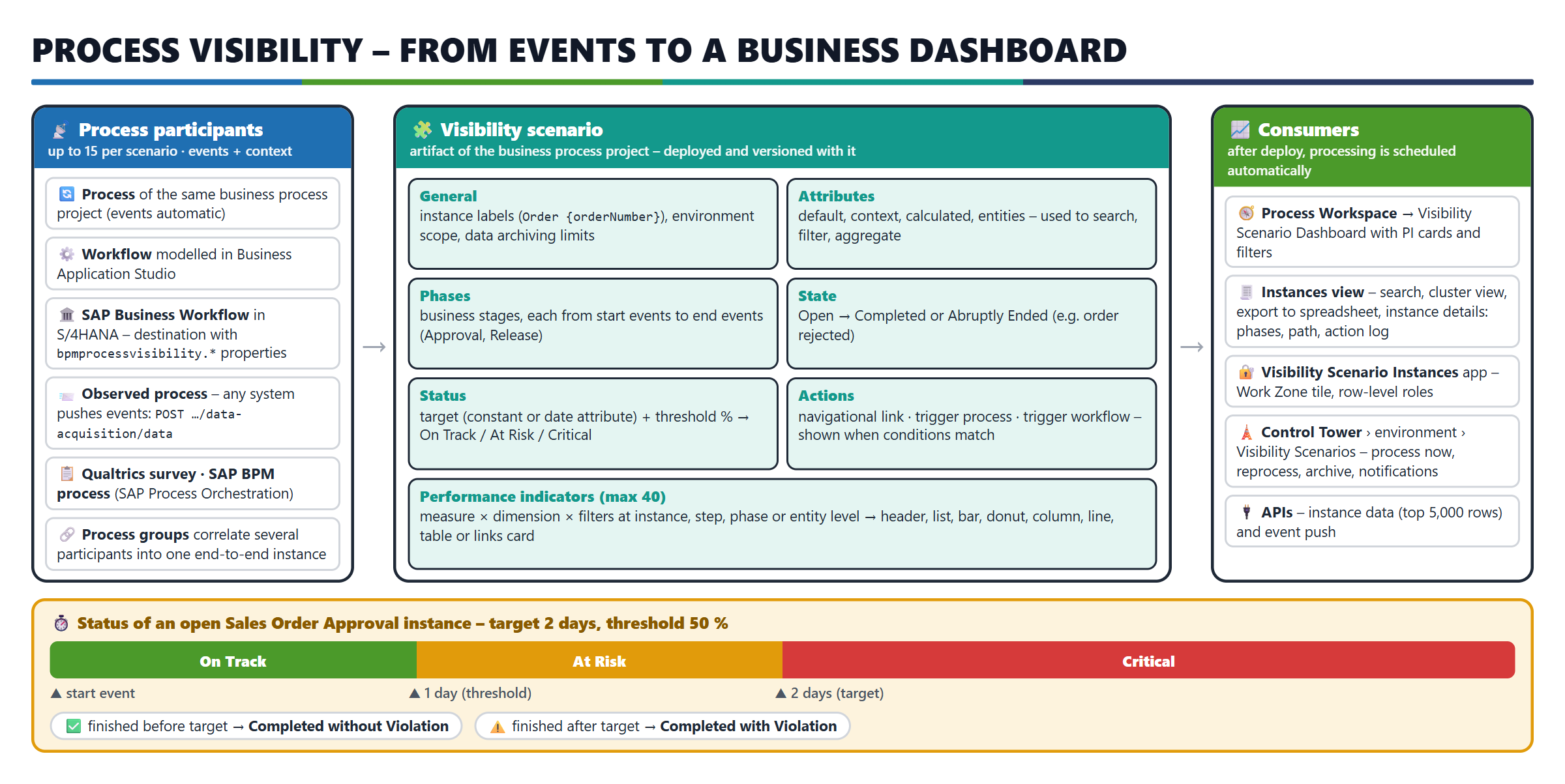
Process visibility gives business users real-time insight into end-to-end processes: how many orders wait for approval, which are at risk of missing the target, how long each phase takes – and lets them act on an instance. It started as SAP Cloud Platform Process Visibility, became part of SAP Workflow Management and is now a capability of SAP Build Process Automation. It is operational monitoring of running instances, not process mining: discovering the real process from historical event logs is the job of SAP Signavio Process Intelligence.
4.1 Create a visibility scenario
- Prepare the process: in the process editor open Process Details › Visibility and add the context fields you want to measure or filter (order number, amount, customer, sales organization).
- Project Overview › Create › Visibility Scenario – name, identifier, description. The scenario is locked for you while you edit; Save unlocks it (or Save and keep lock).
- General tab: Instances Label / Instance Label (static text plus attribute references, e.g.
Sales Order {orderNumber}), Environment Scope (process data across environments – default – or only the environment the scenario is deployed to), Data Archiving Limits (default: archive when more than 1 million completed / abruptly ended instances or older than 24 months), and the switch to include non-correlated processes. - Scenarios exported from SAP Workflow Management (ZIP) can be imported with Import › Visibility Scenario; destinations in phases, attributes and actions must then be re-set with environment variables of type Destination.
4.2 Process participants
Participant type | Where events come from | Notes |
|---|---|---|
Process | Process of the same business process project | Events and context are generated automatically; Reimport after process changes |
Observed process | Any system pushes events: | You define event types, steps (status In Progress, Completed, Failed, Abruptly Ended) and context attributes with their JSON path |
Workflow | Workflow modelled in SAP Business Application Studio | For SAP Workflow Management content |
SAP Business Workflow | Classic workflow in SAP S/4HANA | Destination with |
Qualtrics survey | Survey responses | Experience data next to the process |
SAP BPM process | SAP Process Orchestration BPM | Hybrid landscapes |
- Several participants form one end-to-end instance through process groups with connections (correlation on a common attribute, 1:1 or 1:N). Unrelated processes can share a scenario as non-correlated process groups with mapped common attributes.
|
The event above is pushed by an external credit system (for example through an iFlow in SAP Integration Suite) into the Sales Order Approval scenario; correlation on orderNumber joins it with the approval process of the same order. Limits: 150 KB per event payload, 1,500 correlated events per scenario instance, 25 data-acquisition requests per second per tenant.
4.3 The scenario model
Tab | What you configure | Sales Order Approval example |
|---|---|---|
Attributes | Default attributes (status, cycle time, active phases …), context attributes, calculated attributes (expressions, step information), entities (1:n data such as items) |
|
Phases | Business stages from start events to end events; optional navigation link and exclusion conditions | Approval (form created → form completed), Release (release action started → completed) |
State | Open until a Completed or Abruptly Ended event arrives; the first event starts the instance | Completed = order released; Abruptly Ended = order rejected |
Status | Target (Constant, Attribute with date / timestamp, None) and threshold %; sub-statuses with conditions | Target 2 days, threshold 50 % → At Risk after 1 day, Critical after 2 days |
Actions | Navigational (open an app URL, attributes in | Trigger process "Escalate approval" when Critical; open Manage Sales Orders in S/4HANA with |
Performance indicators | Measure × dimension × filters at instance, step, phase or entity level; representation Header, List, Bar, Donut, Column, Line, Table, Links | Open orders by status (bar), cycle time by sales org (donut), value of open orders (header) |
Status values of an instance: On Track, At Risk (elapsed time above the threshold or an at-risk sub-status), Critical (above the target or a critical sub-status), and after completion Completed without Violation or Completed with Violation.
4.4 Deploy, process and administer
- The scenario is deployed with its project (Part 5); processing is then scheduled automatically – a job correlates acquired events into scenario instances.
- Control Tower › Environments › environment › Visibility Scenarios (also Monitoring › Manage): processing status, events processed and in buffer, Process Now, Reprocess From (data of the last 90 days), Clear Processed Data, delete, Download Archived Data (CSV in a ZIP, kept 2 years), Manage Notifications. Process execution logs are kept 14 days.
- Undeploying the project deletes the runtime data of its visibility scenarios – if several scenarios or environments share a process, use Environment Scope to avoid unintended data loss.
4.5 Consume: Process Workspace and instances
App | Features | Authorization |
|---|---|---|
Process Workspace → Visibility Scenario Dashboard | PI cards, global filters (Adapt Filters, process groups), entity drill-down | ProcessAutomationExpert (or ExpertUser + PVOperator); shared environment: plus Supervise privilege |
Instances view | Free-text search, filters, sort, Cluster View, Export to Spreadsheet, user responsibility filter | as above |
Instance details | Header attributes and actions, phases (start, end, duration), path (graphical / table, parallel branches, step processor, recipients, outcome, due date), action logs | as above |
Visibility Scenario Instances | Instances view and details without dashboard – for requesters who track their own requests | ProcessAutomationParticipant (or PVOperator); Supervise in shared environments |
Dashboard from Monitoring | Navigate to Dashboard icon – intended for citizen developers | ProcessAutomationDeveloper or Delegate |
- Scenario-specific Work Zone tiles: local copy of the Visibility Scenario Dashboard app with parameters
scenarioId,environmentId(shared environments) andmode=SplitView. - Row-level access: custom roles from the template
PVRestrictedOperator(application pvreuseservice) restrict by scenario, by attribute values (e.g.salesOrg = 1010) or by the logged-in user – attribute valuesSBPA_PV_LOGON_NAME(requestor attribute) andSBPA_PV_USER_GROUP(current step recipient groups).
Limit (paid tenant) | Value |
|---|---|
Active scenarios per tenant | 100 |
Process participants per scenario | 15 (process groups: 5, with 5 participants each) |
Steps per scenario | 100 |
Attributes / context / calculated | 260 / 210 / 40 |
Phases / performance indicators / actions / entities | 35 / 40 / 20 / 20 |
Events per tenant | 100 million |
Instances recommended | Fewer than 1 million completed and abruptly ended (dashboard performance) |
Instances OData API | Top 5,000 records per call |
Part 5 – Project lifecycle: release, deploy, versions, environments, transport
5.1 Lifecycle status and versioning
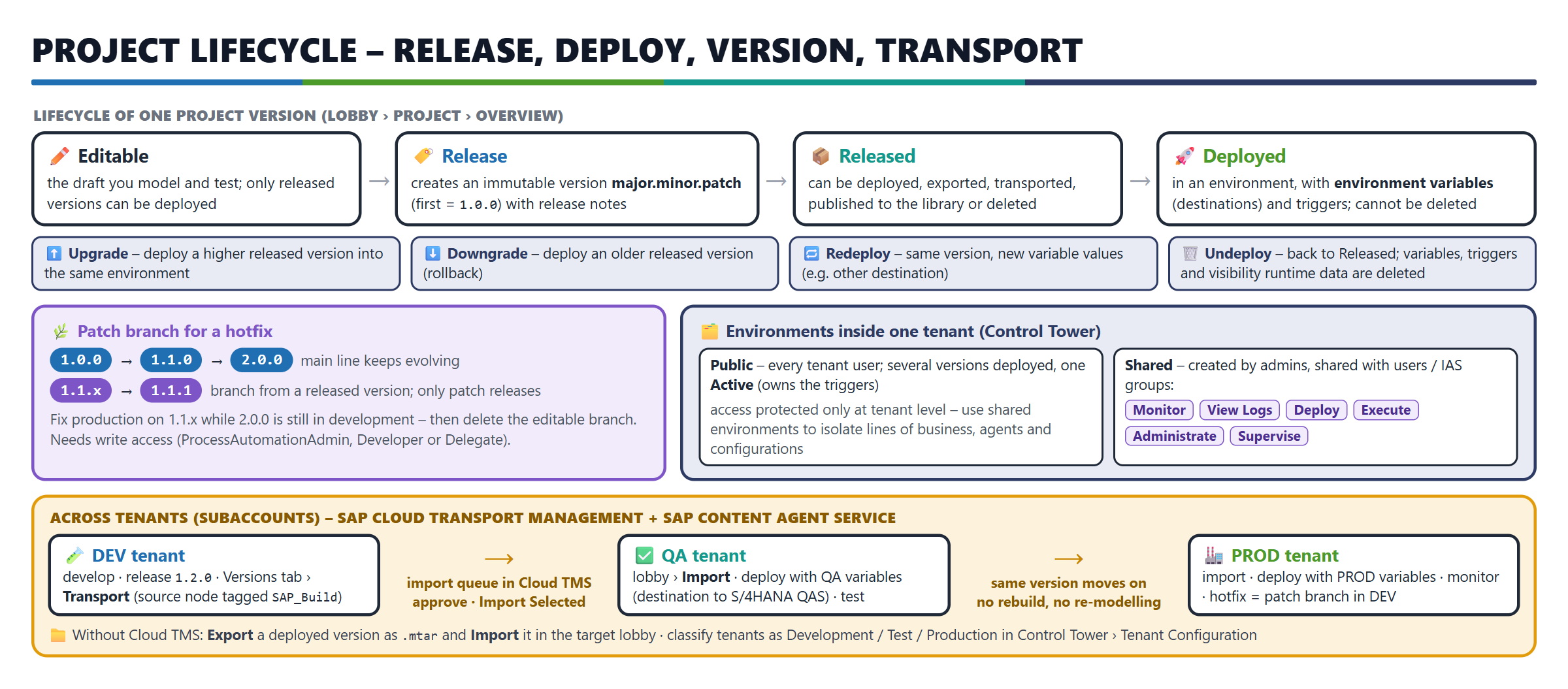
Status | Meaning | Possible next steps |
|---|---|---|
Editable | Draft that you model and test | Release |
Released | Immutable version; created by Release or Import | Deploy, export, transport, publish to library, delete |
Deployed | Runs in an environment with variables and triggers; cannot be deleted | Upgrade, downgrade, redeploy, undeploy |
- Release from the project Overview or the process editor. The first version is 1.0.0; later releases are Contains only patches (1.0.1), Contains minor changes (1.1.0) or Contains significant changes that may break dependent projects (2.0.0). Add release notes per version.
- Optimize for faster execution (projects with the SAP WebGUI SDK dependency) runs actions in batch – only for finished automations, not for debugging. While releasing you can Stop Releasing.
- Patch branch: from a released version (e.g. 1.1.0) when a later version exists, create an editable patch version, fix and release patch 1.1.1 while 2.0.0 continues; delete the editable branch afterwards.
- Restore replaces the editable version with an earlier package of the same major and minor version (not for projects containing decisions).
5.2 Deploy, upgrade, redeploy, undeploy
Operation | What happens |
|---|---|
Deploy | Choose a released version and an environment, fill the environment variables (e.g. destination variable of the S/4HANA actions, file paths, agent settings) – the version runs |
Upgrade / Downgrade | Deploy a higher / older released version into the same environment; warning if triggers are affected. In the public environment several versions can be deployed but only one is Active and owns all triggers |
Redeploy | Same version, new variable values (e.g. switch the destination) – version number unchanged |
Undeploy | Back to Released; environment variables, triggers and visibility runtime data of the project are deleted, job information may be lost (SAP Note 3245676). Needs Administrator authorization on the project; also used before deleting a project |
5.3 Environments
An environment is the functional area in which a project version is deployed and run. The public environment exists in every tenant and is open to every tenant user. Shared environments are created by ProcessAutomationAdmin users (Control Tower › Tenant Configuration › Environments) and shared with users or IAS groups – so one tenant can run the same project with different configurations, agents and users.
Privilege (shared environment) | Allows |
|---|---|
Monitor | View environment, deployed projects, variables, triggers; activate traces |
View Logs | Detailed execution logs (may contain sensitive data) |
Deploy | Deploy and undeploy projects, deploy triggers (plus Monitor rights) |
Execute | Launch forms, processes and visibility scenarios; Run Now of triggers (with Deploy and Monitor) |
Administrate | Add agents and resources, create, edit, share and delete environments (no Execute) |
Supervise | Access the process visibility dashboards and act on instances |
Each environment holds: Projects, Automation Launchers, Triggers, Agent Management, Alert Handlers, Variables, API Keys, Visibility Scenarios, Processes and Workflows. Tip: deploy visibility scenarios to the public environment where possible – shared environments see the same processed data anyway.
5.4 Moving content between tenants
Way | How | Notes |
|---|---|---|
Transport (recommended) | Lobby › project › Versions tab › More options › Transport → choose source node → transport request in SAP Cloud Transport Management → approve in the import queue (Import Selected) → target lobby › Import → deploy with target variables | Needs SAP Content Agent service, a |
Export / Import | Versions tab › Export a deployed version as | Business process projects only, not projects created from the Store; also imports SAP Intelligent RPA exports |
Publish to library | Versions › Publish to Library with line of business and product | Reuse inside the tenant as dependency; every tenant user becomes Viewer |
Sales Order Approval end to end: DEV tenant releases 1.2.0 → Transport → QA tenant imports, deploys with destination variable s4_qas and testers approve via My Inbox → same version transported to PROD, deployed with s4_prd, monitored in Monitoring and Process Workspace. A production bug is fixed in an editable patch version of 1.2.0 in DEV and transported as 1.2.1. Tenants are classified as Development, Test or Production in Control Tower › Tenant Configuration (feature access differs per type).
5.5 Collaboration and dependencies
- Project members: Viewer (read, export, deploy), Developer (+ modify, release, publish), Administrator (+ members and authorizations); general access Everyone with access or Only project members; members can be IAS user groups (needs the
Identity_Authentication_Connectivity_IDSdestination). - Dependencies: SDK packages, action projects and published business process projects; update to a newer published version under project properties › Dependencies – a missing dependency causes validation errors on import.
- Save as New Project copies a business process project; translation files are managed per project.
Part 6 – Control Tower, security, quotas and data retention
6.1 Control Tower
Area | Content |
|---|---|
Tenant Configuration | Tenant type (Development, Test, Production) with name, description and policy link; Environments; Generative AI toggle – the generative AI features of SAP Build Process Automation are deprecated and no longer available from January 2027 |
Agents | Registered Desktop Agents with status, version and mode; agent groups (also mapped to IdP groups), attributes, inventory, mass registration (page 05) |
Destinations | BTP destinations added to Process Automation and associated with all or specific environments (page 06) |
API Keys | Keys per environment or for several environments with scopes, sent as HTTP header |
Backend Configuration | SAP Cloud ALM registration |
Alert Handlers, UiPath | Alert e-mails; UiPath tenant for the foundation add-on by UiPath |
API key scope (examples) | Allows |
|---|---|
| Read API triggers and jobs / execute API triggers |
environment_read | Read environments |
| Download business activity and archived job data |
| Read logs and context of an instance |
| Cancel, suspend, resume; change context |
| Read scenario instances; run processing |
6.2 Role collections and user types
Role collection | Purpose | Standard plan | SAP Build default plan |
|---|---|---|---|
ProcessAutomationAdmin | Configuration, permissions, monitoring, Control Tower | Advanced User | Developer User |
ProcessAutomationDeveloper | Create, edit, release, publish processes and automations | Advanced User | Developer User |
ProcessAutomationDelegate | Access only to granted projects and environments; can supervise dashboards | Advanced User | Developer User |
ProcessAutomationExpert | Business expert: Process Workspace, KPIs, instance drill-down, plus participant tasks | Advanced User | Premium User |
ProcessAutomationParticipant | Start processes, process tasks, track instances | Standard User | Base User |
- The role collections bundle roles of the underlying capabilities (IRPA…, Workflow…, PV…, Rule…, Forms…, Registry…, metering roles AdvancedUser / ExpertUser). Custom role collections must keep the registry and metering roles, otherwise privileges are evaluated wrongly.
- Legacy names (deprecated since May 2022): ITAdmin → ProcessAutomationAdmin, CitizenDeveloper → ProcessAutomationDeveloper, ProcessParticipant → ProcessAutomationParticipant.
- Data separation is per BTP subaccount: several Cloud Foundry spaces with different authorizations still share the same Process Automation data – separate DEV, QA and PROD by subaccount.
- Service plans: standard plan with standard-user and advanced-user entitlements (each includes SAP Build Work Zone, standard edition), attended / unattended automation, extra API calls and storage; since April 2025 also the SAP Build
build-defaultplan (page 01).
6.3 Quotas and data retention
Item | Paid tenant | Free tier |
|---|---|---|
Completed / canceled instance data retention | 6 months | 30 days |
Storage | 100 MB per standard user, 500 MB per advanced user | other quotas |
Projects / project versions | 750 / 5,000 | 20 / 200 |
Processes / forms / decisions / visibility scenarios per project | 100 each | 5 each |
Automation job inputs and outputs | 3 months | – |
Job archives (no business data) | 24 months | – |
Visibility archived data | 2 years from archiving | – |
Audit log (SAP Audit Log service) | 3 months | – |
- Some quotas can be raised with a support ticket. Completed and canceled instances are kept only for the retention period – the lasting record of an approval belongs in the business document in S/4HANA (status, change log, attachment), not only in the workflow history.
Part 7 – Architect view: operating SAP Build Process Automation
Decision | Options | Recommendation |
|---|---|---|
Inbox | My Inbox · SAP Task Center | Task Center for enterprise rollout across systems; My Inbox for pilots and single-product scenarios |
Landscape | Shared environments in one tenant · separate subaccounts | Separate DEV / QA / PROD subaccounts with Cloud TMS transports; shared environments inside PROD to isolate lines of business, agents and supervisors |
Configuration per stage | Hard-coded values · environment variables | Destination and value variables set at deploy time – the same released version runs everywhere |
Business monitoring | Process visibility · SAP Analytics Cloud / Datasphere · Signavio | Process visibility for live, actionable instance KPIs; analytics tools for history and cross-process reporting; Signavio Process Intelligence for mining |
Classic workflow in S/4HANA | SWI1 / SWIA / SWPR in the back end · visibility scenario | Keep technical administration in the back end, add an SAP Business Workflow participant for end-to-end KPIs (classic workflow: CORE ABAP › 12 Workflow) |
Operations | Lobby only · central ALM | SAP Cloud ALM job and health monitoring, alert handlers, notifiers and visibility notifications; a runbook for Error instances (fix cause → Retry) |
Security | Broad · least privilege | Participants only ProcessAutomationParticipant; experts with Supervise on their environment; PVRestrictedOperator for row-level KPIs; API keys with minimal scopes |
- Sizing: count users by type (participant = standard / base, admin / developer = advanced / developer, expert = advanced / premium), simultaneous unattended jobs, API calls and storage.
- Clean core: approvals and monitoring stay on BTP, S/4HANA is called through released APIs and events (page 06); no custom inbox in the ERP.
Part 8 – Interview questions
Q1. Where do approvers process SAP Build Process Automation tasks, and what is the difference between My Inbox and SAP Task Center?
In My Inbox – from the lobby for citizen developers or as a Work Zone tile for participants – or in SAP Task Center. My Inbox shows only Process Automation tasks; Task Center federates tasks from Process Automation, S/4HANA, SuccessFactors, Ariba and third parties into a task cache and is also used by the Joule Work app and SAP Start. Task Center needs Identity Authentication with global user IDs.
Q2. What happens when a user claims a task?
The user becomes the processor, the task changes from Ready to Reserved and disappears from the other recipients' inboxes. Release reverses it. A task has many recipients but only one processor.
Q3. How do planned and unplanned substitution differ?
Planned substitution has a period and activates and deactivates automatically; the substitute receives the tasks directly. Unplanned substitution has no period and the substitute must activate it under Substitute For. Only users, not role collections, can be substituted.
Q4. An instance is in Error. Which actions do you have?
Retry (re-runs the failed step and continues), Put on Hold and later Resume, Cancel (final) or Restart (runs from the beginning with the same inputs, all steps again). First read the log and context, fix the cause – e.g. a destination – then Retry so the context and finished approvals are kept.
Q5. What is a visibility scenario and what does it contain?
An artifact of a business process project that turns events of one or more process participants into end-to-end scenario instances. It defines attributes, phases, states (Open, Completed, Abruptly Ended), status with target and threshold (On Track, At Risk, Critical), actions and performance indicators shown as cards in the Visibility Scenario Dashboard of the Process Workspace.
Q6. How do you get visibility on a process that runs outside SAP Build Process Automation?
Model it as an observed process with its event types, steps and context attributes and let the source push events to the data-acquisition REST endpoint (e.g. from an iFlow). Classic S/4HANA workflows can be added directly as SAP Business Workflow participants through a destination with bpmprocessvisibility properties. Correlation in process groups joins them into one instance.
Q7. How do you restrict a sales manager to the orders of her sales organization in the dashboard?
Create a role from the PVRestrictedOperator template with the attribute salesOrg = her value (or SBPA_PV_LOGON_NAME / SBPA_PV_USER_GROUP for user-based filtering), add it to her role collection next to ProcessAutomationExpert and, in a shared environment, grant the Supervise privilege.
Q8. Explain release, deploy, upgrade, redeploy and undeploy.
Release freezes the editable project into a semantic version. Deploy runs a released version in an environment with variable values. Upgrade or downgrade replace it with a higher or older version; redeploy keeps the version and changes variables; undeploy sets it back to Released and deletes variables, triggers and visibility runtime data.
Q9. What are environments and why use shared environments?
Functional areas where projects are deployed and run. The public environment is open to all tenant users; shared environments are created by admins and shared with users or groups with privileges Monitor, View Logs, Deploy, Execute, Administrate and Supervise – to isolate configurations, agents and users of lines of business inside one tenant.
Q10. How do you move a project from DEV to PROD?
Release it in DEV, transport the version with SAP Cloud Transport Management and the SAP Content Agent service (source nodes tagged SAP_Build), approve the import queue, import it in the target lobby and deploy it with the PROD environment variables. Alternative: export the version as MTAR and import it. Fixes go through a patch branch and the same route.
Q11. Which role collections exist and how do they relate to licensing?
ProcessAutomationAdmin, Developer, Delegate, Expert and Participant. In the standard plan participants count as standard users and all others as advanced users; in the SAP Build default plan participants are base users, admin, developer and delegate are developer users and experts are premium users.
Q12. Scenario: the business complains that nobody knows how long order approvals take. Design a solution.
Add a visibility scenario to the Sales Order Approval project: context attributes for order, amount and sales org, phases Approval and Release, Completed = released, Abruptly Ended = rejected, target 2 days with 50 % threshold, PIs for open orders by status and cycle time by sales org, an escalation Trigger Process action for Critical instances. Deploy with the project, publish a scenario tile in Work Zone for sales managers with row-level roles, and add notifications for processing failures.
🏠 Start Here · ◀ 06 · Actions & APIs · 08 · SAP Build Work Zone ▶ · Sections: CORE ABAP | OOPS ABAP | ABAP on HANA | Clean Core | RAP | ABAP Points | SAP Fiori | SAPUI5 | Mobile Development (MDK) | BTP Foundations | BTP Development | CAP | SAP Build | ABAP on BTP | Integration Suite | SAP Business AI | SAP BASIS | Security | SAP SDLC
Functional: FICO ABAP | TRM ABAP | VIM | SAP BIS | SD ABAP | MM ABAP | PP ABAP | QM ABAP | PM ABAP | PS ABAP | EWM | TM ABAP | GTM ABAP | EHS ABAP | HR ABAP | BW | SAP Datasphere | SAP Business Data Cloud | SAP MDG | SAP Analytics Cloud | SAP Ariba | SAP CX | SAP IBP